
Access Admin Panel
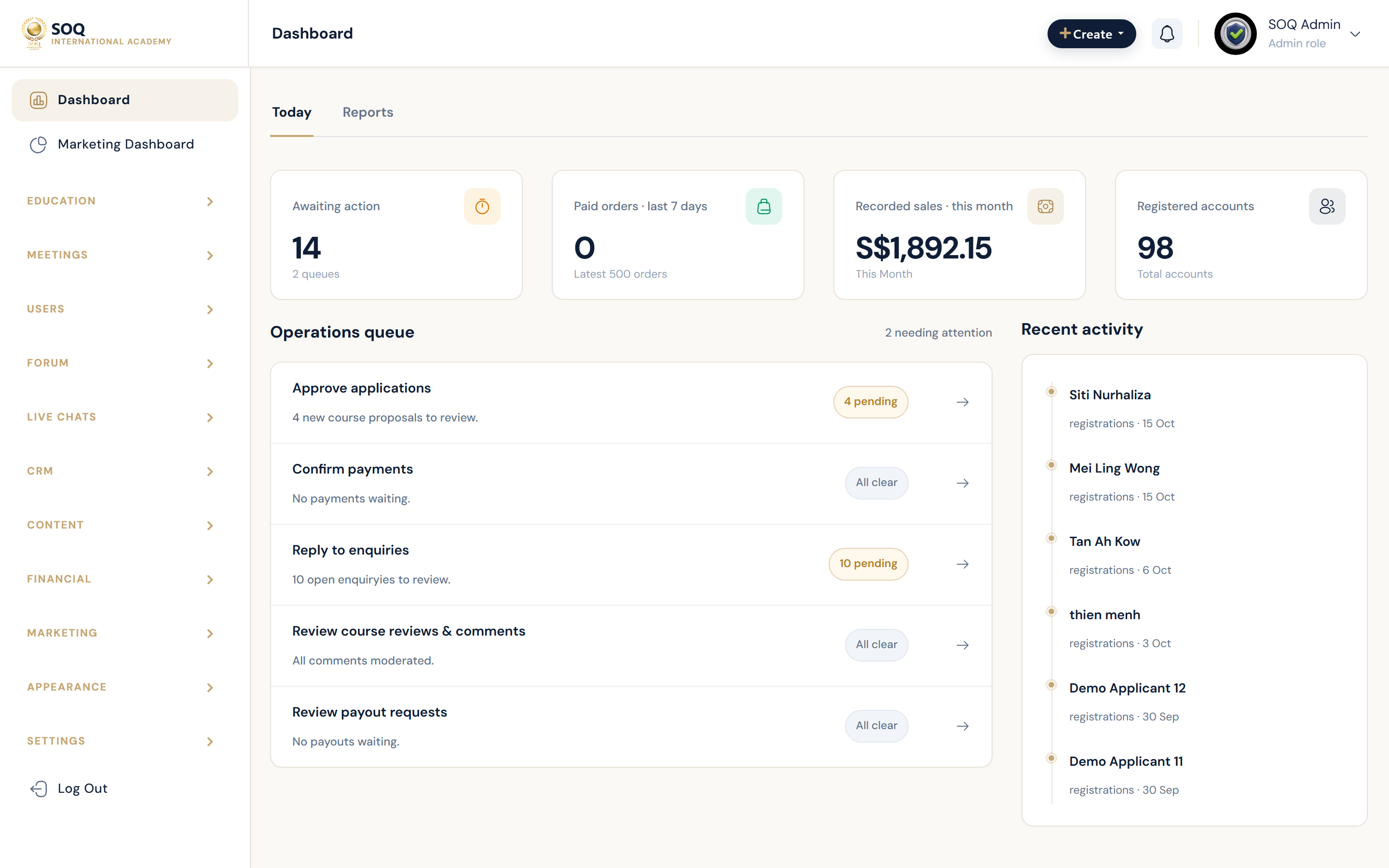
Live screenshot from the SOQ beauty demo (aiacademy.aiee.dev).
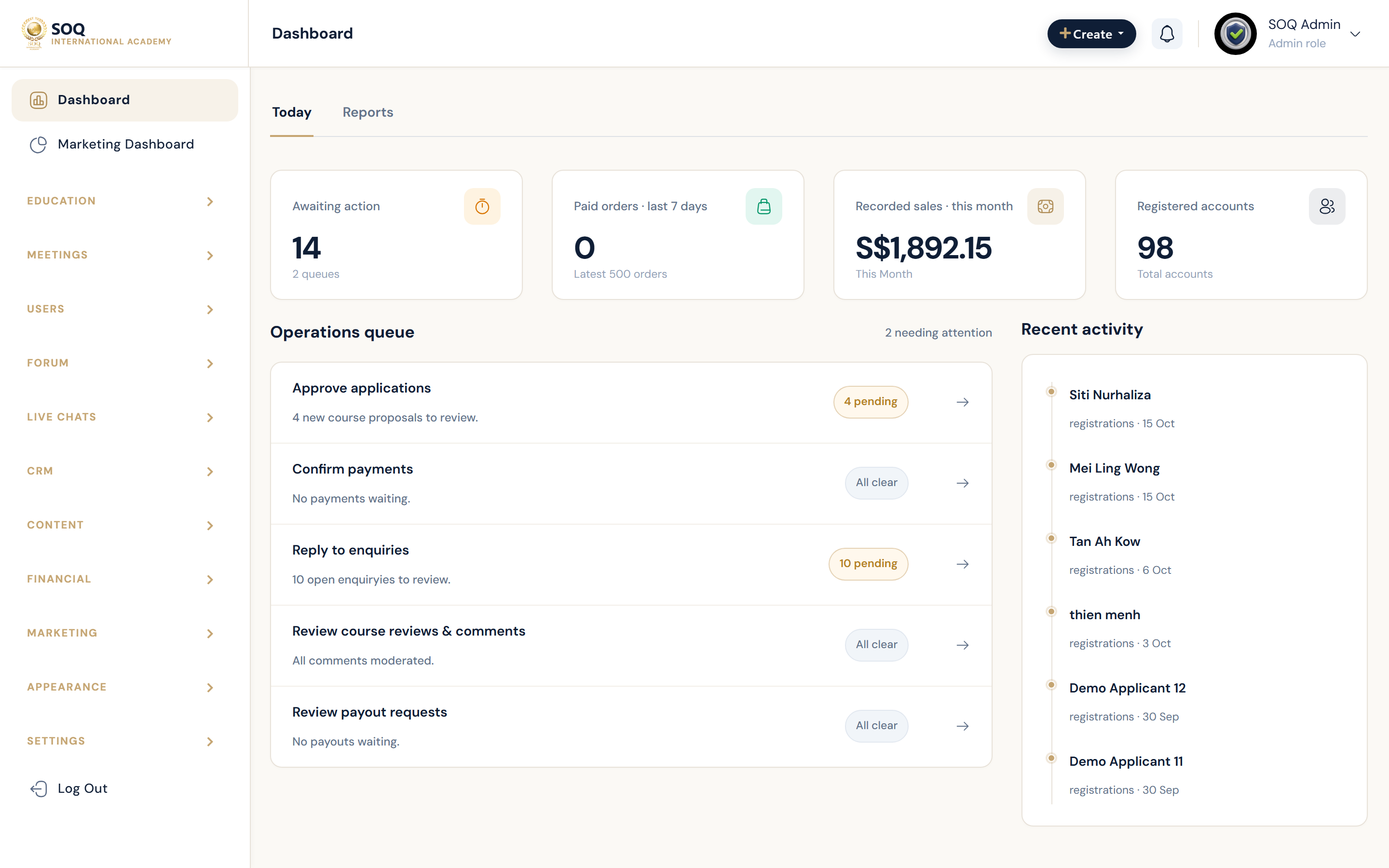
Illustrative screenshot — Admin login - yourdomain/admin. Screenshot controls in this image are not clickable and may not match the current live UI.
Access the admin panel
What this screen is
After installation, administrators sign in at /admin to manage SOQ International Academy.
What you see
Admin login form (email/password). There is no separate "superadmin" role - Admin is the top account.
Field / control guide
- URL: Append
/adminto your site URL (example:https://soq.edu.sg/admin). - Default username:
admin@soq.edu.sg(Beauty demo pack). - Default password:
Demo@1234(change immediately on production). - Admin role: Top-level staff access; staff roles use the Roles permission matrix.
How to complete the task
- Open
https://your-domain/admin. - Sign in with admin credentials.
- Change the default password on production.
- Optionally change the admin path under Settings - General - Security.
Notes / pitfalls: Never leave demo passwords on a live soq.edu.sg deploy. Keep the admin URL private.
All demo accounts
What this screen is
Demo credentials for exploring admin and panel roles. Full 1-click login URLs are on the Demo Accounts page.
What you see
Role, email, password, and destination path for each demo user.
Field / control guide
| Role | Password | Goes to | |
|---|---|---|---|
| Admin | admin@soq.edu.sg | Demo@1234 | /admin |
| Student | student@soq.edu.sg | Demo@1234 | /panel |
| Instructor | trainer@soq.edu.sg | Demo@1234 | /panel |
| Organization | org@soq.edu.sg | Demo@1234 | /panel |
| Hardware partner | demo.hw.*@soq-hw.sg | Demo@1234 | /panel |
How to complete the task
- Pick the role you want to explore.
- Sign in at
/adminor the public login (panel users). - Use Demo Accounts for 1-click links when available.
Notes / pitfalls: Demo accounts exist on demo/seeded installs only - production should use unique staff accounts.
Changing the admin panel URL
What this screen is
Security option to rename the admin path so bots cannot guess /admin.
What you see
Input under Admin Panel - Settings - General - Security tab.
Field / control guide
- Admin path: Lowercase letters and numbers only - no spaces or special characters.
- Save: Updates the URL immediately; bookmark the new path.
How to complete the task
- Open Settings - General - Security.
- Enter a new admin path (lowercase alphanumeric).
- Save and open the new URL to confirm.
- Share the new path only with trusted staff.
Notes / pitfalls: Forgetting the custom path locks you out of the UI - recover via hosting/database if needed.