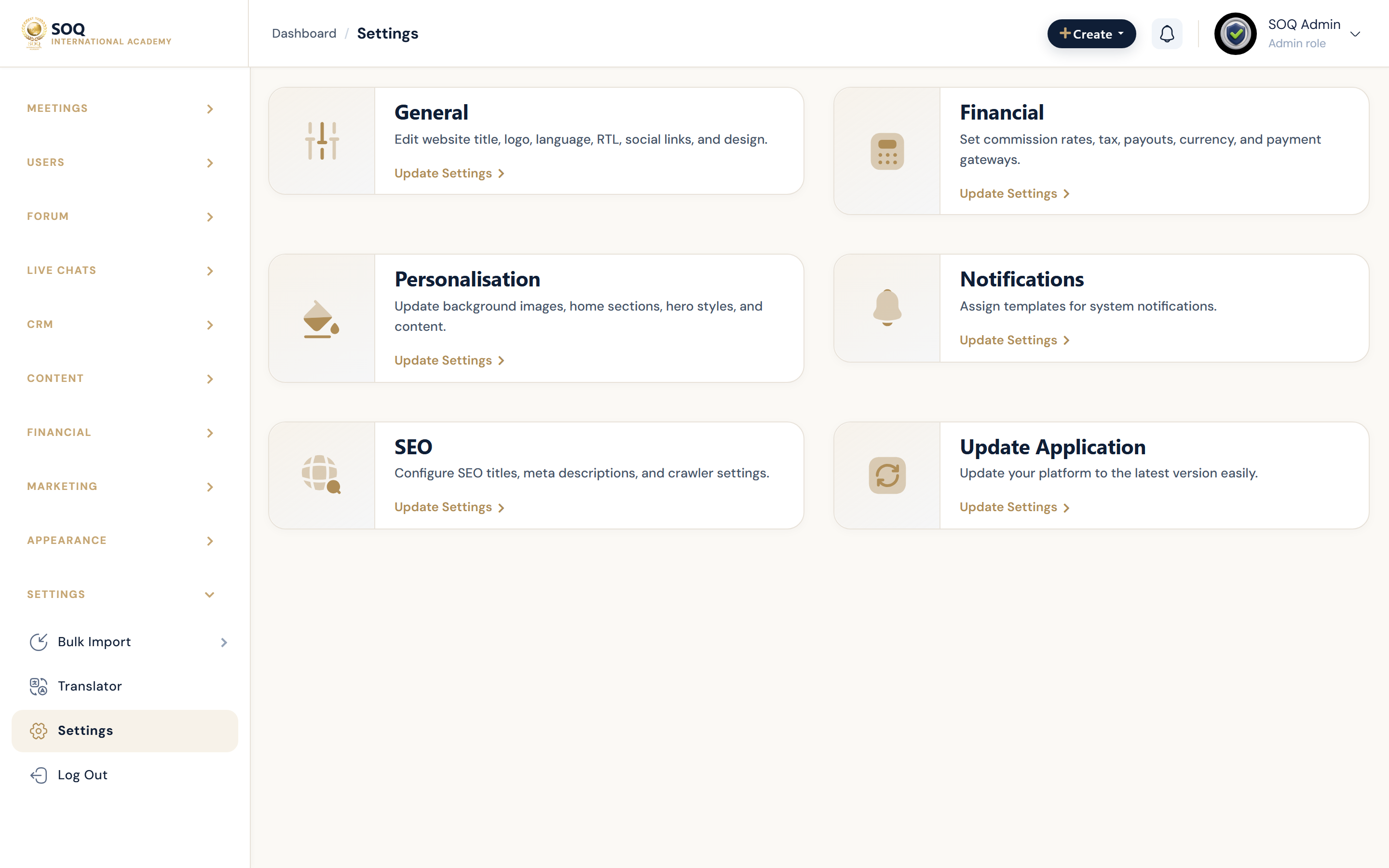
Prepare every account, login, mailbox, phone number, and API key SOQ International Academy needs
so the Admin panel can run the full platform — including email, payments, live classes, and enabled modules.
Collect these values before go-live, then paste them into the Admin paths listed below.
How to use this checklist
- Mark each row Required or Optional for your launch (Singapore academy defaults are noted).
- Create the third-party account and copy credentials into a secure password manager.
- After install, open the Admin path and save the values, then send a test (email / payment / login).
- Enabled modules that show Feature not activated need a SOQ activation code at Admin → Features / Settings first.
Notes: Never commit live API secrets to git. Prefer @soq.edu.sg mailboxes for From addresses.
1. Must-have for a working site (Core)
| Item | What to prepare | Where to enter | Priority |
|---|
| Domain + HTTPS |
Production domain (e.g. soq.edu.sg), DNS A/CNAME, valid SSL certificate |
Hosting / DNS panel; .env → APP_URL |
Required |
| Database |
MySQL host, port, database name, username, password |
Installer or .env → DB_* |
Required |
| App keys |
Generated APP_KEY; JWT_SECRET if using mobile/API |
.env |
Required |
| SOQ main activation |
36-character SOQ purchase / activation code for this domain |
Admin → Features / Settings (and first-install activation) |
Required |
| Super admin login |
Admin email + strong password for day-1 access |
Created at install; later Admin → Users |
Required |
| Site identity |
Site name, public email, phone, logo, favicon, dark logo |
Admin → Settings → General → Basic |
Required |
| Currency |
Default currency (SGD for Singapore) |
Admin → Settings → Financial → Currency |
Required for paid courses |
2. Email / SMTP / Gmail (registration, forgot password, notifications)
Without SMTP, signup verification, password reset, receipts, and newsletters will not deliver.
| Item | What to prepare | Where to enter | Priority |
|---|
| Mailbox |
Mailbox address (prefer academy@soq.edu.sg or similar) + password |
Mail provider (Hostinger / Google Workspace / Microsoft 365) |
Required |
| SMTP settings |
Host, port (usually 465 SSL or 587 TLS), username, password, encryption |
.env → MAIL_* (see also SMTP Configuration) |
Required |
| From name / From address |
MAIL_FROM_NAME = SOQ International Academy; From must be allowed by the provider |
.env + Admin → Settings → General → Basic → site email |
Required |
| Gmail / Google Workspace SMTP |
If using Gmail: enable IMAP; create an App Password (2FA required). Do not use the normal Google login password for SMTP. |
Google Account → Security → App passwords; then .env MAIL_* |
Optional (if Gmail is your mail path) |
| SPF / DKIM / DMARC |
DNS records so soq.edu.sg mail is not marked spam |
DNS panel for soq.edu.sg |
Required for production deliverability |
| Newsletter |
No Mailchimp account needed — campaigns use the same SMTP |
Admin → Marketing → Newsletters |
Optional |
Test: After save, register a test user and trigger Forgot Password. Confirm both emails arrive (and check spam).
3. Phone number / SMS (OTP & mobile register)
| Item | What to prepare | Where to enter | Priority |
|---|
| Public phone |
Academy contact number shown on site / contact page (e.g. +65 …) |
Admin → Settings → General → Basic → site phone; Contact Us page |
Required for branding |
| SMS provider account |
Twilio (common): Account SID, Auth Token, sender number. Alternatives: Vonage, MSG91, etc. |
Admin → Settings → General → SMS Channels |
Optional (needed for SMS OTP / mobile registration) |
| Register method |
Choose email (default) or SMS registration |
Admin → Settings → General → Basic → register method |
Core choice |
Note: Core today only offers WhatsApp share links. WhatsApp AI sales and CRM via Quicksales is a deferred Core feature requirement (soq-sg-quicksales / quicksales.ai) — see Quicksales. For simple class/payment templates, see WhatsApp Class Reminders. Deferred features remain unavailable until implemented and enabled.
4. Google Sign-in / Facebook login (social accounts)
| Item | What to prepare | Where to enter | Priority |
|---|
| Google Cloud OAuth client |
Client ID + Client Secret; authorized redirect URI: {APP_URL}/google/callback |
Admin → Settings → General → Features (Google client ID/secret + show Google login) |
Optional (see Google Sign-in) |
| Facebook app |
App ID + App Secret; redirect: {APP_URL}/facebook/callback |
Same Features screen (Facebook fields) |
Optional |
| Consent screens |
Google OAuth consent / Facebook app review for production domains |
Google Cloud / Meta Developer Console |
Required if social login is enabled |
5. Payments (checkout must be paid)
Enable at least one live gateway for Singapore. Closest built-in options: Stripe, PayPal, Xendit, IPay88. Offline bank transfer is available without a card gateway.
| Item | What to prepare | Where to enter | Priority |
|---|
| Stripe |
Publishable / secret API keys (test + live) |
Admin → Settings → Financial → Payment Channels → Stripe |
Recommended |
| PayPal |
Client ID + Secret; decide test mode on/off |
Payment Channels → PayPal |
Optional |
| Xendit / IPay88 |
Regional SEA credentials (API key / merchant code + key) |
Payment Channels → matching gateway |
Optional |
| Offline bank |
Bank name, account name, account number, SWIFT/BIC, logo |
Admin → Settings → Financial → Offline Banks |
Optional |
| Tax / commission / payouts |
Tax %, minimum payout, instructor commission rules |
Admin → Settings → Financial → Basic / Commission |
Required for paid marketplace behaviour |
Note: No native PayNow / HitPay driver in this build. Use Stripe/Xendit/IPay88 or offline banks for SG settlements.
6. Live classes & meetings (Zoom, Agora, BBB, Jitsi, Google Meet)
| Item | What to prepare | Where to enter | Priority |
|---|
| Zoom (platform) |
Server-to-Server OAuth: Client ID, Client Secret, Account ID; optional Meeting SDK key/secret |
Admin → Settings → General → Features (Zoom fields); see Zoom |
Optional |
| Zoom (per instructor) |
Instructor Zoom API key/secret/account ID if using instructor-owned apps |
Panel → Settings → Zoom / Admin user meeting settings |
Optional |
| Agora |
App ID + App Certificate (in-app live video) |
Features settings (may require module activation / DB features JSON) |
Optional / Modules |
| BigBlueButton |
Server base URL + security salt |
Features / .env BBB_* |
Optional |
| Jitsi |
Jitsi live URL (public meet.jit.si or self-hosted) |
Features settings |
Optional |
| Google Meet |
Meet REST API: Client ID, Client Secret; connect host Google account (OAuth refresh token). Enable Meet API in Google Cloud; redirect URI /admin/google-meet/callback. |
Admin → Settings → General → Features (Google Meet + available session APIs); see Google Meet |
Optional (SOQ) |
| Custom / external link |
No API keys — instructors paste a meeting URL (Zoom personal link, Meet, etc.) |
Session create form → Custom (Local) provider |
Optional |
7. Storage, video hosting & CDN
| Item | What to prepare | Where to enter | Priority |
|---|
| Local uploads |
Writable storage / public store folders on the server |
Hosting permissions (default) |
Required (default) |
| Contabo Object Storage |
Access key, secret, region, bucket, endpoint (S3-compatible) — provision with Contabo VPS for every new client |
Admin → Features → Object Storage (preferred); fallback .env MINIO_*. See Object Storage |
Standard (all clients) |
| Bunny.net Stream |
Not used on SOQ client installs — leave Bunny fields empty |
Admin → Features → Bunny (leave blank) |
Dropped |
| YouTube / Vimeo / Drive |
Public or unlisted video URLs only (no API keys) |
Course content source fields |
Optional |
8. Mobile app, Firebase push & API
| Item | What to prepare | Where to enter | Priority |
|---|
| Mobile app activation |
SOQ Mobile App purchase / activation code |
Admin → Features / Settings |
Modules |
| Mobile API key |
API key string for the mobile client |
Admin → Settings → Mobile App Configuration → General |
Modules |
| Firebase service account |
JSON key file for FCM push |
firebase-auth.json / Firebase env paths on server |
Optional (push) |
| App Store / Play links |
Store URLs + badge images for the mobile promo block |
Admin → Settings → Personalization → Mobile App |
Optional |
9. Activations for modules (Feature not activated)
| Activation | Unlocks | Where |
|---|
| Main platform | Core SOQ TMS for this domain | Admin → Features / Settings |
| Modules Bundle | Pack of enabled modules (quizzes extras, store, etc. per your pack) | Admin → Features / Settings |
| Theme Builder | Landing / theme builder | Admin → Features / Settings |
| Mobile App | Mobile API / app configuration | Admin → Features / Settings |
| AI Contents | OpenAI-powered content tools — also needs API key | Activations + AI settings / OPENAI_API_KEY |
Support and activation help: https://soq.edu.sg
Singapore go-live minimum (recommended pack)
- Domain + SSL + DB + SOQ main activation + admin login.
- Site name / email / phone / logos (SOQ International Academy).
- SMTP (Hostinger mail or Google Workspace app password) + SPF/DKIM.
- Currency SGD + Stripe (and/or offline bank details).
- Optional: Google Sign-in OAuth client; Zoom and/or Google Meet for live classes (enable under Available session APIs).
- Module activations you purchased (Modules Bundle / Theme / Mobile / AI).
- Test: register → verify email → forgot password → paid checkout → live session join.