How to use Zoom
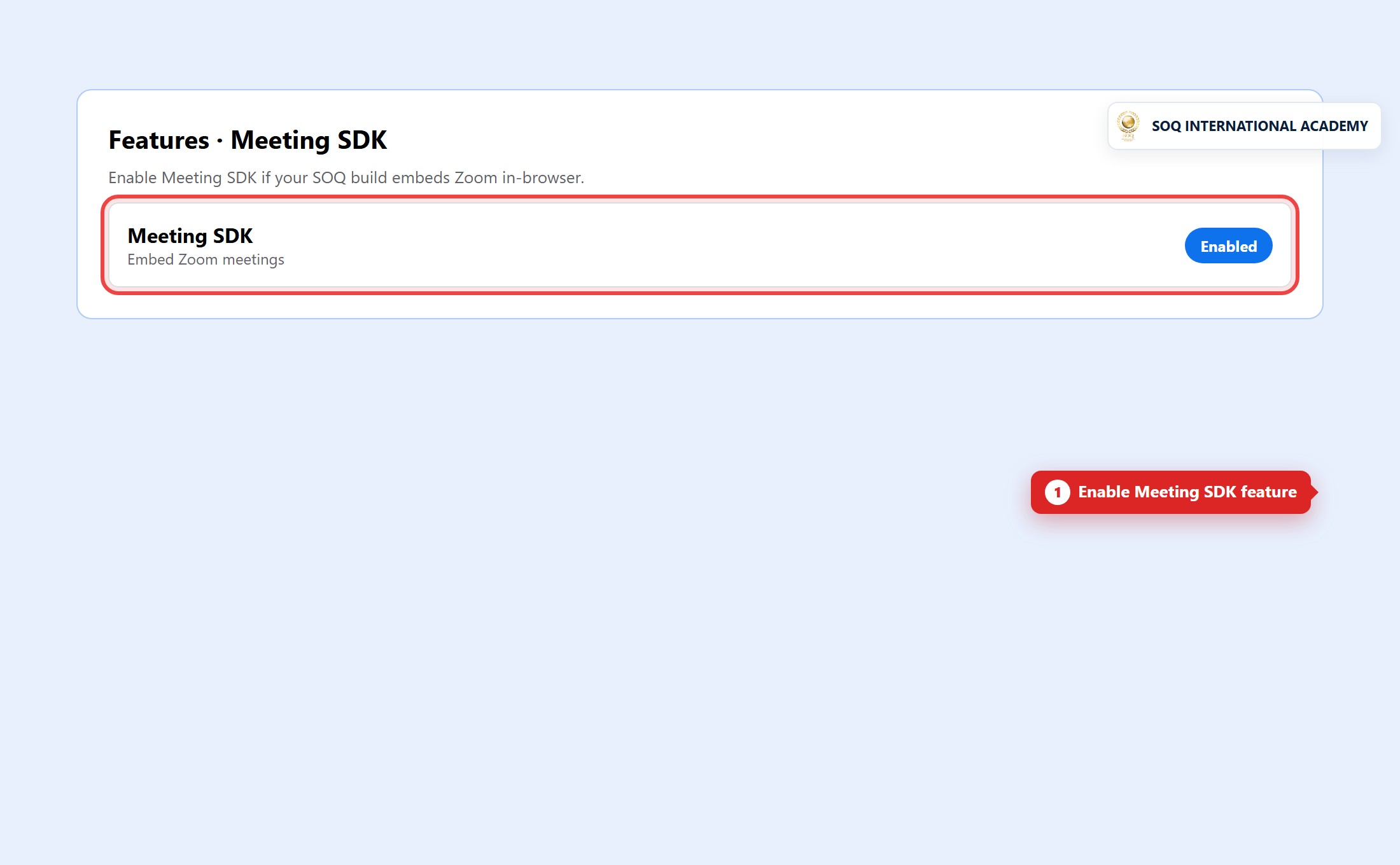
Live screenshot from the SOQ beauty demo (aiacademy.aiee.dev). Controls in the image are not clickable.
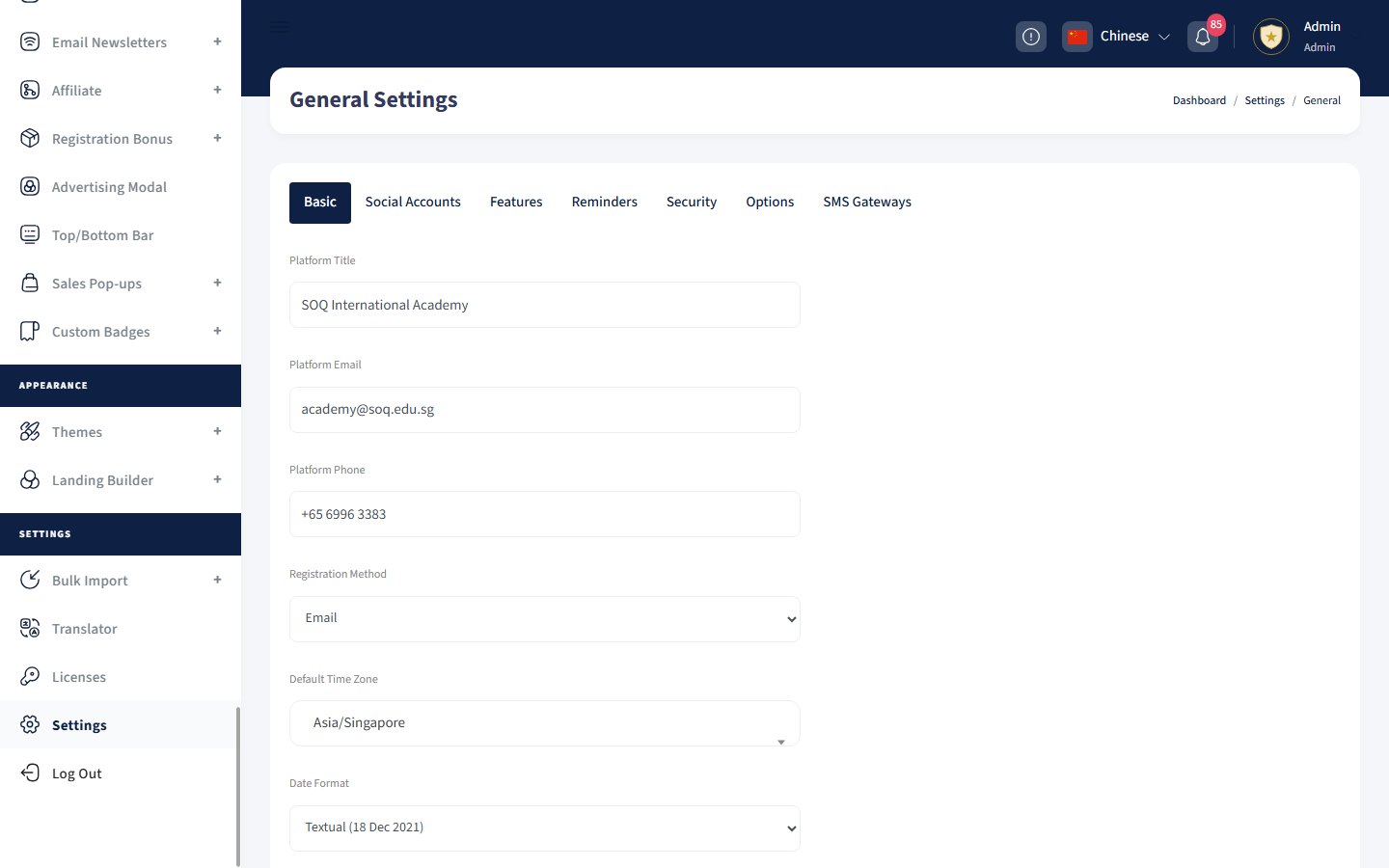
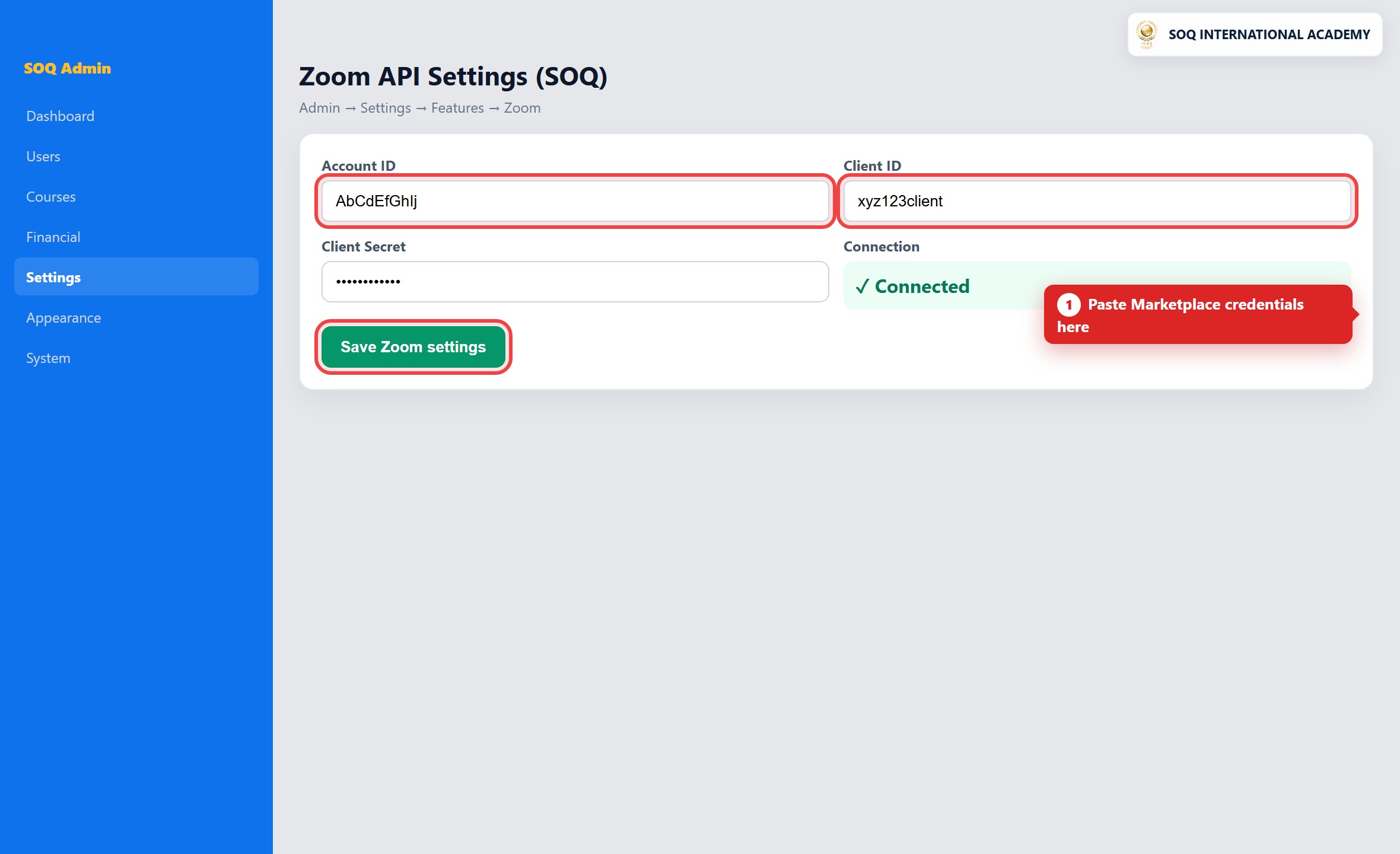
Illustrative screenshot “ Admin ? Settings ? General ? Features ” Zoom API Settings. Screenshot controls in this image are not clickable and may not match the current live UI.
Zoom live sessions (optional primary provider)
What this screen is
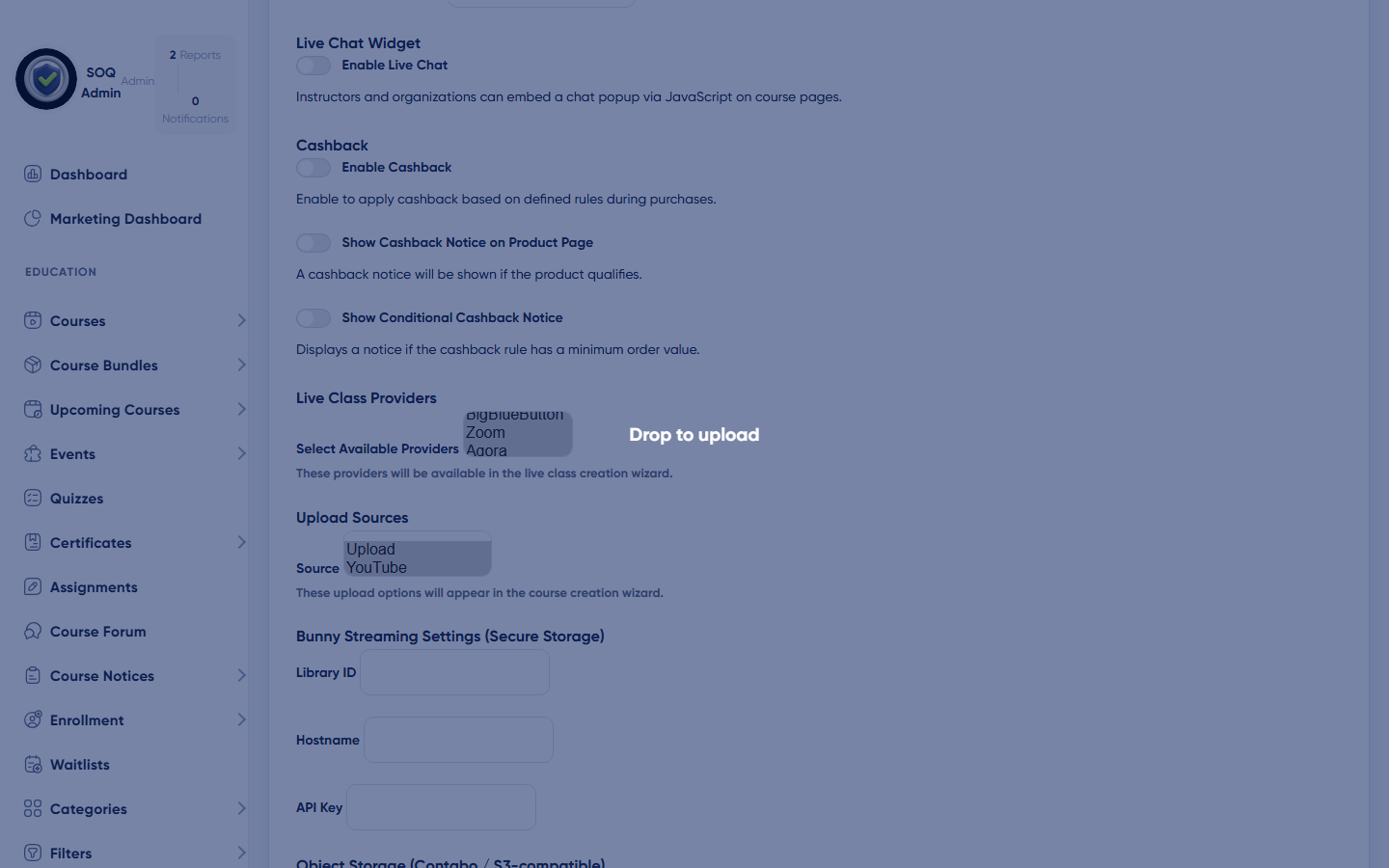
SOQ TMS can connect live classes to Zoom when Zoom is enabled under Available session APIs. If you choose Zoom as a provider, configure Server-to-Server OAuth (Client ID, Client Secret, and Account ID). Do not use legacy JWT credentials. Other providers (Agora, BigBlueButton, Jitsi, Google Meet, custom link) are configured on the same Features screen — pick a primary for staff training.
What you see
Under Features: Zoom API Settings with Server-to-Server OAuth fields, plus optional General App (Meeting SDK) Client ID / Client Secret for in-browser join.
Field / control guide
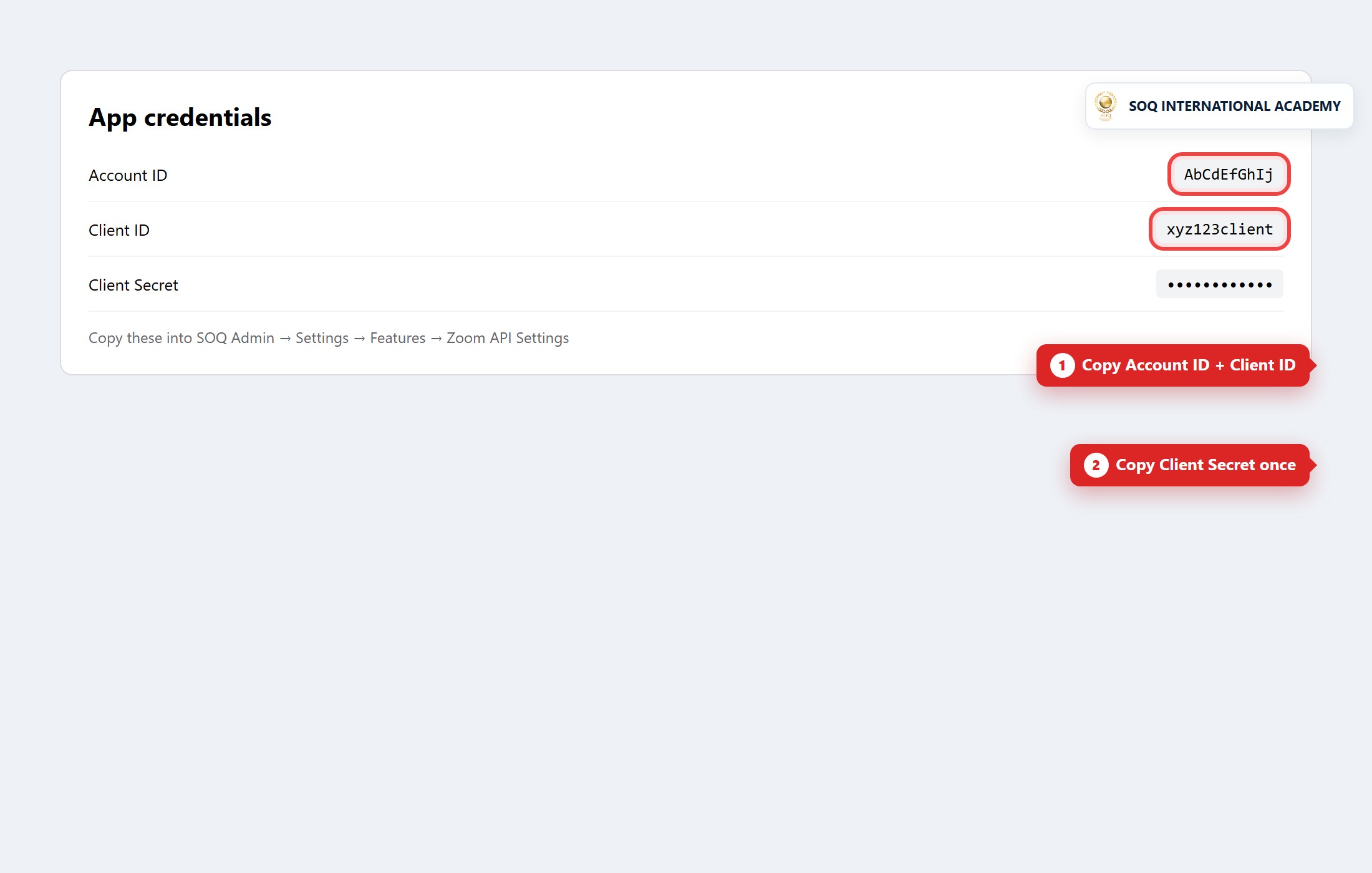
- Client ID (Server-to-Server OAuth): Mandatory. From your Zoom Server-to-Server OAuth app.
- Client Secret (Server-to-Server OAuth): Mandatory. Keep private; never publish in docs or tickets.
- Account ID (Server-to-Server OAuth): Mandatory. Zoom account ID for the same app.
- Client ID / Secret (General App): Required only if students join meetings inside the website via Meeting SDK.
How to complete the task
- Create a Server-to-Server OAuth app in the Zoom App Marketplace when using Zoom as a live provider.
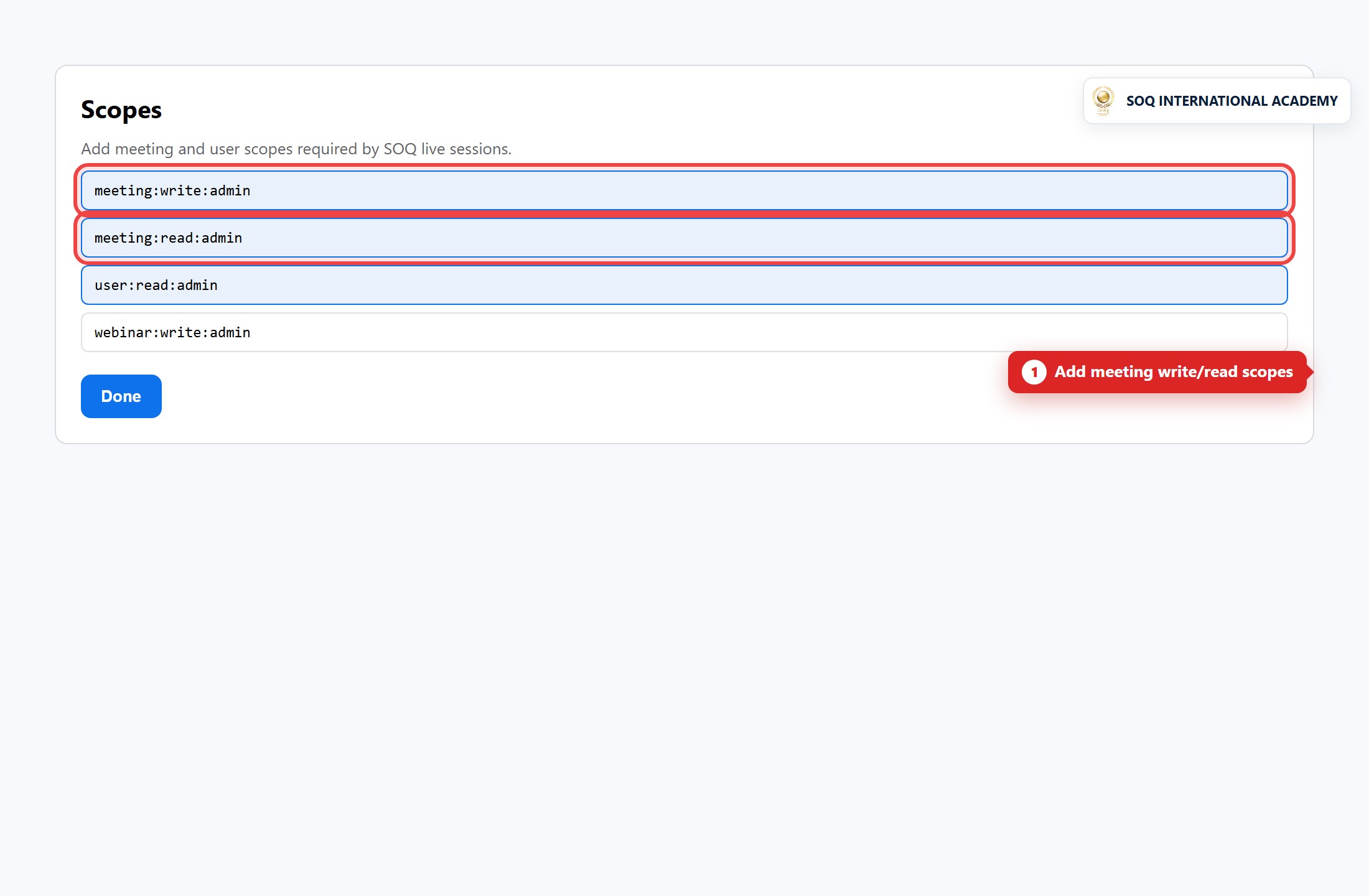
- Enable scopes
meeting:write:admin,meeting:read:admin, anduser:read:admin, then activate the app. - Paste Client ID, Client Secret, and Account ID into Admin ? Settings ? General ? Features ? Zoom API Settings.
- Optional: create a separate General App with Meeting SDK enabled; paste those Client ID / Secret into the General App fields (never reuse S2S credentials as SDK keys).
- Click Save Changes and test creating a live class.
Notes / pitfalls: Using Server-to-Server credentials as Meeting SDK keys causes Invalid SDK App Keys / JOIN_MEETING_FAILED. Marketplace screens below are Zoom's site (not SOQ-branded).
Zoom Marketplace — create Server-to-Server OAuth
Sign in at marketplace.zoom.us ? Develop ? Build App ? create under Server-to-Server OAuth. Zoom requires your Zoom account login for the Build App screens; the images below are the public Marketplace entry (sign in to continue).
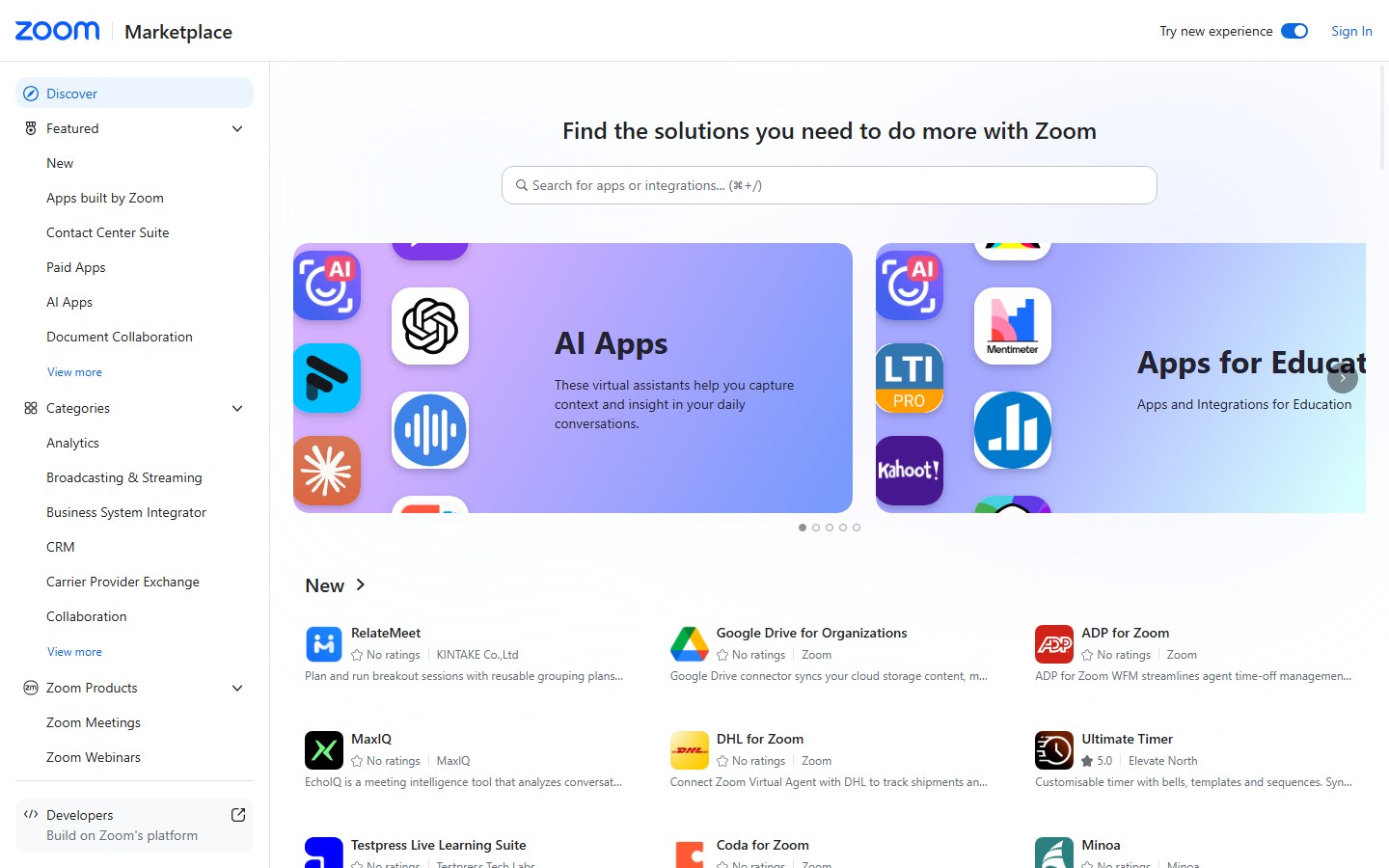
- Login to the Zoom App Marketplace. If you do not have an account yet, signup here.
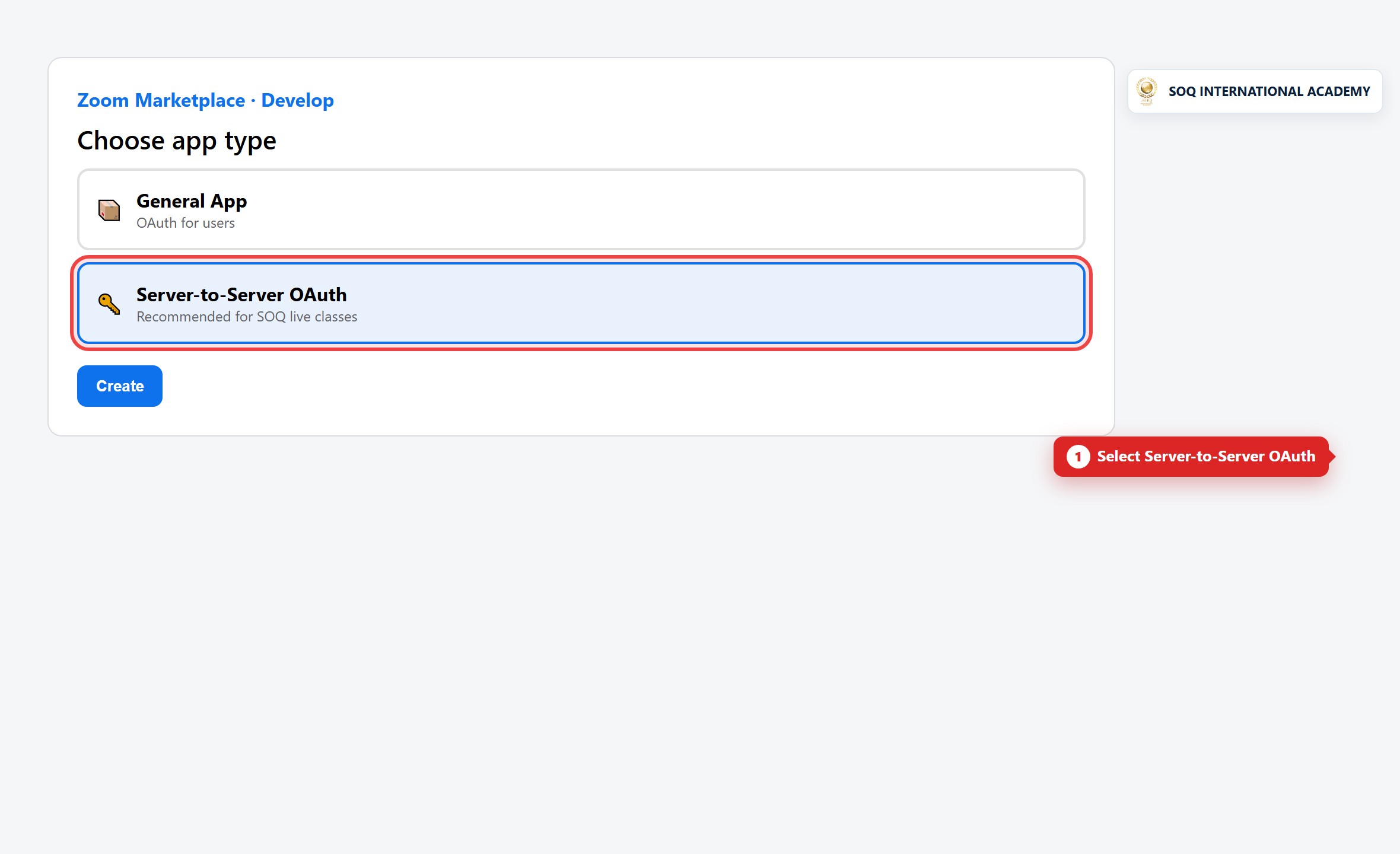
- Click Develop ? Build app, then Create under Server-to-Server OAuth (required when Zoom is your live provider).
- Add a name for your app and click Create.
- Copy Client ID, Client Secret, and Account ID from App credentials and paste them into SOQ Admin ? Settings ? General ? Features (Zoom API Settings).
- Add app information (short description and developer contact email).
- In Scopes, enable
meeting:write:admin,meeting:read:admin, anduser:read:admin. - Continue through remaining steps and activate the app.
Optional — Meeting SDK (General App) for in-site join
Create a second General App, enable Meeting SDK / Embed, then copy that app's Client ID and Client Secret into the General App fields in SOQ. Do not reuse Server-to-Server OAuth credentials here.