
Store Feature
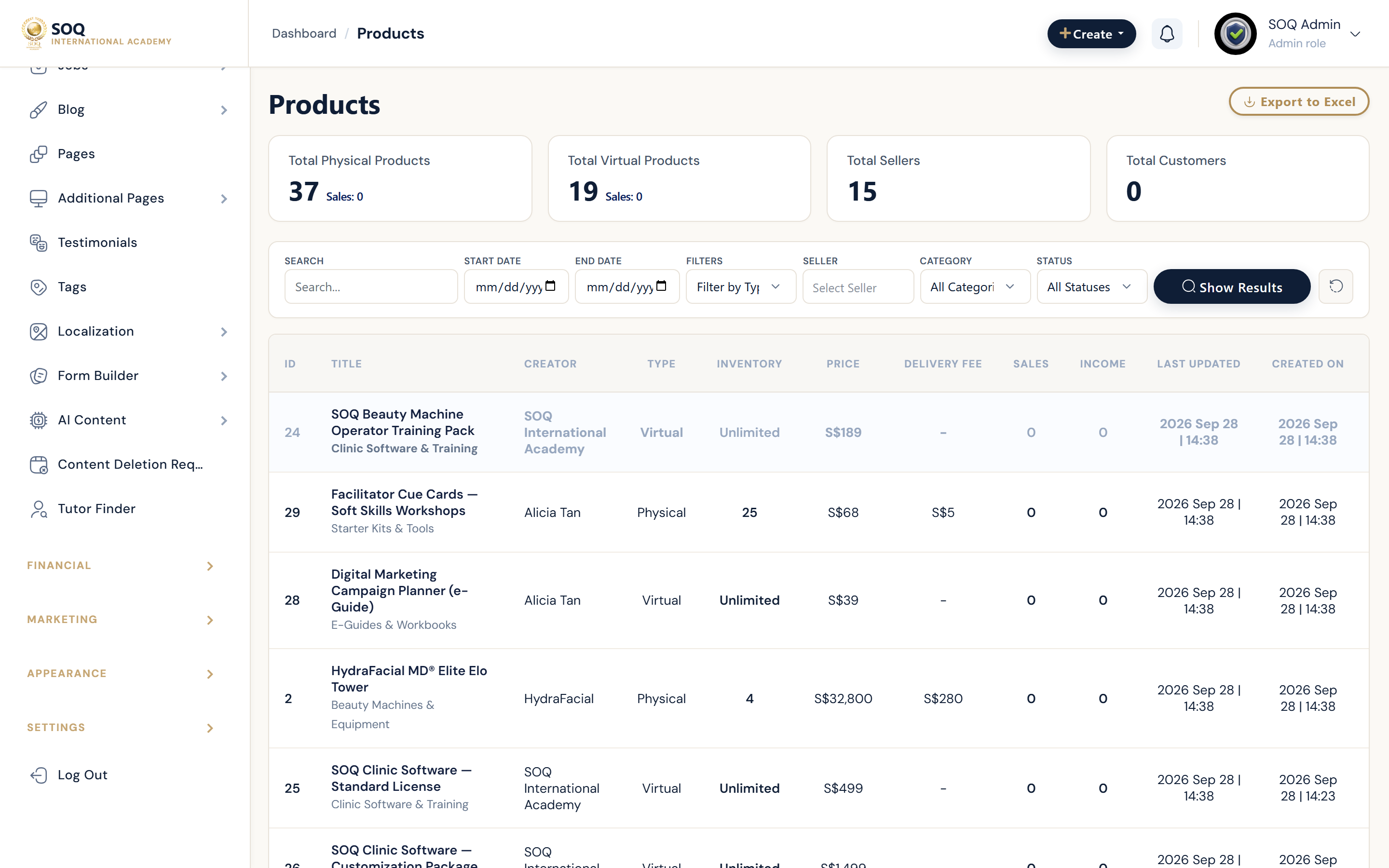
Illustrative screenshot “ Admin -> Content -> Store ” annotated walkthrough. Screenshot controls in this image are not clickable and may not match the current live UI.
Store
What this screen is
Manage physical/digital products, orders, categories, sellers, specifications, and store discounts.
Beauty demo pitch split: Hardware partner orgs (
demo.hw.*@soq-hw.sg) sell physical clinic machines (seed soq:seed-beauty-machine-store, slugs soq-hw-*). SOQ org (org@soq.edu.sg) sells virtual operator training + clinic software / customization. Partners = delivery & setup; SOQ = training + software only. Categories: Beauty Machines & Equipment, Clinic Software & Training. See Beauty Demo Pack.What you see
Products, orders, sellers, categories, filters, specifications, featured items, settings.
Screenshot annotations
- 1New product: See marker 1 on the screenshot.
- 2Search: See marker 2 on the screenshot.
- 3Category filter: See marker 3 on the screenshot.
- 4Catalog: See marker 4 on the screenshot.
- 5Stock/status: See marker 5 on the screenshot.
- 6Orders: See marker 6 on the screenshot.
Field / control guide
- Products: Catalog items and media.
- Orders: Buyer orders and fulfillment.
- Categories / filters: Store taxonomy.
- Sellers: Third-party sellers if enabled.
- Settings: Store feature toggles.
How to complete the task
- Step 1: Create categories then products.
- Step 2: Place a test order.
- Step 3: Process fulfillment status.
- Step 4: Verify public store listing and checkout.
Notes / pitfalls: Store checkout uses the same payment gateways under Settings. Admin store screens are commonly Modules-stubbed.