
AI Content Feature
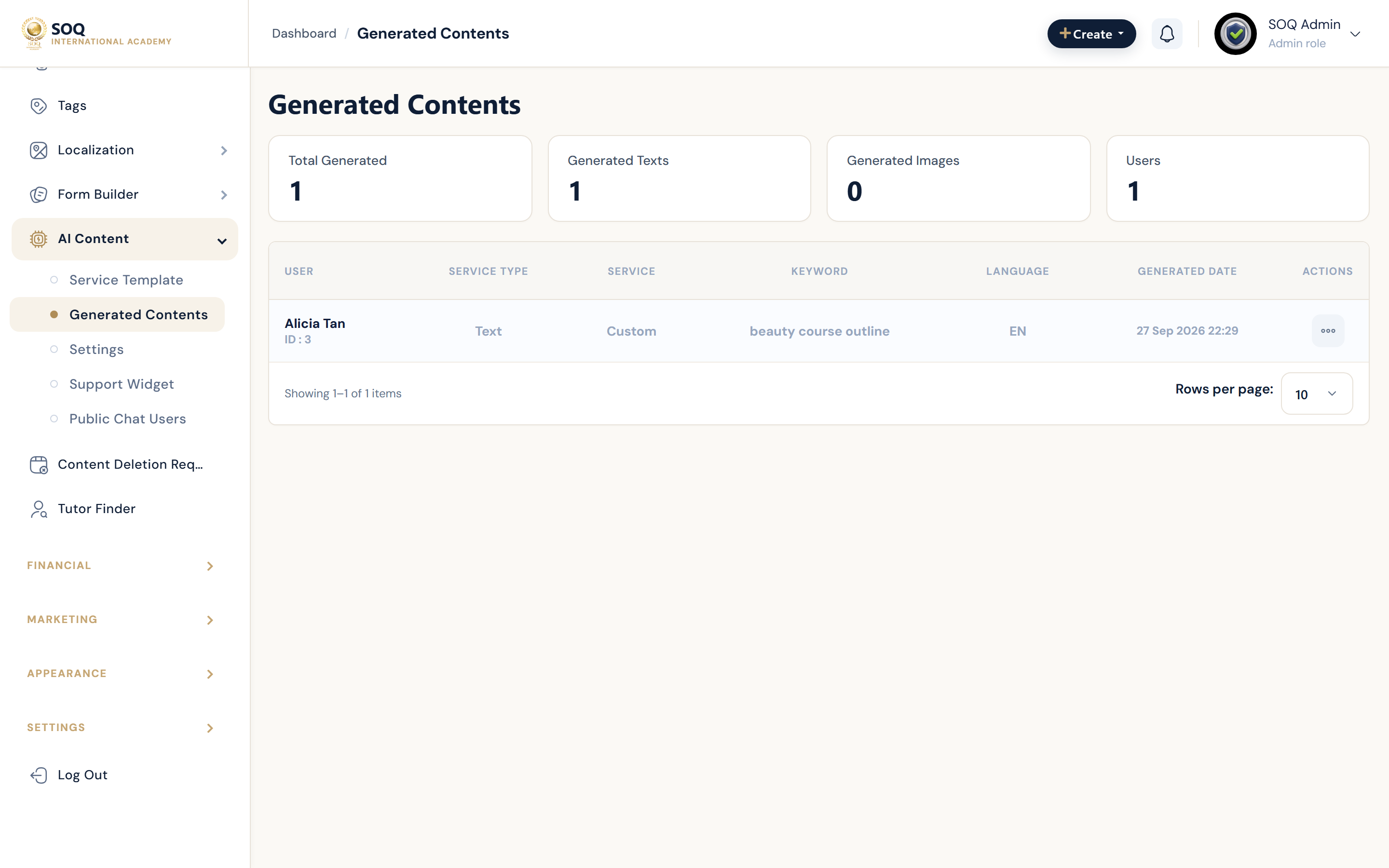
Illustrative screenshot “ Admin -> Content -> AI Content ” annotated walkthrough. Screenshot controls in this image are not clickable and may not match the current live UI.
AI Content
What this screen is
Generate draft copy for courses, blogs, or marketing using platform AI content tools and templates.
What you see
AI workspace, templates, generated results, and AI settings.
Screenshot annotations
- 1New generation: See marker 1 on the screenshot.
- 2Prompt search: See marker 2 on the screenshot.
- 3Template filter: See marker 3 on the screenshot.
- 4Results list: See marker 4 on the screenshot.
- 5Model status: See marker 5 on the screenshot.
- 6Open draft: See marker 6 on the screenshot.
Field / control guide
- Prompt / topic: What to generate.
- Templates: Reusable prompt structures.
- Output: Draft text to edit before publish.
- Settings: Provider/limits when exposed.
How to complete the task
- Step 1: Open AI Content.
- Step 2: Pick a template or enter a prompt.
- Step 3: Generate and human-edit the draft.
- Step 4: Paste into the target course/blog/page.
Notes / pitfalls: Always human-edit for accuracy and SOQ branding. Modules activation may be required. Support Widget (public FAB) is configured separately under Admin ? AI Contents ? Support Widget — see Support Widget.