
Assignments Feature
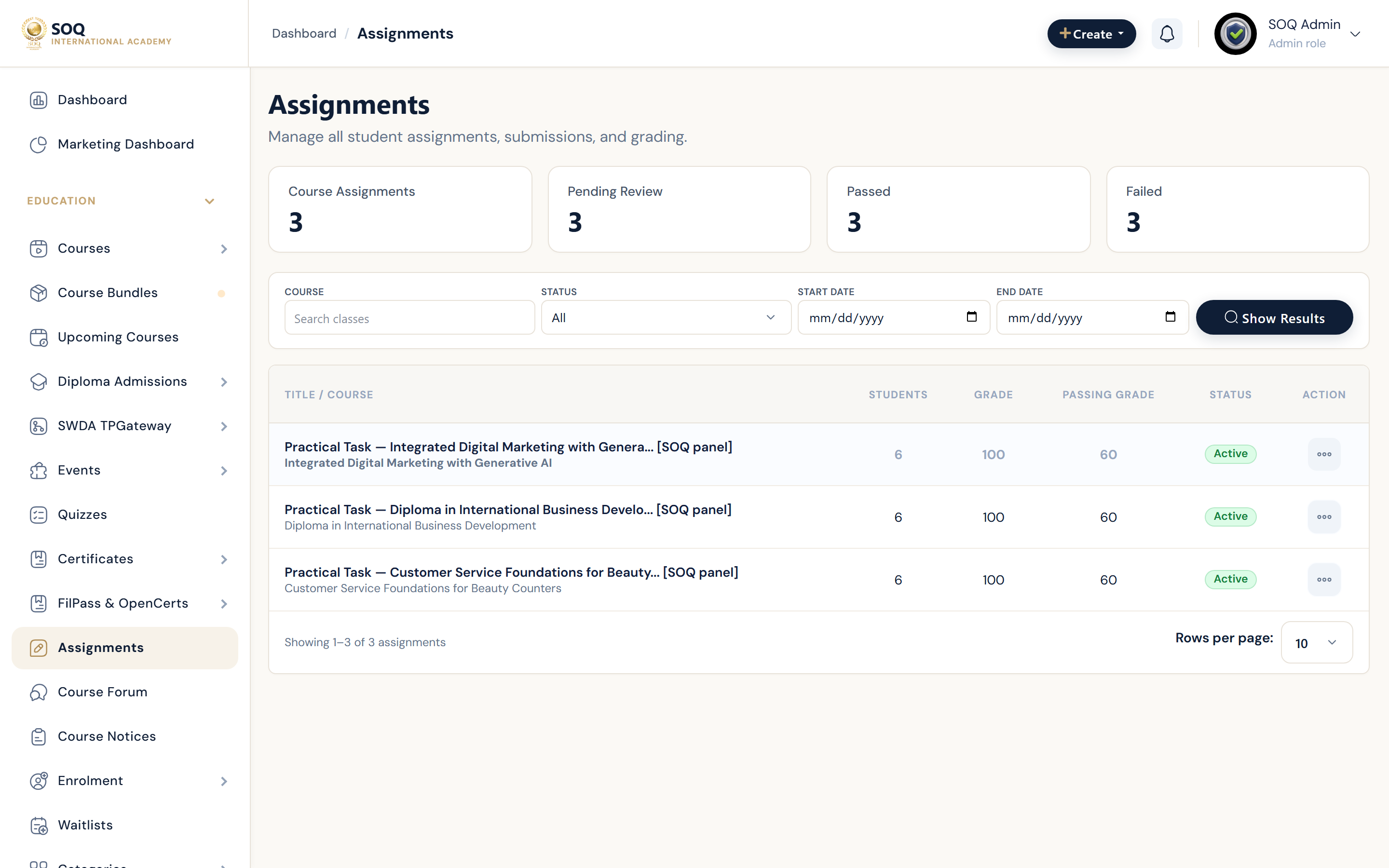
Illustrative screenshot “ Admin -> Education -> Assignments ” annotated walkthrough. Screenshot controls in this image are not clickable and may not match the current live UI.
Assignments
What this screen is
Review student assignment submissions attached to course lessons and return grades or feedback.
What you see
Assignment queues filtered by course, student, and submission status.
Screenshot annotations
- 1New / open: See marker 1 on the screenshot.
- 2Search student: See marker 2 on the screenshot.
- 3Course filter: See marker 3 on the screenshot.
- 4Submission list: See marker 4 on the screenshot.
- 5Grade status: See marker 5 on the screenshot.
- 6Review: See marker 6 on the screenshot.
Field / control guide
- Course / lesson: Where the assignment lives.
- Student: Submitter account.
- Submission: File or text answer.
- Grade / feedback: Instructor or admin response.
- Deadline: Late policy depends on course config.
How to complete the task
- Step 1: Open Assignments and filter pending items.
- Step 2: Open a submission.
- Step 3: Grade or request changes.
- Step 4: Confirm the student panel shows the result.
Notes / pitfalls: Assignments appear only when lessons define them. Activation stub on Admin means Modules activation is required.