
Attendances Feature
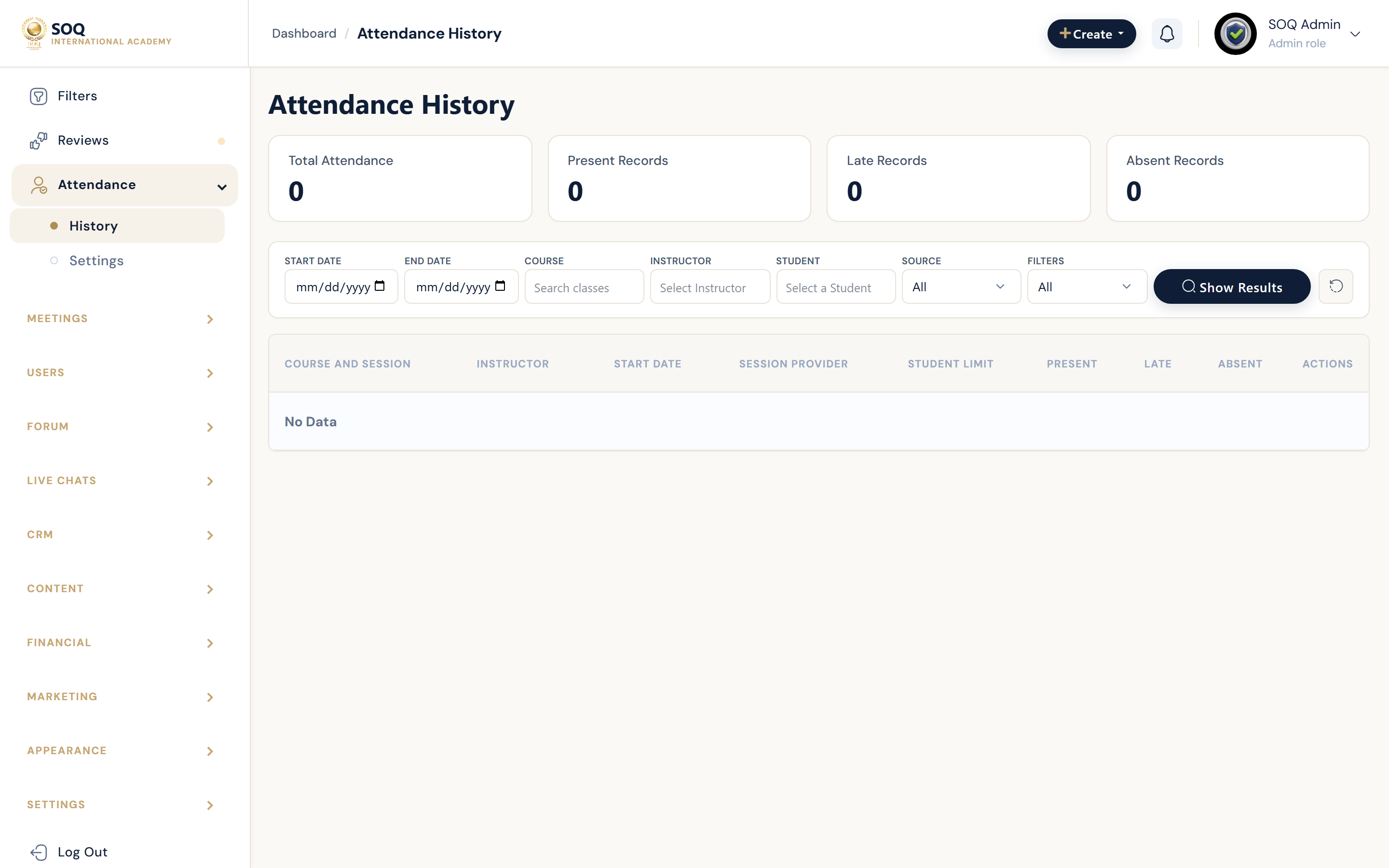
Illustrative screenshot “ Admin -> Education -> Attendances ” annotated walkthrough. Screenshot controls in this image are not clickable and may not match the current live UI.
Attendances
What this screen is
Track attendance for live classes or sessions that require check-in, with history and settings.
What you see
Attendance records by course/session, history views, and attendances settings.
Screenshot annotations
- 1Open attendance: See marker 1 on the screenshot.
- 2Search: See marker 2 on the screenshot.
- 3Session filter: See marker 3 on the screenshot.
- 4Attendance grid: See marker 4 on the screenshot.
- 5Present/absent: See marker 5 on the screenshot.
- 6Export: See marker 6 on the screenshot.
Field / control guide
- Session: Live class or meeting occurrence.
- Student: Attendee.
- Status: Present / absent / late when supported.
- Settings status: attendances_settings.status (panel visibility).
How to complete the task
- Step 1: Confirm live sessions exist for the course.
- Step 2: Open Attendances and select the session.
- Step 3: Mark or review attendance.
- Step 4: Export if needed for compliance.
Make-Up Class Review & Attendance Recalculation (Sprint 4)
- Learner Submission: Absent students submit proof documents (Medical Certificates - MC, official letters) via Panel Attendance.
- Academic Support Ticket: The system automatically logs an Absence Justification & Make-up Request #ID support ticket for staff review.
- Approval & Recalculation: When an instructor or operations admin approves the make-up session (
approveMakeup), the system invokesAttendanceCalculationService::calculateStudentAttendance(), updating the student's attendance percentage in real-time and restoring assessment/grant eligibility (e.g. 75% WSQ requirement).
Notes / pitfalls: Attendance gating requires proper role permissions. Approving a make-up session immediately recalculates real-time attendance rate and updates assessment eligibility.