
Certificates (Admin) Feature
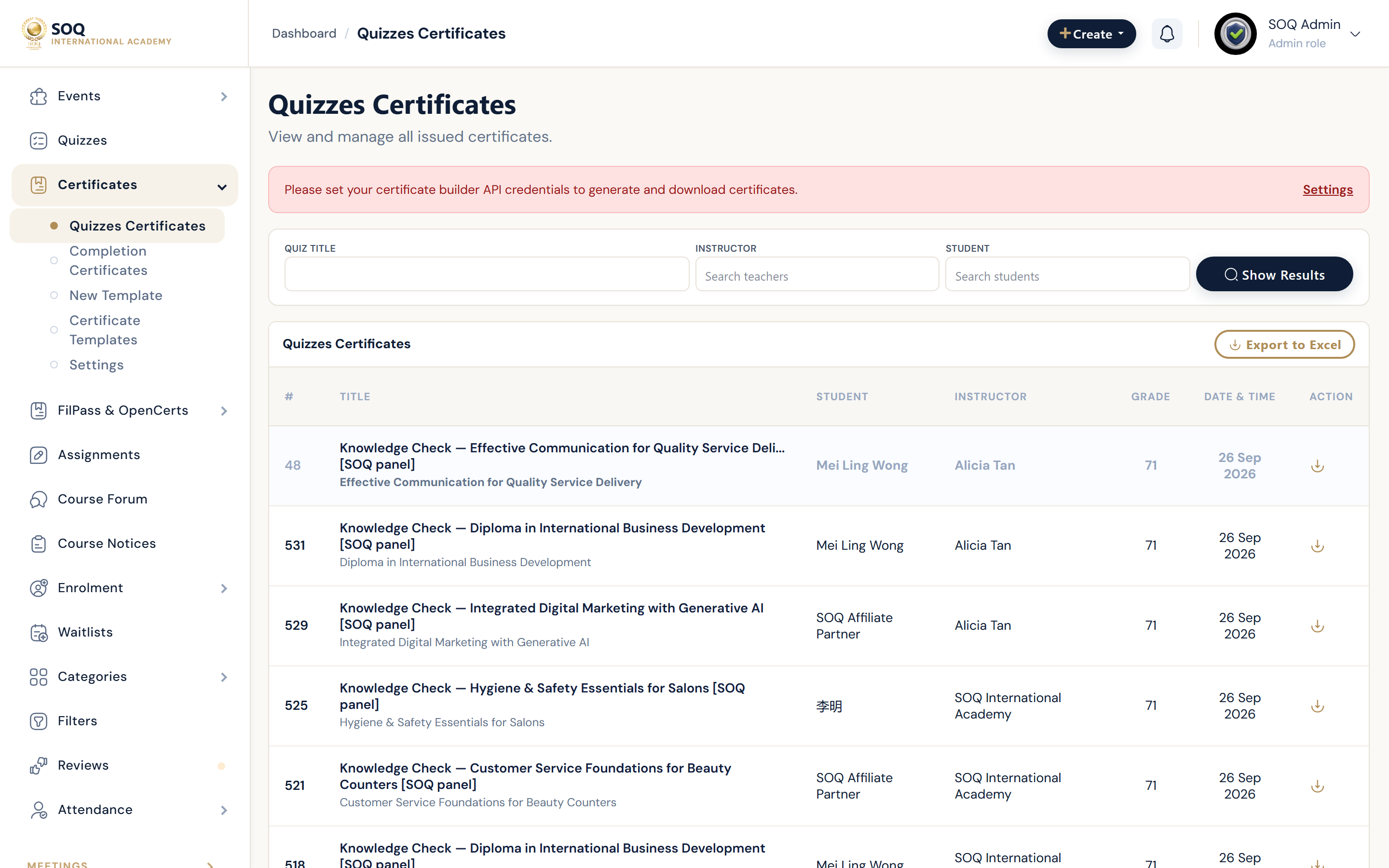
Illustrative screenshot “ Admin -> Education -> Certificates ” annotated walkthrough. Screenshot controls in this image are not clickable and may not match the current live UI.
Certificates (Admin)
What this screen is
Configure certificate templates, course-completion certificates, quiz certificates, and global certificate settings.
What you see
Certificate lists, templates, course certificates, and settings tabs.
Screenshot annotations
- 1New template: See marker 1 on the screenshot.
- 2Search: See marker 2 on the screenshot.
- 3Type filter: See marker 3 on the screenshot.
- 4Certificates list: See marker 4 on the screenshot.
- 5Issued status: See marker 5 on the screenshot.
- 6Template edit: See marker 6 on the screenshot.
Field / control guide
- Templates: Layout, fonts, and merge fields.
- Course certificates: Issued on course completion rules.
- Quiz certificates: Issued after pass mark.
- Settings: Global certificate behaviour.
- Validation: Public certificate validation page.
How to complete the task
- Step 1: Create or edit a template.
- Step 2: Attach certificates to courses/quizzes.
- Step 3: Complete a demo course/quiz as a student.
- Step 4: Validate the certificate on the public validation URL.
Notes / pitfalls: Quiz list Admin UI may also be stubbed until Modules activation is enabled. Keep SOQ branding on templates.