
Enrollment Feature
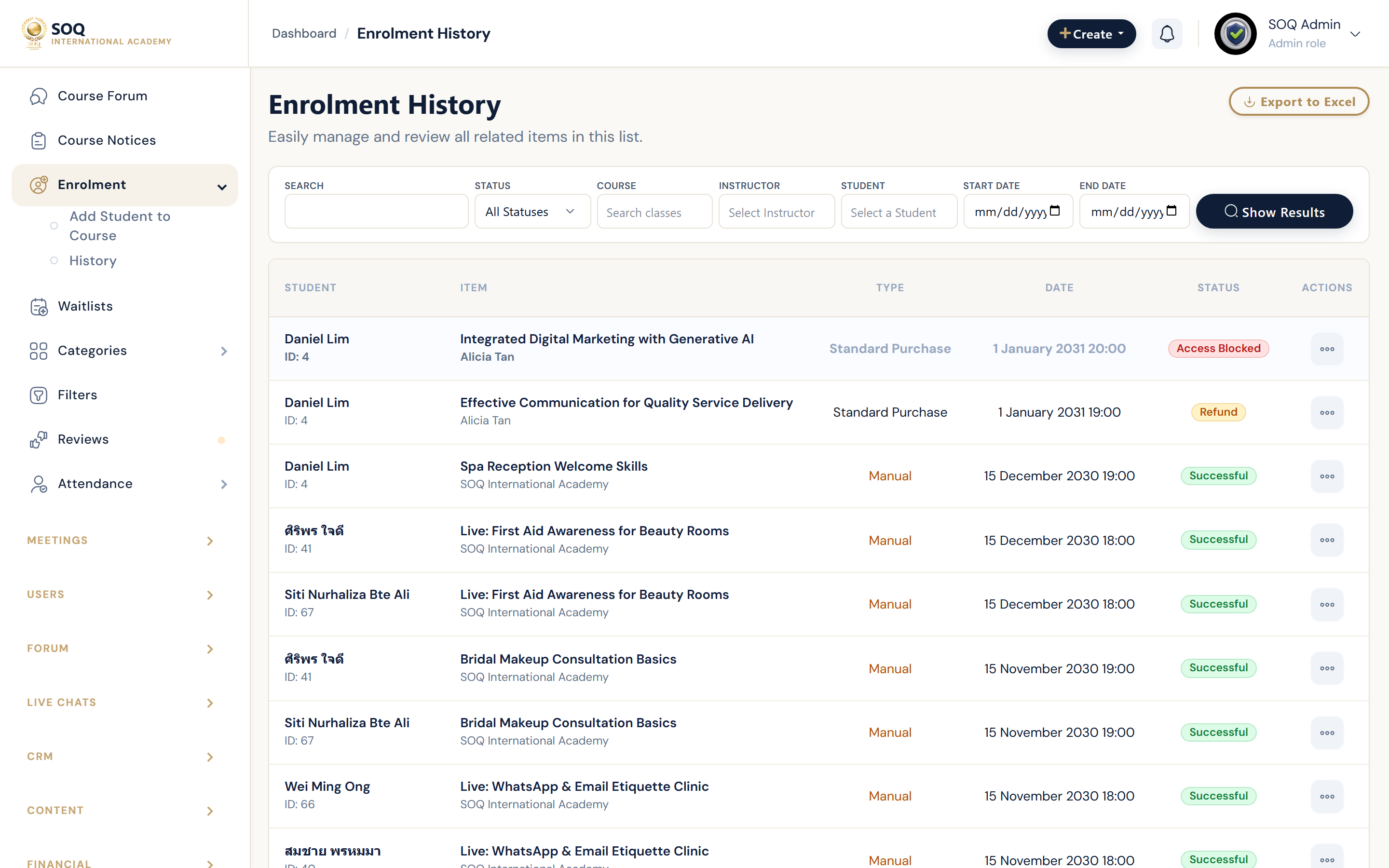
Illustrative screenshot “ Admin -> Education -> Enrollment ” annotated walkthrough. Screenshot controls in this image are not clickable and may not match the current live UI.
Enrollment
What this screen is
Manually grant course access (comps, B2B seats, support fixes) and audit enrollment history.
What you see
Add-student form and history of enrollments.
Screenshot annotations
- 1Enroll student: See marker 1 on the screenshot.
- 2Find user: See marker 2 on the screenshot.
- 3Course picker: See marker 3 on the screenshot.
- 4History table: See marker 4 on the screenshot.
- 5Access status: See marker 5 on the screenshot.
- 6Actions: See marker 6 on the screenshot.
Field / control guide
- Student: Target user account (email / ID).
- Course: Course to unlock.
- History: Past manual or system enrollments.
- Access: Immediate panel learning access when successful.
How to complete the task
- Step 1: Open Enrollment.
- Step 2: Select student and course.
- Step 3: Confirm enrollment.
- Step 4: Ask the learner to refresh Panel -> My Courses.
Notes / pitfalls: Manual enrollment may bypass checkout — use for comps/fixes only. Feature not activated = Modules activation, not RBAC.