
Events Feature
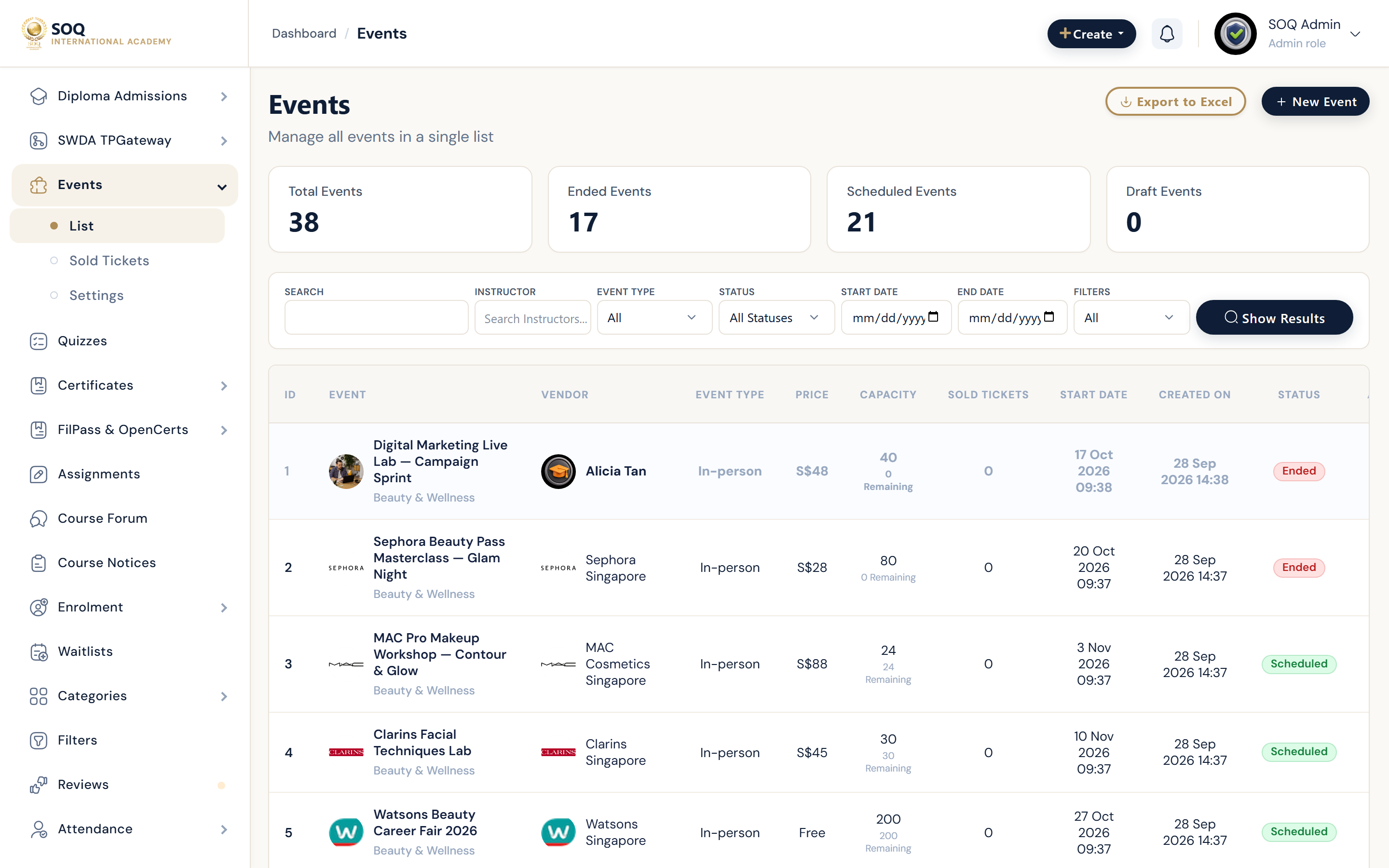
Illustrative screenshot “ Admin -> Education -> Events ” annotated walkthrough. Screenshot controls in this image are not clickable and may not match the current live UI.
Events
What this screen is
Run ticketed or scheduled academy events (online/onsite) with capacity, tickets, and sold-ticket tracking.
What you see
Events list, create wizard, sold tickets, and event settings.
Screenshot annotations
- 1Create event: See marker 1 on the screenshot.
- 2Search: See marker 2 on the screenshot.
- 3Filters: See marker 3 on the screenshot.
- 4Events table: See marker 4 on the screenshot.
- 5Ticket status: See marker 5 on the screenshot.
- 6Manage: See marker 6 on the screenshot.
Field / control guide
- Event details: Title, schedule, location or online link.
- Tickets: Ticket types, price, and quantity.
- Capacity: Seat limits when configured.
- Sold tickets: Purchasers and check-in related views.
- Settings status: events_settings.status gates panel/web visibility.
How to complete the task
- Step 1: Enable Events in settings if the public/panel side is dark.
- Step 2: Create an event with ticket types.
- Step 3: Publish and buy a test ticket.
- Step 4: Monitor Sold tickets and capacity.
- Step 5: Update or cancel before the start time if needed.
Notes / pitfalls: Admin entry may still show Feature not activated until the Modules activation is active. Turning settings on alone does not remove the Admin stub.