
Form Builder Feature
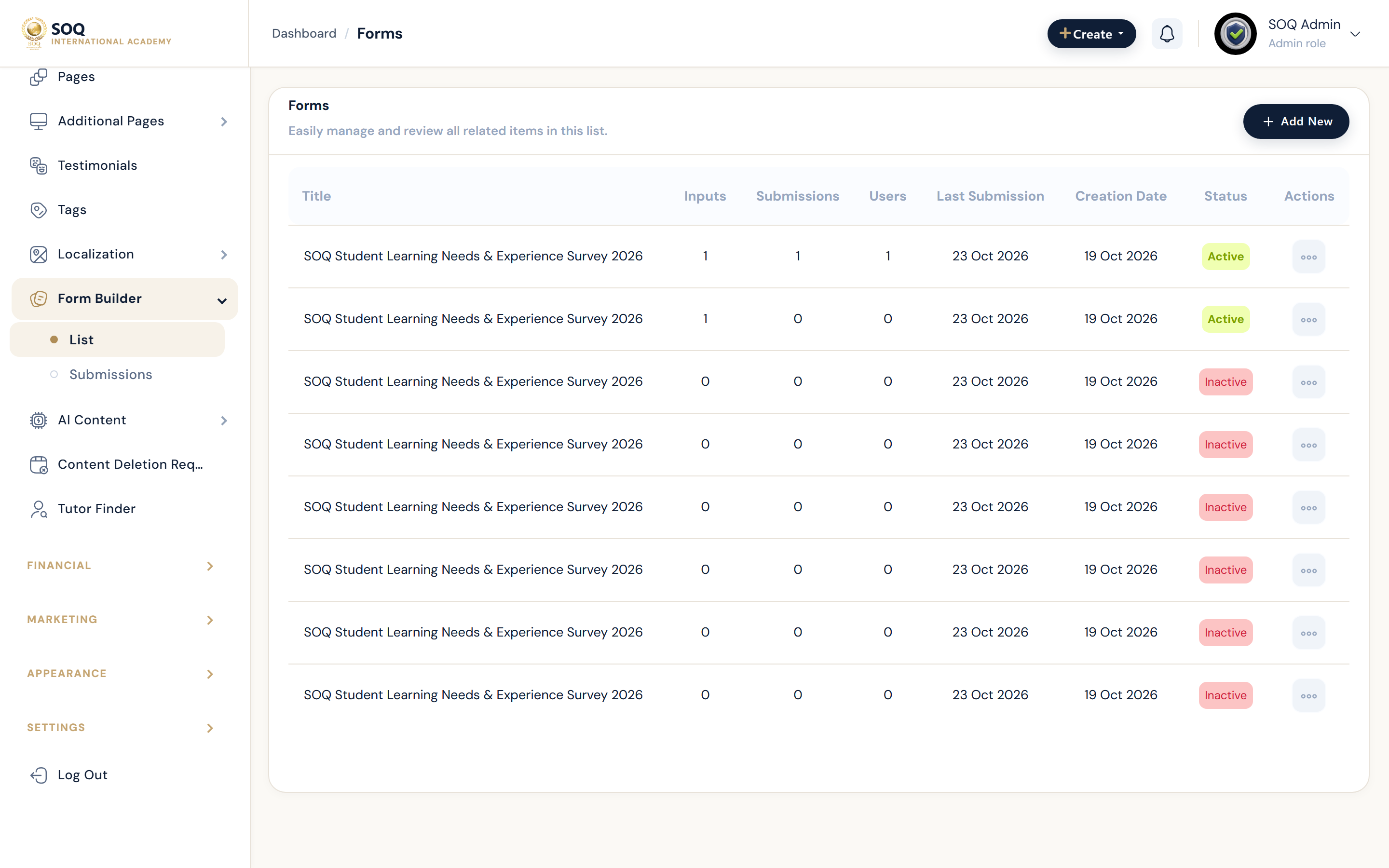
Illustrative screenshot “ Admin -> Content -> Form Builder ” annotated walkthrough. Screenshot controls in this image are not clickable and may not match the current live UI.
Form Builder
What this screen is
Build custom forms for leads, applications, or surveys and review submissions.
What you see
Form list, field builder, and submissions.
Screenshot annotations
- 1New form: See marker 1 on the screenshot.
- 2Search: See marker 2 on the screenshot.
- 3Filters: See marker 3 on the screenshot.
- 4Forms list: See marker 4 on the screenshot.
- 5Live status: See marker 5 on the screenshot.
- 6Submissions: See marker 6 on the screenshot.
Field / control guide
- Fields: Inputs collected.
- Validation: Required rules.
- Embedding: Where the form appears.
- Submissions: Inbound responses.
How to complete the task
- Step 1: Create a form and fields.
- Step 2: Publish and place on a page/flow.
- Step 3: Submit a test response.
- Step 4: Confirm notification email via SMTP.
Notes / pitfalls: Broken email usually means SMTP — not the form builder itself.