
IP Management Feature
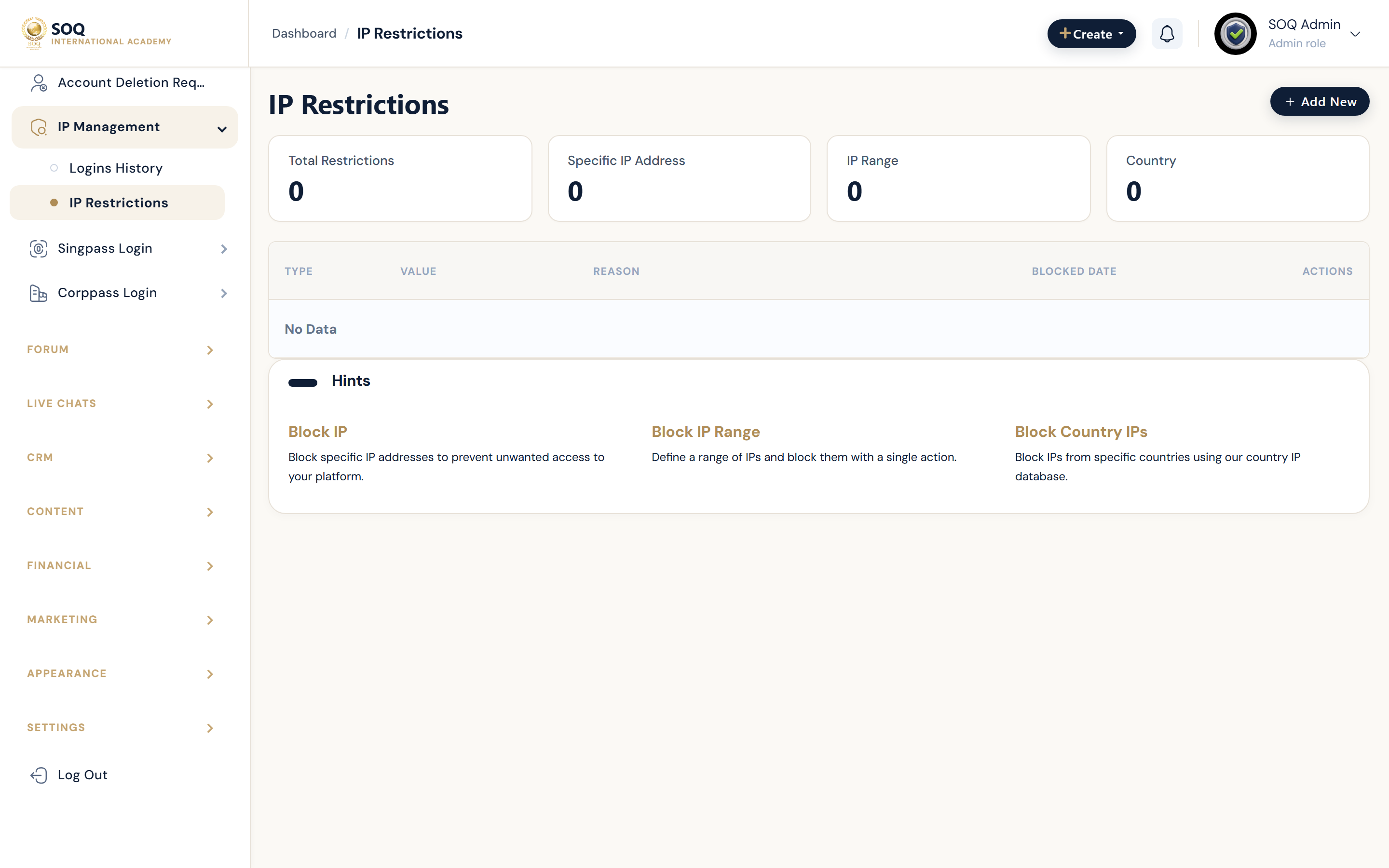
Illustrative screenshot “ Admin -> Users -> IP Management ” annotated walkthrough. Screenshot controls in this image are not clickable and may not match the current live UI.
IP Management
What this screen is
Review login history and restrict or allow IPs for security investigations.
What you see
Login history lists and IP restriction screens.
Screenshot annotations
- 1Open tools: See marker 1 on the screenshot.
- 2Search user/IP: See marker 2 on the screenshot.
- 3Date filter: See marker 3 on the screenshot.
- 4Login history: See marker 4 on the screenshot.
- 5Risk flag: See marker 5 on the screenshot.
- 6Restrict: See marker 6 on the screenshot.
Field / control guide
- Login history: Recent sign-ins by user/IP.
- IP restriction: Allow/block lists.
- User: Affected account.
- Timestamp: When the login occurred.
How to complete the task
- Step 1: Investigate suspicious IPs in login history.
- Step 2: Add restrictions carefully.
- Step 3: Confirm legitimate users can still sign in.
Notes / pitfalls: Shared office/VPN IPs can lock out many users if blocked carelessly. Admin screens may be Modules-gated.