
Panel Dashboard
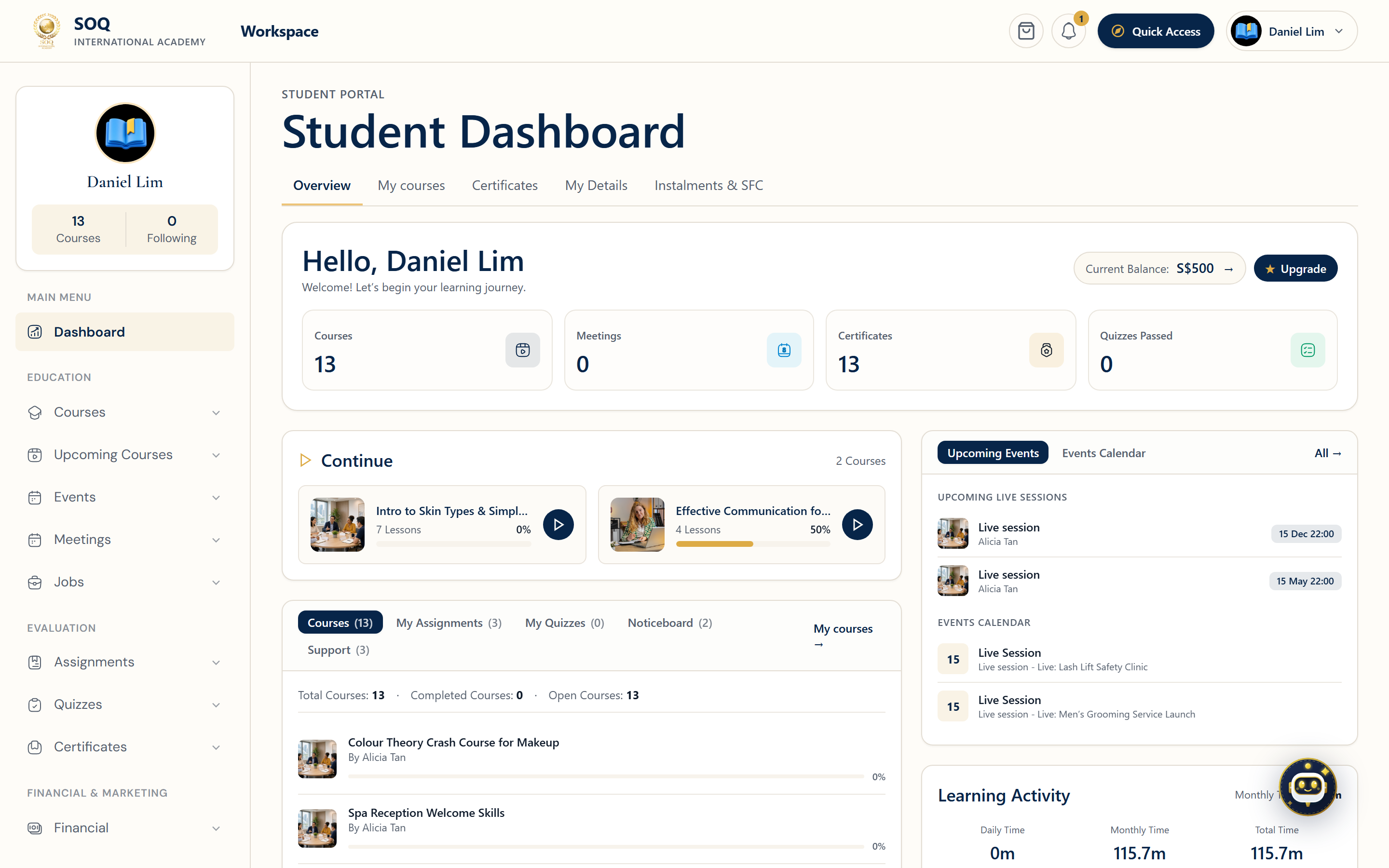
Illustrative screenshot “ Panel ? Dashboard ” /panel. Screenshot controls in this image are not clickable and may not match the current live UI.
Instructor / student dashboard
What this screen is
Home for signed-in instructors, students, and organizations after login. Path: Panel ? Dashboard (/panel).
What you see
Left sidebar (Dashboard, Events Calendar, Courses, Bundles, Meetings, Quizzes, Certificates, Financial, Marketing, Support, Articles, Noticeboard). Top bar links to the public site. Main area shows welcome card, balance/wallet, course overview, noticeboard, calendar, upcoming events/live sessions, and open meetings.
Field / control guide
- Welcome card: Greeting plus quick counts (courses, meetings, products, bundles) and Create Course CTA for instructors.
- Active service package: Shows the instructor package in force (e.g. Default / unlimited days).
- Current balance: Available earnings and amount ready to withdraw.
- Wallet: Shortcut to manage wallet credits.
- Course overview: Your published/draft courses, or empty state if none.
- Noticeboard: Admin announcements for panel users.
- Events calendar: Month view of scheduled activities.
- Open meetings: Pending 1:1 meeting requests with students.
- Sidebar ? Courses ? New: Opens the same multi-step course wizard documented under Create a Course.
How to complete the task
- Log in (demo: trainer@soq.edu.sg / instructor).
- Land on
/paneland review balance, notices, and open meetings. - Use Create Course or Sidebar ? Courses to manage classes.
- Open Financial for payouts; Support for tickets; My Profile for account details.
Notes / pitfalls: Student dashboards emphasize purchased courses; instructor dashboards emphasize sales and creation. Empty course overview is normal for a new instructor account.