
Financial & Payouts
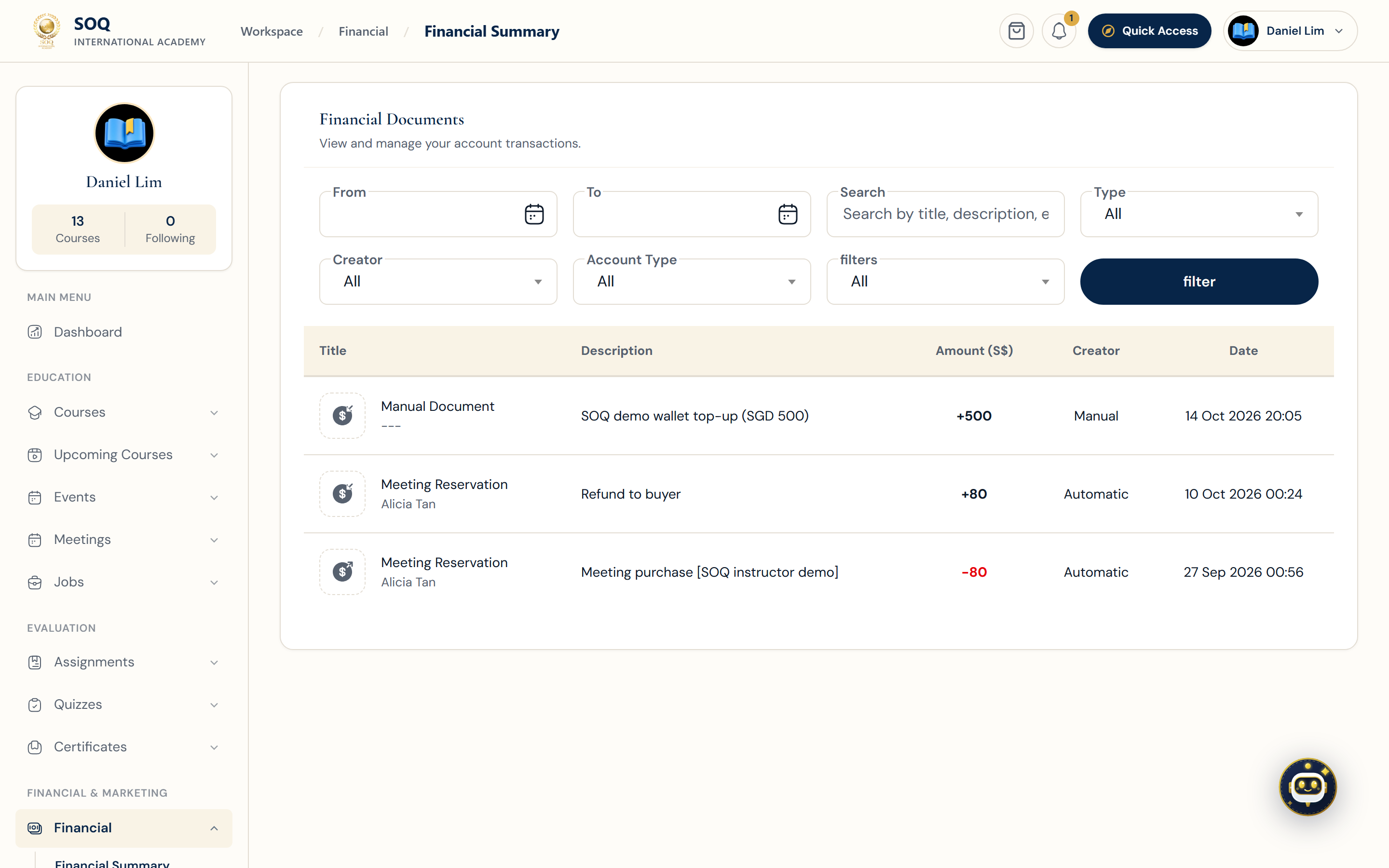
Live screenshot from the SOQ beauty demo (aiacademy.aiee.dev). Controls in the image are not clickable.
The Financial area is a set of independent, permission-gated screens. What appears depends on the account role, enabled modules, account-level eligibility, and the specific financial permission assigned to the role.
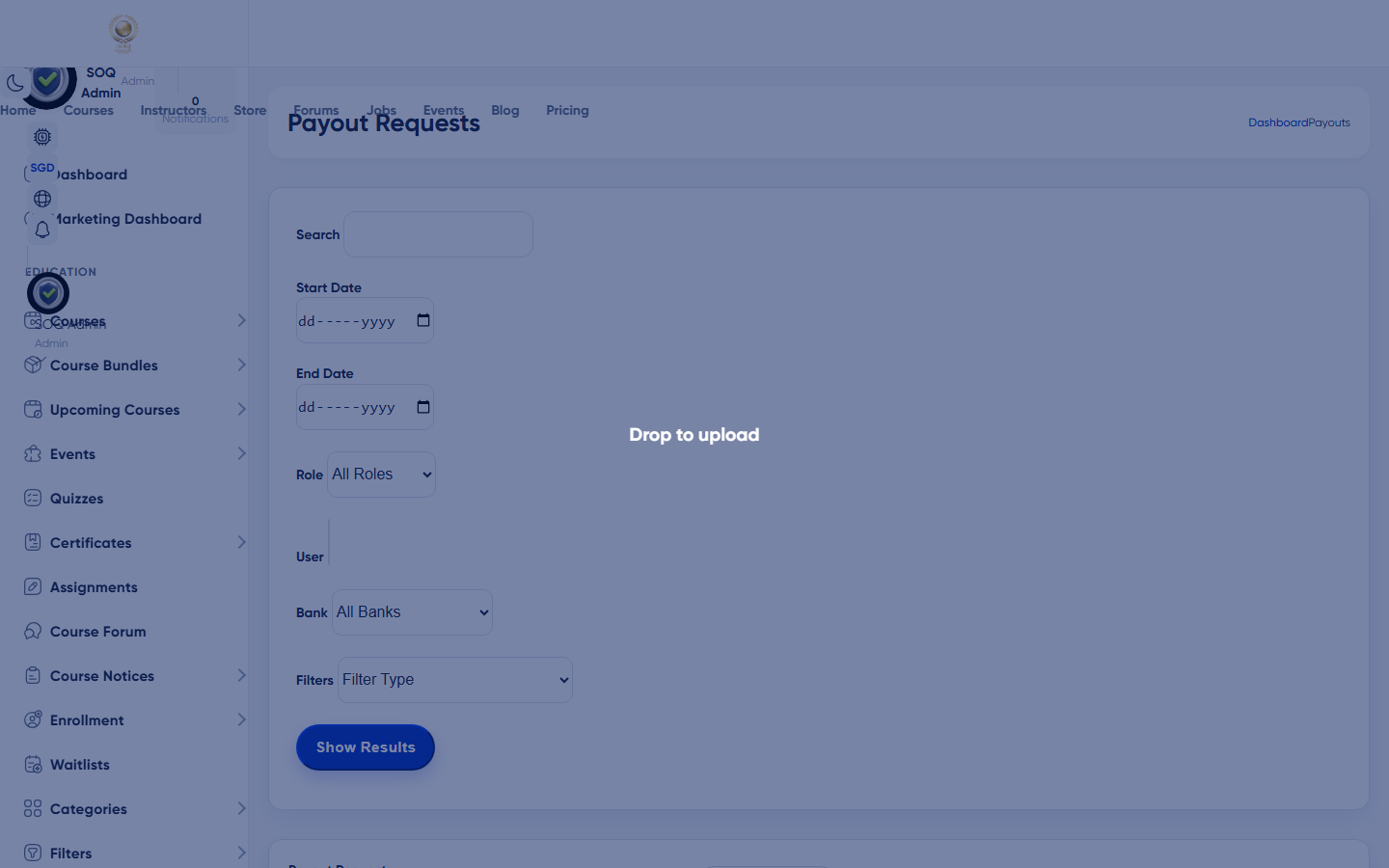
Illustrative screenshot — Panel → Financial. Screenshot controls in this image are not clickable and may not match the current live UI.
Sales, wallet, payouts, and payment plans
Sales reports
- Audience: Primarily instructors, organizations, and other sellers with the Sales Reports permission. The query contains non-refunded sales where the signed-in account is the seller.
- Summary: The page reports student, course, and meeting sale counts together with the seller's total sales amount.
- Filters: Date range, buyer, course, category, sale type, and amount/date sorting are available. Course types distinguish live class, text course, and video course; other sale types can include meetings, bundles, products, subscriptions, promotions, and registration packages where present.
- Meaning of a row: A sale is revenue activity for the seller. Refunded sales are excluded from this report and should not be treated as available payout merely because an earlier transaction existed.
Financial Summary and wallet
- Financial Summary: Requires the Summary permission and lists the user's non-system, non-tax accounting entries. Entries can be filtered by date, description, transaction type, store type, debit/credit account type, amount, and creation date.
- Wallet balance: The account screen shows wallet charge, income, and ready-to-payout figures. These values are different: wallet credit can fund purchases, while ready payout represents eligible earnings.
- Online recharge: With Charge Account permission, a positive amount creates a pending charge order and transfers the user to an active payment gateway.
- Commission: The configured commission is displayed in the accounting context. Seller proceeds and ready payout are calculated accounting values, not simply the customer's checkout total.
Payout requests
- Eligibility: Payout requires the Payout permission, a selected payout account, administrator approval of the user's financial information, and ready payout at or above the configured minimum.
- Request amount: A successful request is created for the user's current ready-to-payout amount; the form does not submit an arbitrary withdrawal amount.
- States: New requests start as Waiting. Administrator processing can move them to Done or Rejected. The history and details view remain scoped to the signed-in user.
- Common denial: A request is rejected before creation when the minimum is not met, financial information is unapproved, or no selected payout account exists.
Subscriptions
- Access: The subscriptions screen requires its own permission and lists configured subscription plans. It also shows the user's active plan, remaining days, activation/expiry dates, and remaining uses where the plan is limited.
- Purchase path: A paid plan creates a pending order with tax and proceeds through checkout using active payment channels, wallet balance, or configured offline options. A zero-price plan is activated through the free-sale path.
- Course use: A course shows the subscription enrolment action only when the course can be sold and is eligible for subscription use. A subscription plan is therefore not universal access to every course.
- Installments: Subscription installment choices appear only when installment settings, user eligibility, plan matching, and display settings all allow them.
Registration packages
- Roles: Registration packages are restricted to instructor and organization accounts. Instructors receive instructor-role packages; organizations receive organization-role packages. The feature's general status and the panel permission must both be enabled.
- Purpose: Packages provide account quotas or capabilities. The page compares package limits with current organization instructors/students and the account's courses, meetings, products, events, meeting packages, and jobs.
- Purchase states: Only active packages are offered. Paid packages create a taxed pending order and continue to checkout; free packages activate immediately. When attached to an instructor application, successful free activation returns that application to a pending review state with the selected package.
- Installment eligibility: A package advertises installments only when installments are globally enabled, enabled for the user, the package has a positive price, and a matching plan exists.
Installment orders
- Supported items: Installment orders can reference courses, bundles, products, subscriptions, or registration packages.
- List states: The panel counts and labels Open, Pending verification, completed schedules, overdue schedules, and terminal states such as Rejected, Canceled, and Refunded. Orders still in the temporary Paying state are excluded from the normal list.
- Schedule details: The details screen shows total, paid, remaining, and overdue parts and amounts. A part is treated as paid only when its payment is paid and its related sale has not been refunded.
- Next payment: Pay Upcoming Part selects the earliest unpaid step and places that installment payment into the cart. An individual valid step can also be paid from the schedule.
- Overdue: A step becomes overdue when its deadline, measured from order creation, has passed without a paid payment. Overdue warnings can be associated with access restrictions configured elsewhere.
- Cancel verification: A pending-verification order can be canceled only when the global setting permits cancellation; the cancellation workflow refunds the installment order.
Offline payments
- Availability: Offline wallet recharge appears only when offline banks are enabled and the user has Charge Account permission. Offline payment can also be offered during checkout when configured.
- Submission: The user selects an offline bank/account, enters a positive amount, reference number, and payment date, and may upload a JPEG or PNG proof image up to 10 MB.
- States: A new or edited request is Waiting. Administrator review changes it to Approved or Rejected. Approval is what turns the request into accepted financial credit; submitting proof alone is not confirmation of funds.
- Edit and delete: The user's own request can be edited or deleted while it is not approved. Editing resubmits it in Waiting state. Approved entries no longer expose those controls.
Permission and module gates: Sales Reports, Summary, Charge Account, Payout, Subscriptions, Registration Packages, and Installments each have separate access checks. A missing screen can be expected when the role lacks that permission, the feature is disabled, or the account does not satisfy its role or eligibility rules.