
Courses
The public Courses journey starts with discovery, continues through a course detail and enrolment path, and changes to the authenticated learning experience only after a valid entitlement is recorded.
How learners find and join a course
A simple top-to-bottom path for non-technical readers. Follow the arrows from Start. Diamonds are questions; Yes and No labels show which way to go.
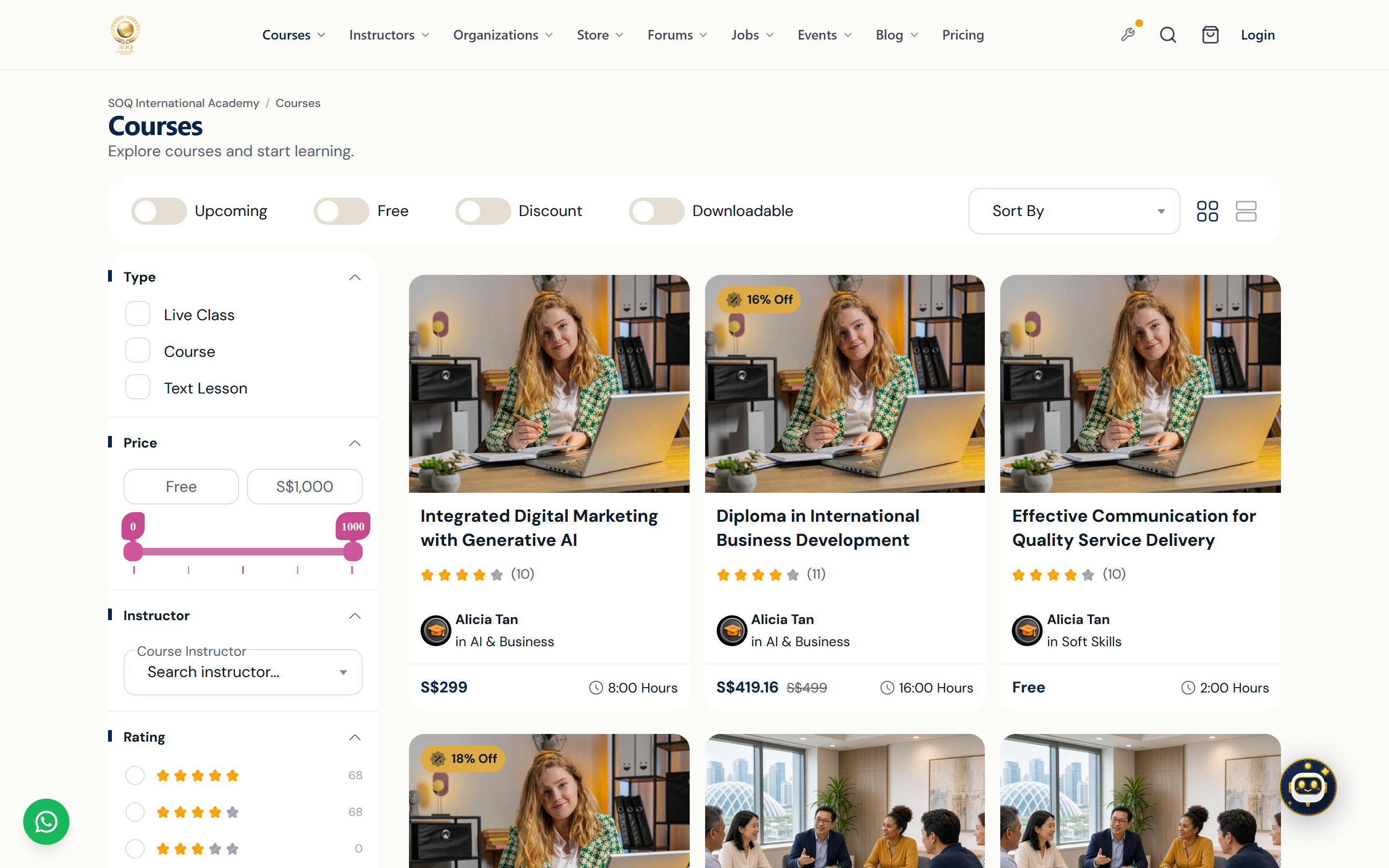
Illustrative screenshot — Public site → Courses. Screenshot controls in this image are not clickable and may not match the current live UI.
Discover, enrol, and begin learning
Course discovery
- Catalog eligibility: The catalog lists active, non-private courses that are not marked as available only to existing students. The assigned instructor must also be active and not currently banned.
- Course and bundle views: The listing can switch to bundles when the bundle type is selected. Both course and bundle discovery enforce active and public visibility.
- Type filters: Course results can be narrowed to live classes, video courses, and text courses. Additional filters can include category-defined options, instructor, upcoming start date, downloadable content, subscription eligibility, certificate, quiz, and featured status.
- Commercial filters: Visitors can request free items or items with a currently valid ticket or special-offer discount.
- Cards & Pricing Policy: Cards lead to the detail page and present the course identity, instructor, delivery type, rating, and current pricing status. Latest Pricing Update: Direct hardcoded prices have been updated to “To be confirmed” (TBC). Course fee quotes are confirmed based on intake schedules, grant subsidies (SFC/SSG), or institutional agreements. The detail page remains the source of truth for availability and enrollment.
Course detail page
- Information: The page can include description, teacher and category, tags, prerequisites, chapters and content, sessions, files, text lessons, quizzes, assignments, FAQs, related courses, reviews, capacity, offers, and installment choices where configured.
- Public preview versus protected content: Course structure and items may be visible before purchase, but content marked paid checks the user's purchase entitlement before download, playback, or reading. Sequential-release rules can also delay an otherwise entitled lesson.
- Private and student-only courses: These are excluded from public discovery. Direct access is allowed only for an administrator or a user whom the course authorizes, such as an entitled learner or course participant.
- Inactive course: A draft, pending, or inactive course returns an Access Denied page to ordinary visitors. Authorized course users and administrators may still access it for their permitted workflow.
Enrolment and payment paths
- Free enrolment: A signed-in user can enrol through the free route when the course is actually free under the current free-mode configuration. The server rechecks sale eligibility and refuses a priced course when free mode does not allow it.
- Cart checkout: A saleable paid course can be added to the cart. Quantity and removal are handled by the cart, and checkout applies the configured payment channels, tax, discounts, wallet credit, or offline payment options.
- Buy Now: Direct payment is shown only when the direct-course-payment feature is enabled, the user is signed in, and the course is active, public, and saleable. It builds a one-item checkout without requiring a persistent cart selection.
- Reward points: A course with a points price can show Buy with Points. The user must sign in, have enough points, and pass the same sale checks. A successful points purchase creates a zero-amount course sale and deducts the points.
- Subscription: Subscribe appears only when subscriptions can be used for that course and the course is currently saleable. The user's plan must still have the required validity and uses.
- Installments: Pay with Installments appears only when a matching plan exists and installment settings permit the button. The installment order and paid schedule govern ongoing access; selecting a plan is not the same as completing all payments.
- Authentication: Purchase and learning actions that create user-specific entitlement require an account. Unauthenticated users are directed to sign in where necessary.
Availability, waitlists, and disabled actions
- Sale window: A live class can be sold only before its start time. Any configured capacity must also have remaining seats.
- Capacity reached: The purchase control is disabled and reports that capacity has been reached. A full class is not made accessible by leaving an old cart item open.
- Already purchased: The enrolment card changes to Go to Learning Page rather than permitting a duplicate purchase.
- Waitlist: Join Waitlist replaces enrolment only when the course has waitlists enabled, the user has not bought it, and the course is no longer saleable. Signed-in users submit their account identity; guests provide name, email, phone, and captcha.
- Duplicate waitlist entry: The request is matched and updated by course plus the available user/contact identity. A signed-in user who already joined sees an Already Joined disabled control.
- Waitlist is not entitlement: Joining records interest and sends notifications; it does not reserve a seat, create a sale, or open the learning page.
Entitlement and learner transition
- Entitlement sources: Access is normally established by a valid, non-refunded sale, including free and points enrolments, an eligible gift, or an applicable installment order. Course-specific authorization can also cover administrators, creators, and assigned teaching roles.
- Learning transition: Once purchase or installment access is recognized, the primary action becomes Go to Learning Page. The learner can then open course items, track completion, use personal notes, and access enabled learning features.
- Item checks remain active: The learning-page transition does not bypass paid/free item rules, release sequence, access-day expiry, installment limitations, or course state checks.
- Refunds and disabled access: Refunded sales and sales with purchased-item access disabled are not valid learner access in the panel purchase flow. An invoice or historical transaction alone is not proof of current entitlement.
Reviews, comments, and favourites
- Reviews: Only a signed-in user who bought the active course can submit its scored review. The review records content quality, instructor skills, purchase value, and support quality, and only one review is accepted per user/course.
- Review moderation: Reviews start pending unless direct publication is enabled. Public lists display active reviews and active replies.
- Comments: Signed-in users can post general course comments and replies. Comments are distinct from scored reviews and follow the separate direct-publication or pending-moderation setting.
- Favourites: A signed-in user can save or remove a course as a favourite. This is a discovery aid only and does not grant purchase or learning access.
Typical learner journey
See the flowchart above for the same path as a visual. In short:
- Browse Courses and narrow the active public catalog with type, price, rating, instructor, or feature filters.
- Open the detail page and confirm schedule, capacity, prerequisites, curriculum, price, and available payment options.
- Sign in and choose free enrolment, cart checkout, Buy Now, reward points, subscription, or installments when that option is displayed and eligible.
- After successful entitlement, use Go to Learning Page and continue later from Panel → Courses → My Purchases.
- Submit a review after purchase, or use comments for general discussion when those features are available.
Denied versus disabled: Access Denied protects a course page whose state or audience does not permit the visitor. A disabled enrolment control means the detail page is visible but a sale rule failed, commonly because the user already owns the course, capacity is full, or a live class has started. Feature-specific buttons are absent when their global setting or item eligibility is not enabled.