
Quizzes & Certificates Feature
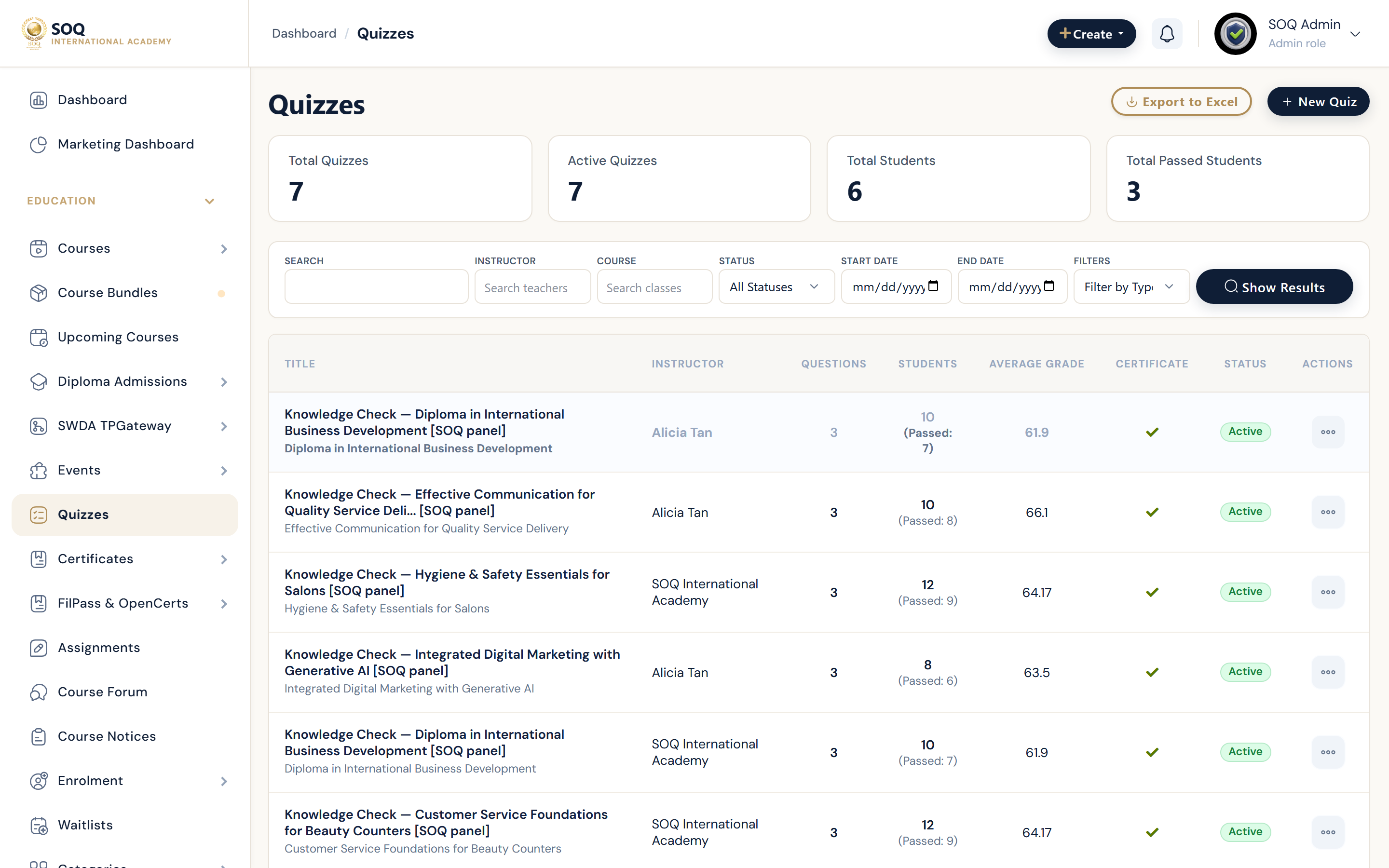
Illustrative screenshot “ Admin / Panel -> Quizzes ” annotated walkthrough. Screenshot controls in this image are not clickable and may not match the current live UI.
Quizzes & Certificates
What this screen is
Create quizzes, define questions, set pass marks/attempts, and issue certificates when students pass.
What you see
Quiz list with titles, linked courses, pass marks, attempt limits, and certificate flags.
Screenshot annotations
- 1New quiz: See marker 1 on the screenshot.
- 2Search: See marker 2 on the screenshot.
- 3Course filter: See marker 3 on the screenshot.
- 4Quizzes table: See marker 4 on the screenshot.
- 5Pass / cert flag: See marker 5 on the screenshot.
- 6Edit questions: See marker 6 on the screenshot.
Field / control guide
- Quiz title: Shown on the course learning page.
- Time: Duration; auto-finish when expired.
- Attempts: How many times a student may retry.
- Pass mark: Score required for pass/certificate.
- Certificate: Toggle to award on pass.
- Questions: Multiple choice or descriptive items with grades.
How to complete the task
- Step 1: Create a quiz and set pass mark/attempts.
- Step 2: Add multiple-choice and descriptive questions with grades.
- Step 3: Attach the quiz to a course/section.
- Step 4: Take the quiz as a demo student and confirm certificate issuance.
Notes / pitfalls: Admin quiz list may show Feature not activated until Modules activation is enabled. Keep certificate templates branded for SOQ.