
Special Offers Core
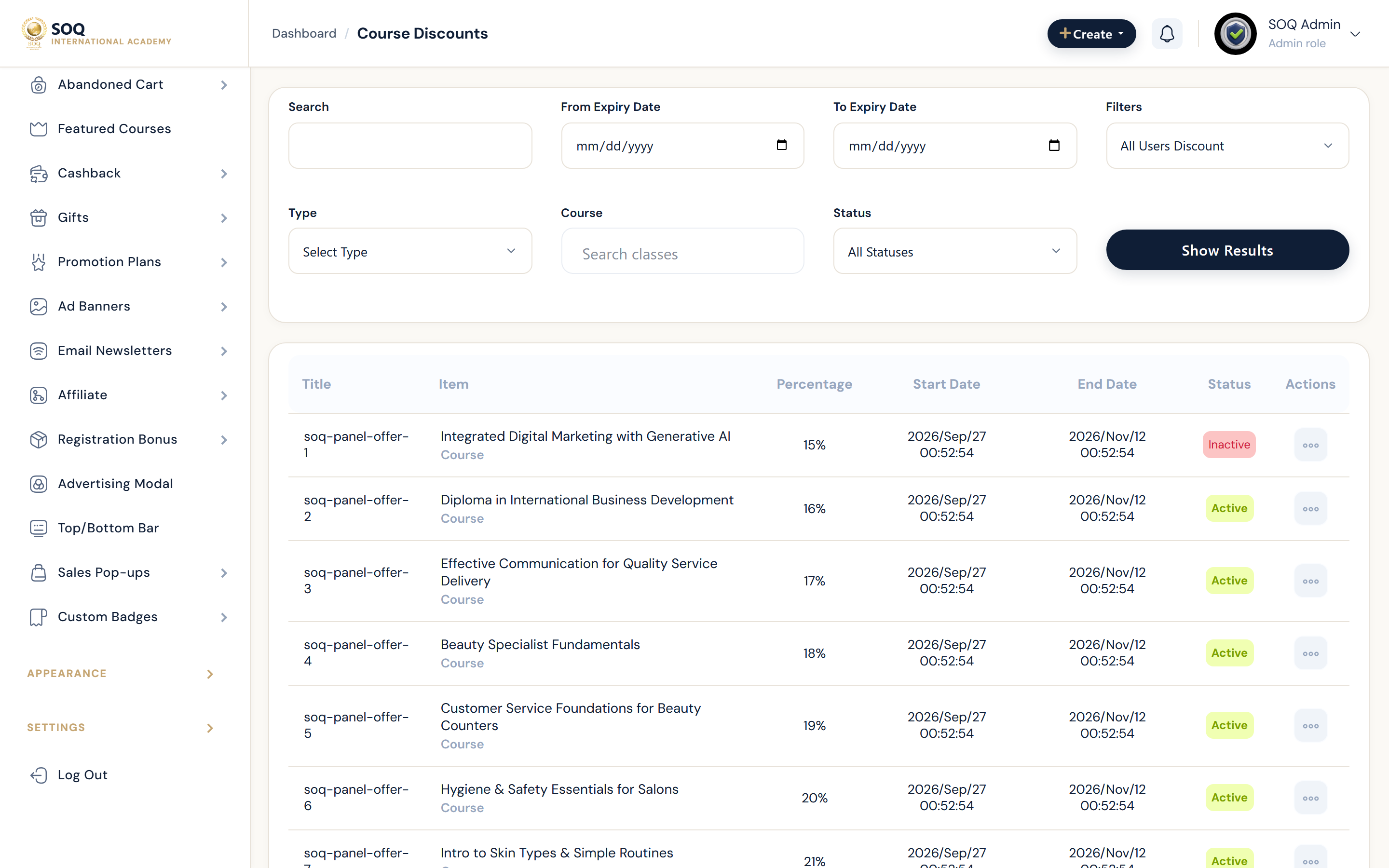
Illustrative screenshot “ Admin -> Marketing -> Special Offers ” annotated walkthrough. Screenshot controls in this image are not clickable and may not match the current live UI.
Special Offers
What this screen is
Create time-boxed special pricing campaigns on courses/products.
What you see
Special offer list and create form with dates and discount amount.
Screenshot annotations
- 1New offer: See marker 1 on the screenshot.
- 2Search: See marker 2 on the screenshot.
- 3Date filter: See marker 3 on the screenshot.
- 4Offers list: See marker 4 on the screenshot.
- 5Active window: See marker 5 on the screenshot.
- 6Edit: See marker 6 on the screenshot.
Field / control guide
- Offer scope: Courses/products included.
- Dates: Campaign window.
- Amount: Percent or fixed off.
- Status: Active/expired.
How to complete the task
- Step 1: Create an offer with dates and scope.
- Step 2: Publish and verify public price display.
- Step 3: End/expire on time.
Notes / pitfalls: Check stacking with discount codes before dual campaigns.