
Themes & Landing Builder Feature
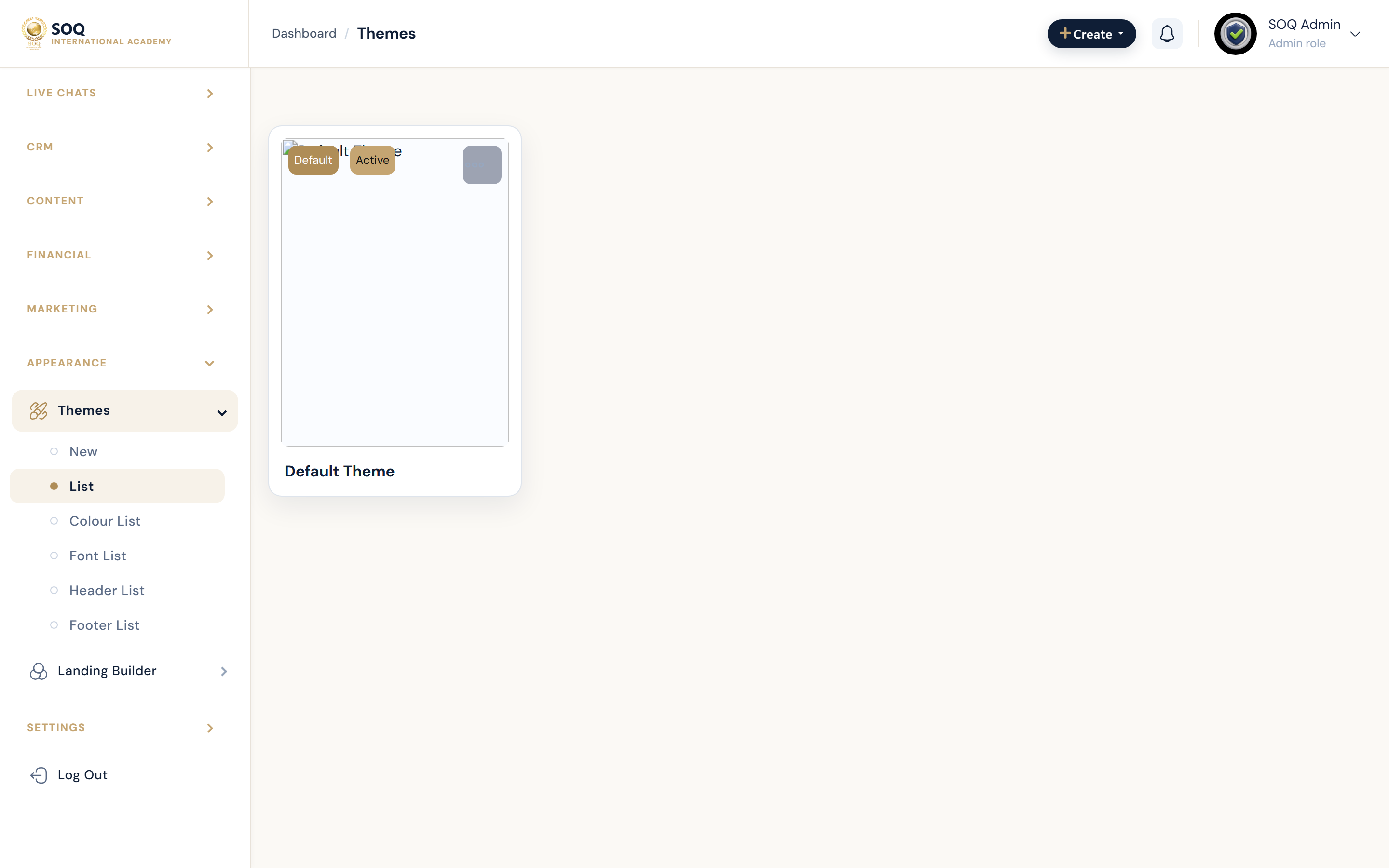
Illustrative screenshot “ Admin -> Appearance -> Themes / Landing Builder ” annotated walkthrough. Screenshot controls in this image are not clickable and may not match the current live UI.
Themes & Landing Builder
What this screen is
Choose themes and compose landing pages. Landing Builder may appear as a separate activated product in Admin.
What you see
Theme list/create, colors/fonts/headers, and Landing Builder screens.
Screenshot annotations
- 1New theme: See marker 1 on the screenshot.
- 2Search: See marker 2 on the screenshot.
- 3Theme filter: See marker 3 on the screenshot.
- 4Themes list: See marker 4 on the screenshot.
- 5Active theme: See marker 5 on the screenshot.
- 6Landing builder: See marker 6 on the screenshot.
Field / control guide
- Themes: Active visual theme.
- Colors / fonts / headers: Theme-level branding.
- Landing Builder: Composable landing pages.
- Activation: Separate product notice when not enabled.
How to complete the task
- Step 1: Activate/create a theme; set colors/fonts.
- Step 2: Build a landing page if Landing Builder is active.
- Step 3: Clear caches and verify public homepage.
Notes / pitfalls: Prefer theme settings before Custom CSS/JS. If you see a separate-product notice, activate via Activations.