
Translator Feature
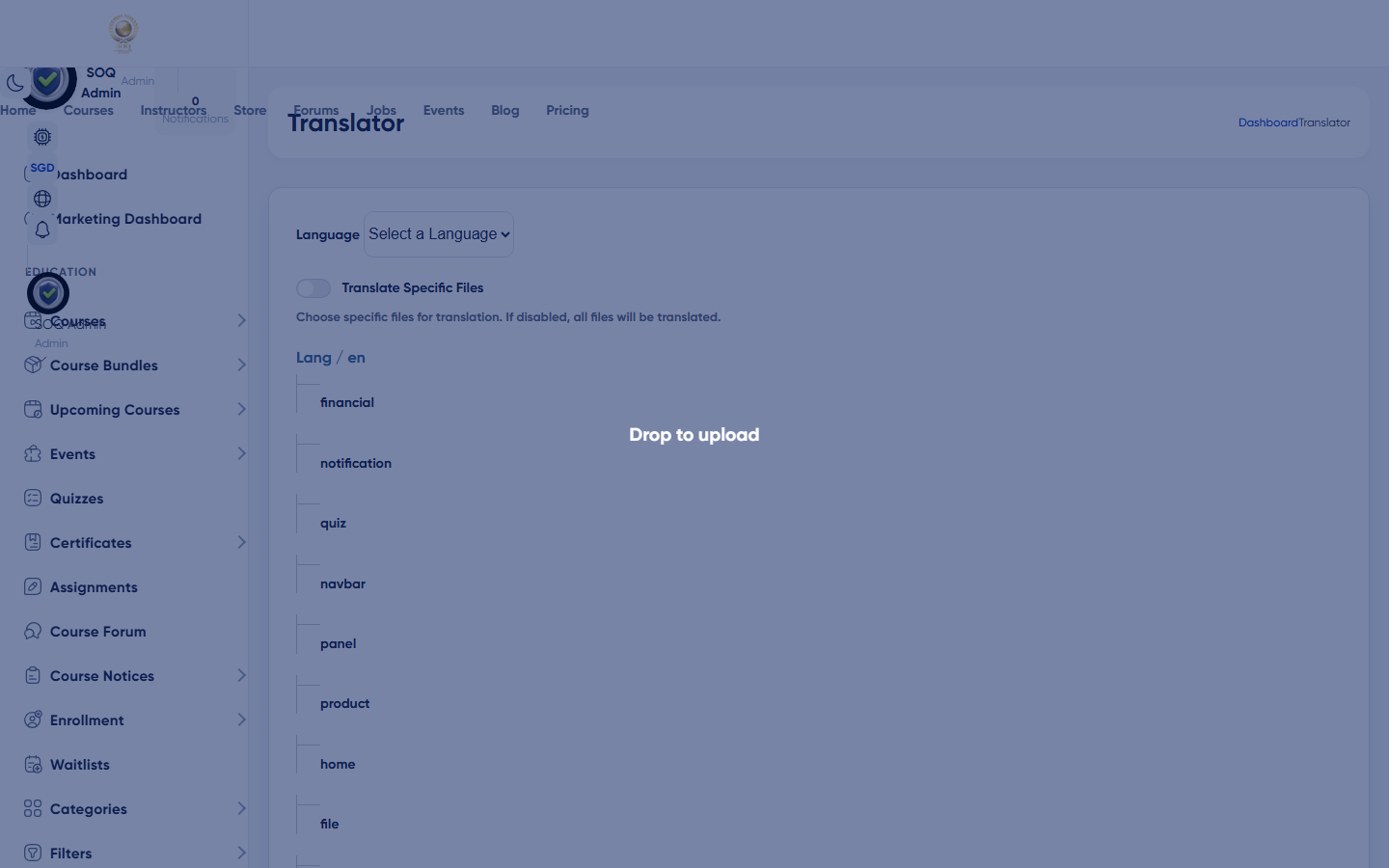
Illustrative screenshot “ Admin -> Settings -> Translator ” annotated walkthrough. Screenshot controls in this image are not clickable and may not match the current live UI.
Translator
What this screen is
Edit language strings/translations used across Admin, Panel, and public UI.
What you see
Locale picker, translation keys, and value editors.
Screenshot annotations
- 1Open translator: See marker 1 on the screenshot.
- 2Search key: See marker 2 on the screenshot.
- 3Locale filter: See marker 3 on the screenshot.
- 4String list: See marker 4 on the screenshot.
- 5Edited flag: See marker 5 on the screenshot.
- 6Save: See marker 6 on the screenshot.
Field / control guide
- Locale: Target language.
- Key: Source string identifier.
- Value: Translated text.
How to complete the task
- Step 1: Select locale and find the string.
- Step 2: Update and save.
- Step 3: Hard-refresh the UI.
Notes / pitfalls: Keep SOQ branding intact — never reintroduce old vendor names in translations.