
Class Support Messages
Class support threads connect enrolled learners with instructors. Staff can oversee conversations from CRM/Supports course conversation tools at the configured Admin URL.
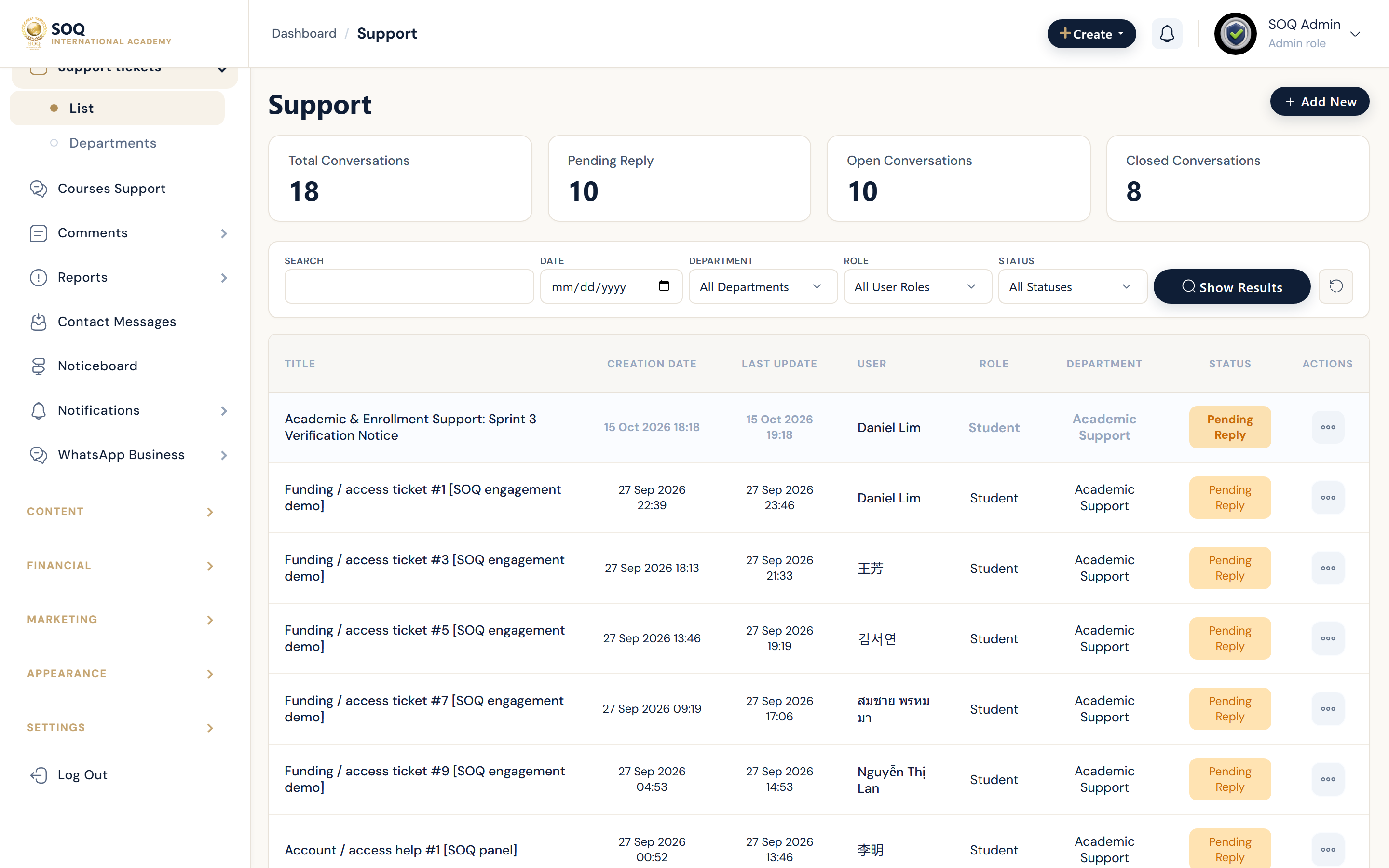
Live screenshot from the SOQ beauty demo (aiacademy.aiee.dev). Controls in the image are not clickable.
Surfaces, roles and current terminology
| Surface | Current navigation terminology | Status |
|---|---|---|
| Admin conversations | CRM / Supports ? course conversations | Core |
| Panel support | Panel ? Support ? class support threads | Requires Support enabled on the class |
| Course setting | Create/Edit Class ? enable Support | Core course flag |
| Platform tickets | Panel or Admin platform support tickets | Separate from class threads |
Permissions, settings and activation
- Enable Support on the class before expecting learner threads.
- Instructors should answer from Panel; staff use Admin oversight for escalations.
- Do not mix platform billing tickets into class curriculum threads.
- Close resolved threads to keep queues manageable.
Core workflows
Enable and test class support
- Edit the course and enable Support.
- Enroll a test learner and open a class support message.
- Reply as the instructor from Panel support.
- Confirm the thread also appears for staff oversight if required.
Escalate a stuck conversation
- Open Admin course conversations and locate the thread.
- Review learner and instructor messages for blockers.
- Intervene with a clear next step or reassign ownership.
- Verify the learner sees the staff response in Panel.
Result states
- Success: Learners and instructors exchange messages on an enabled class, and staff can oversee when needed.
- Pending: A thread awaits instructor or staff reply.
- Denied: Support is disabled on the class, or the user is not entitled to the conversation.
- Error: Missing course flag or permission errors hide threads; enable Support and retest.