
Panel Overview
Students, instructors, and organizations use the Panel after sign-in. Role and package settings control which sidebar items appear. Platform staff continue to use the configured Admin URL separately from this learner and teacher workspace.
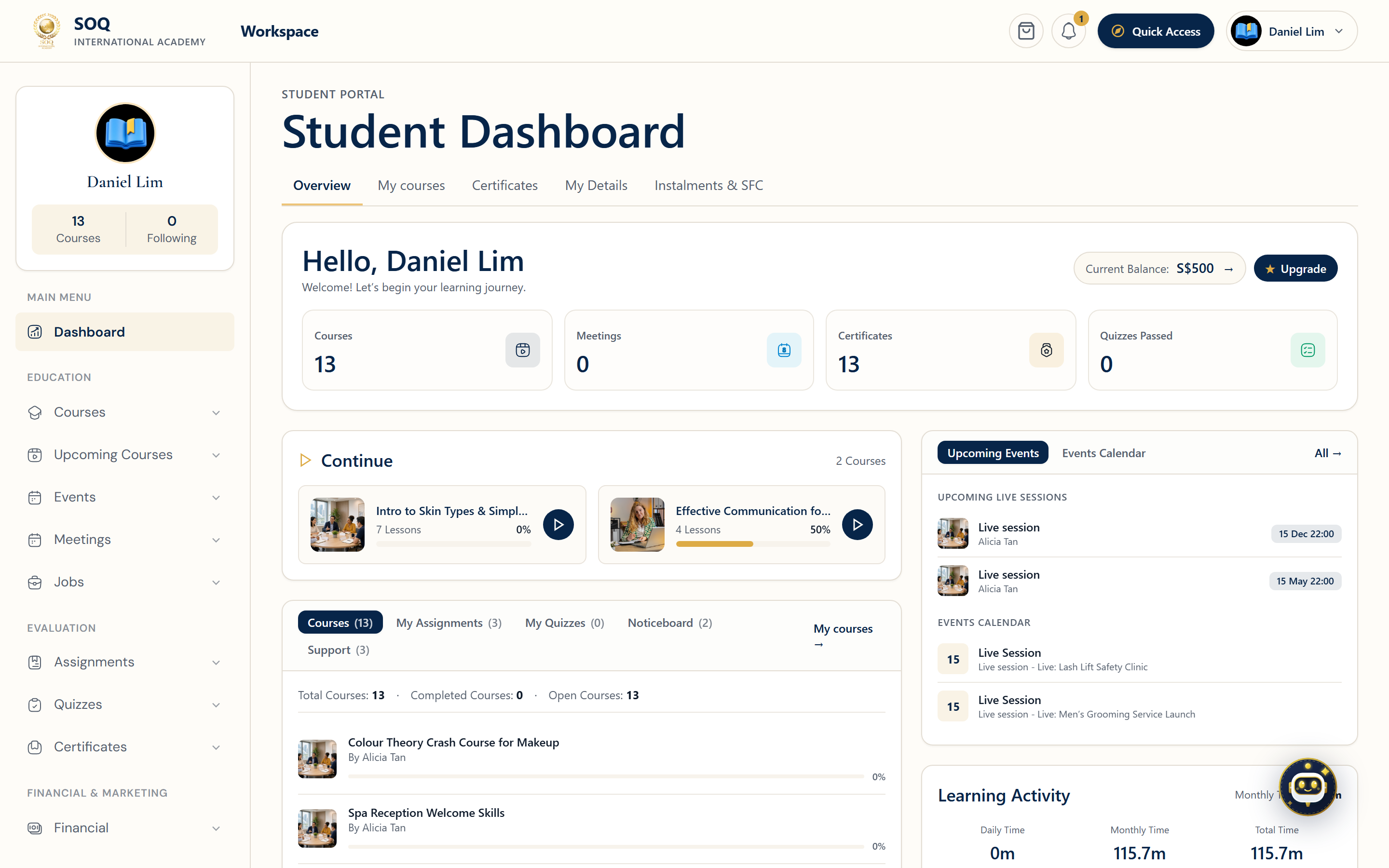
Live screenshot from the SOQ beauty demo (aiacademy.aiee.dev). Controls in the image are not clickable.
Surfaces, roles and current terminology
| Surface | Current navigation terminology | Status |
|---|---|---|
| Panel home | Panel ? Dashboard (signed-in /panel) | Core |
| Education menus | Panel ? Courses, Calendar, and role-specific learning items | Core; extras are feature-gated |
| Financial menus | Panel ? Financial (sales, payouts, wallet where enabled) | Core with optional features |
| Support and profile | Panel ? Support and Panel ? Settings / profile | Core |
| Organization scope | Panel ? Organization (owners and authorized org staff) | Feature-gated |
Permissions, settings and activation
- Sign in with an account that has Panel access for its role.
- Expect different menus for student, instructor, and organization accounts.
- Optional modules stay hidden or inactive until enabled and enabled in settings.
- Administrators manage cross-account corrections from the configured Admin URL, not from a learner Panel session.
Core workflows
Orient to the Panel
- Sign in and open the Panel dashboard.
- Scan the sidebar for education, financial, support, and organization sections that match the account role.
- Open one owned course, one financial summary, and the profile page to confirm access.
- If an expected item is missing, check role, package limits, and whether the feature is activated.
Hand off between Panel and Admin
- Use Panel for day-to-day learning, teaching, and organization work.
- Escalate platform-wide catalog, payout approval, or account ownership issues to staff at the configured Admin URL.
- Do not share Admin credentials with learners or instructors.
- Re-test the Panel account after any Admin-side role or package change.
Result states
- Success: The signed-in role sees the expected dashboard cards and sidebar items and can open owned records.
- Pending: Instructor approval, organization package capacity, or a enabled module is still incomplete.
- Denied: The account lacks Panel permission for that menu, or the feature is not activated.
- Error: Session expiry, broken redirects, or a server fault blocks the dashboard; re-authenticate and check logs before retrying.
Operational notes
- Prefer Panel screenshots under images/panel/ when illustrating this guide elsewhere; this page stays text-first.
- Refer to the configured Admin URL rather than a fixed path when documenting staff tools.