
Admin Users Operations
Platform administrators and permitted staff manage accounts from the configured Admin URL. The default path may be /admin, but installations can use a different path.
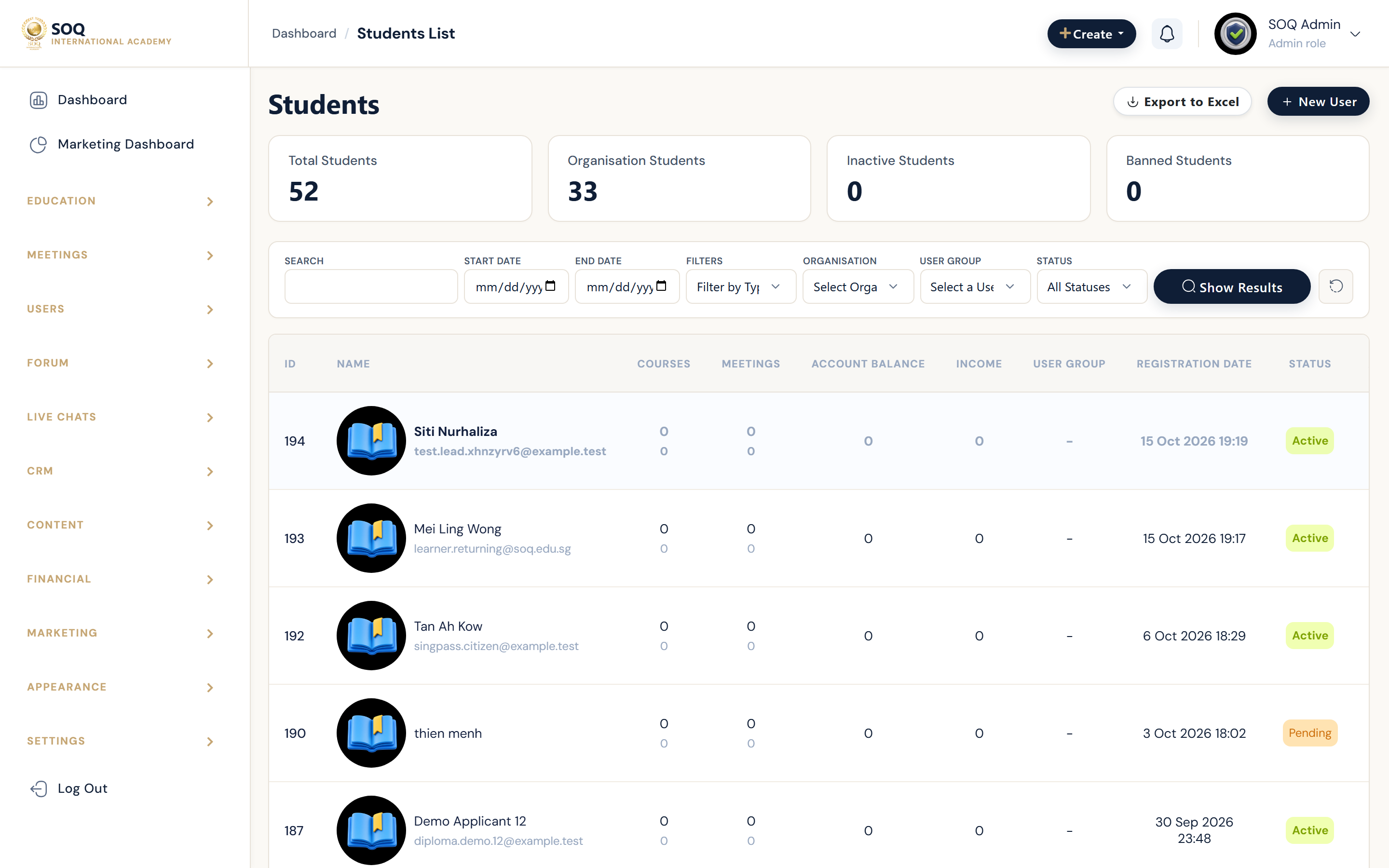
Live screenshot from the SOQ beauty demo (aiacademy.aiee.dev). Controls in the image are not clickable.
Surfaces, roles and current terminology
| Surface | Current navigation terminology | Status |
|---|---|---|
| Role lists | Users ? Students, Instructors, Organizations, Admins | Core |
| Restricted access | Users ? Roles and role permission matrix | Core |
| Account actions | User detail/edit actions: status, edit, delete, impersonate | Core |
| Login history | User detail ? Login History | Core; visibility follows staff permission |
Permissions, settings and activation
- Use an Admin role or a staff role granted the exact Users and Roles permissions required.
- Treat role-list access, edit, deletion, impersonation, and login-history access as separate privileges.
- Restricted staff must see only permitted sections; a configured Admin URL does not bypass authorization.
- Deletion and impersonation are sensitive operations. Verify the target account and business ownership first.
Core workflows
Find and maintain an account
- Open the configured Admin URL and choose the matching role list: Students, Instructors, Organizations, or Admins.
- Filter or search for the account, then open its detail or edit action.
- Review role, status, organization ownership, and recent login history before changing access.
- Save the change and verify the user reaches only the intended surface.
Apply restricted staff access
- Open Users ? Roles and select or create the staff role.
- Grant only the required list, view, edit, deletion, impersonation, and history permissions.
- Assign the role to the staff account.
- Test with that staff account at the configured Admin URL.
Delete or impersonate safely
- Confirm the exact user and check linked learning, sales, organization, or authored content.
- Use impersonation only to reproduce the user's view; exit the impersonated session before other admin work.
- Use delete only when retention and ownership requirements are satisfied.
- Recheck lists and audit context after the action.
Result states
- Success: The account appears in the correct role list, intended permissions work, and restricted sections remain unavailable.
- Pending: Role, instructor, or organization approval is still awaiting an authorized reviewer.
- Denied: The staff role lacks the requested permission, or the target action is outside its scope.
- Error: A save or delete fails because of validation, linked records, session state, or a server error; preserve the account and investigate before retrying.
Operational notes
- Do not document a fixed admin prefix. Refer to the configured Admin URL and use
/adminonly as a default example.