
Security Settings
Administrators harden captcha, admin panel URL prefix, watermark, and device-limit options under Settings ? General ? Security. Saving security settings returns to General settings.
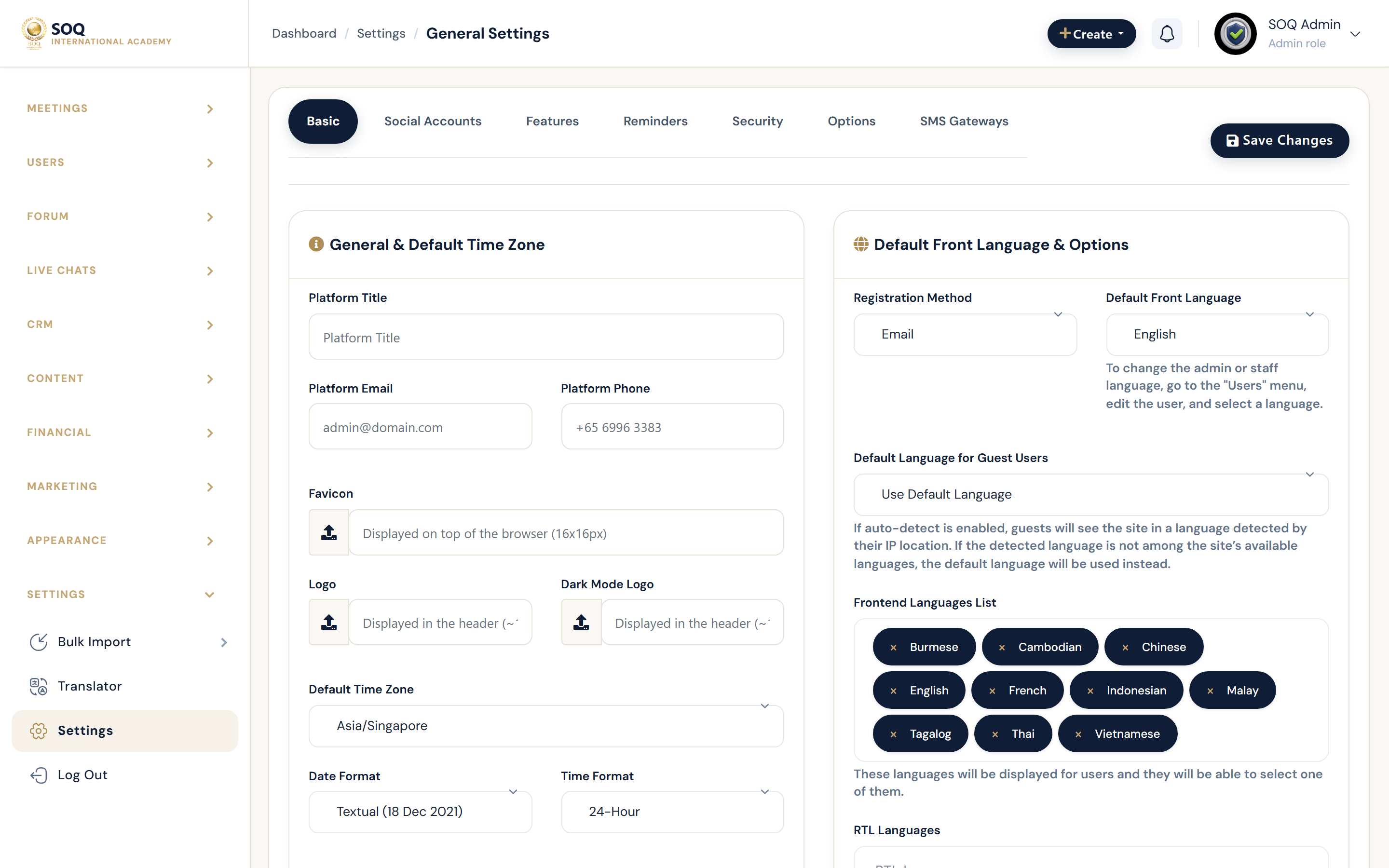
Live screenshot from the SOQ beauty demo (aiacademy.aiee.dev).
Surfaces, roles and current terminology
| Surface | Current navigation terminology | Status |
|---|---|---|
| Security tab | Settings ? General ? Security | Core |
| Admin panel URL | admin_panel_url (default example admin) | Core |
| Captcha toggles | captcha_for_admin_login and related switches | Core |
| Device limit / watermark | Device limit and watermark fields | May show Requires activation |
| Reset login counts | settings/reset-users-login-count action | Core sensitive |
Permissions, settings and activation
- Changing admin_panel_url immediately changes the configured Admin URL — bookmark the new path before saving.
- Some device-limit or watermark controls may require feature activation; treat Requires activation as blocked until enabled/enabled.
- Requires General/security settings permission.
Core workflows
Change the Admin URL prefix
- Open Settings ? General ? Security.
- Set admin_panel_url to the desired path segment (default example
admin). - Save, then immediately open the new configured Admin URL and sign in again if prompted.
- Update staff bookmarks and reverse-proxy rules.
Enable captcha on sensitive forms
- Toggle the captcha options needed for Admin and public auth forms.
- Save and test Admin login plus public login/register.
- Confirm legitimate users can still pass captcha.
Apply device limits carefully
- Read whether device limit/watermark still show Requires activation.
- If active, set limits and communicate to instructors/students before enforcing.
- Use reset login count only when intentionally clearing sessions/counts.
Result states
- Success: Security options save, the configured Admin URL works, and captcha/device rules behave as intended.
- Pending: Requires activation still showing on device limit/watermark, or DNS/proxy not yet updated for a new admin path.
- Denied: Missing security settings permission, or activation missing for gated security features.
- Error: Admin URL change without bookmarking locks staff out; recover via database/settings with hosting access and rotate the path.
Operational notes
- Never document a fixed admin path deep link; always refer to the configured Admin URL.