
Cart, Checkout and Payments
Visitors can build a cart; authenticated students complete checkout. Administrators configure financial settings, wallet rules, offline payment, and gateways from the configured Admin URL.
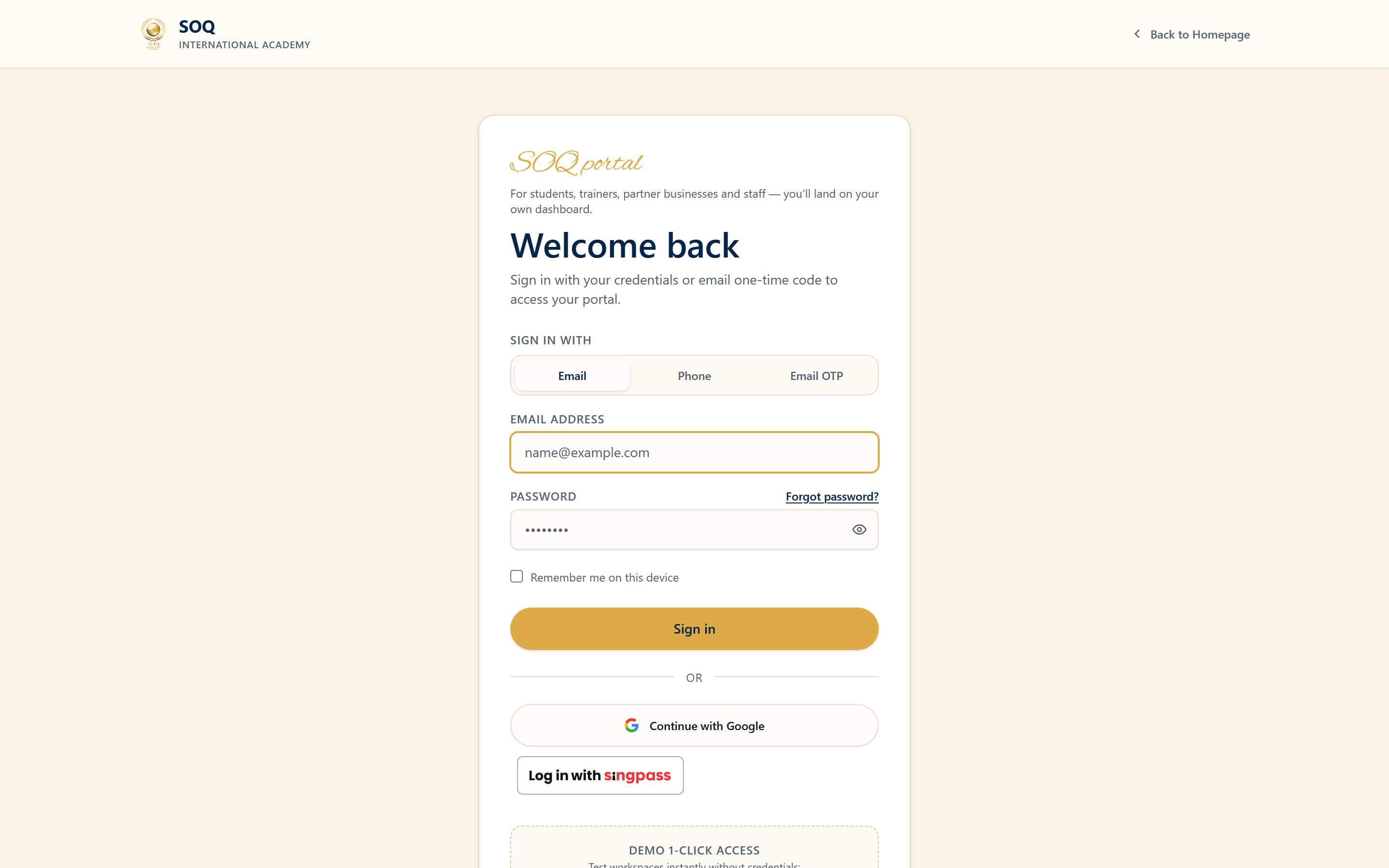
Live screenshot from the SOQ beauty demo (aiacademy.aiee.dev).
Surfaces, roles and current terminology
| Surface | Current navigation terminology | Status |
|---|---|---|
| Cart | Public course/product page ? Add to Cart ? Cart | Core purchase flow |
| Coupons | Cart ? Coupon/Discount Code | Core when a valid code exists |
| Checkout | Cart ? Checkout | Core; sign-in and required billing data apply |
| Payment methods | Checkout ? Wallet, Offline Payment, or enabled Gateway | Method depends on balance, settings, activation, and gateway configuration |
| Result and access | Payment result ? order/sale ? enrollment | Access follows confirmed payment and item rules |
Permissions, settings and activation
- A purchaser must be signed in before the order can be attributed and enrollment granted.
- Currency, tax, coupon, wallet, offline payment, and gateway settings must agree.
- Only enabled and correctly configured payment methods appear.
- Feature-gated payment options must be active; inactive Admin stubs do not process payments.
Core workflows
Complete an online payment
- Add an eligible course or product to Cart and review quantities and prices.
- Apply a coupon and confirm the recalculated total before continuing.
- Open Checkout, complete required details, and choose Wallet or an enabled gateway.
- Complete the provider flow and wait for the platform payment-result page.
- Confirm the order is successful and the course appears in My Courses when enrollment applies.
Submit an offline payment
- Choose Offline Payment at Checkout when enabled.
- Follow the displayed bank or manual payment instructions and submit the required reference or proof.
- Treat the order as pending until an administrator verifies it.
- After approval, confirm the order and enrollment are active.
Recover from an interrupted result
- Do not immediately pay again if the gateway completed but the result page failed.
- Check purchase history, wallet movement, and course entitlement.
- Provide the payment reference to support or an administrator.
- Retry only after the original transaction is confirmed failed or canceled.
Result states
- Success: The order is paid, the result is successful, wallet/gateway records reconcile, and enrollment or product fulfillment is created once.
- Pending: Offline verification, delayed gateway confirmation, or order review is still in progress; access is not yet guaranteed.
- Denied: The coupon is ineligible, wallet balance is insufficient, the method is unavailable, or the user lacks purchase eligibility.
- Error: Gateway cancellation, callback failure, duplicate submission, invalid total, or server failure interrupts checkout; verify transaction state before retrying.