
Create Custom Pages
Content operators publish static custom pages such as About or policy pages from Content ? Pages at the configured Admin URL, then link them from navigation or footer.
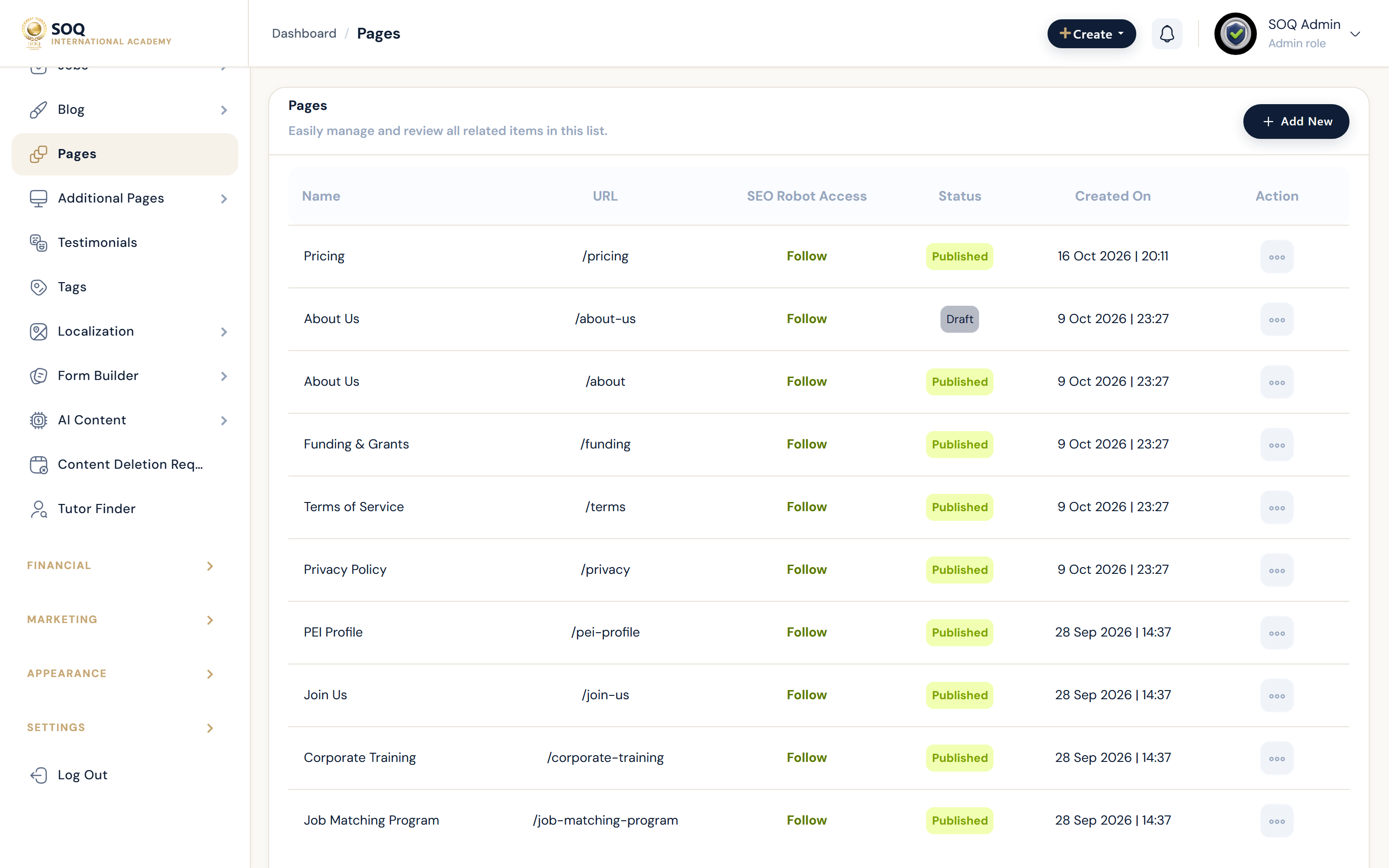
Live screenshot from the SOQ beauty demo (aiacademy.aiee.dev). Controls in the image are not clickable.
Surfaces, roles and current terminology
| Surface | Current navigation terminology | Status |
|---|---|---|
| Pages list | Content ? Pages | Core |
| Page editor | Create/edit slug, title, body, publish state | Core |
| Additional pages | Additional/static page tools where present | Core |
| Discovery | Navbar, footer, or homepage links to the page slug | Depends on Appearance / Footer settings |
Permissions, settings and activation
- Slug changes break bookmarks — add redirects or update all links.
- Publish only after proofreading; unpublished pages should not appear in public menus.
- Use SOQ International Academy branding and https://soq.edu.sg in legal/about copy.
- Coordinate footer and navbar links after creating the page.
Core workflows
Publish a custom page
- Open Content ? Pages and create a page with a stable slug.
- Write the body content and set SEO fields if available.
- Publish and open the public URL in a private window.
- Add footer or navbar links so visitors can discover the page.
Change a slug safely
- Inventory existing links to the old slug.
- Update the slug only when necessary.
- Add a redirect or update every known link the same day.
- Verify both old and new entry points behave as intended.
Result states
- Success: The public URL renders the published content and menus link correctly.
- Pending: The page remains draft while content is reviewed.
- Denied: Staff lack content page permissions.
- Error: Slug conflicts or broken menu links hide the page; fix navigation and retest.