
Change Fonts
Administrators manage theme font presets under Appearance ? Themes ? Fonts. Fonts apply with theme helpers alongside color presets for SOQ International Academy branding.
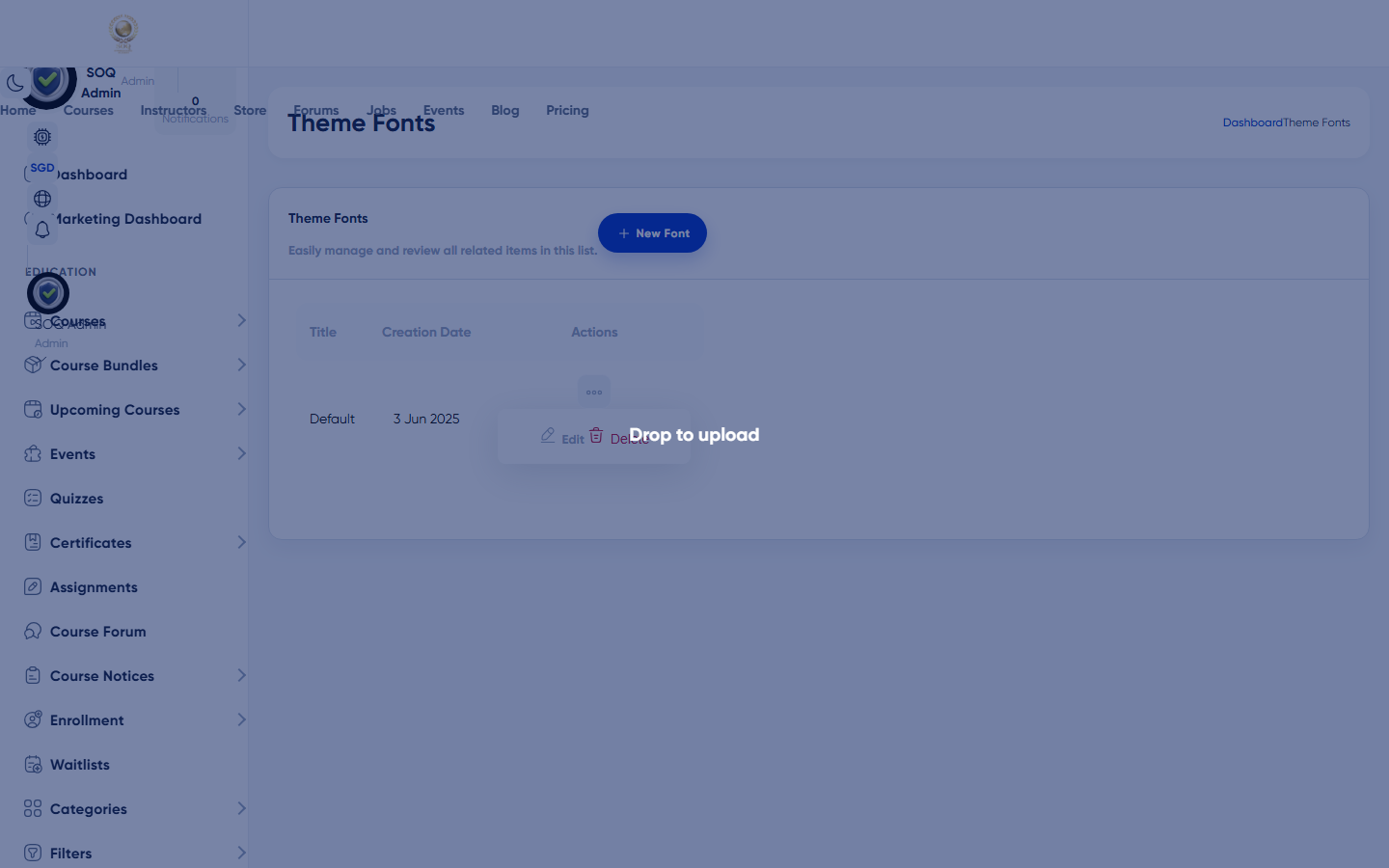
Live screenshot from the SOQ beauty demo (aiacademy.aiee.dev). Controls in the image are not clickable.
Surfaces, roles and current terminology
| Surface | Current navigation terminology | Status |
|---|---|---|
| Fonts list | Appearance ? Themes ? Fonts lists | Core |
| Create / edit font preset | themes/fonts create and edit | Core |
| Runtime apply | Theme font settings in layouts | Core |
| Related branding | Colors + Custom CSS/JS | Core |
Permissions, settings and activation
- Requires Themes/Fonts permissions.
- Ensure enabled webfonts allow embedding on your domain.
- Test RTL languages after font changes when those locales are enabled.
Core workflows
Create or edit fonts
- Open Appearance ? Themes ? Fonts lists.
- Create or edit a preset and set heading/body families as exposed by the form.
- Save and preview homepage, course page, and Panel dashboard.
- Check mobile viewport wrapping for long course titles.
Coordinate with colors and CSS
- Apply color presets first when rebranding.
- Use Fonts for typeface choices; reserve Custom CSS for exceptions.
- Avoid conflicting font-family rules in Custom CSS that override the preset.
Validate accessibility
- Confirm body text remains readable at default sizes.
- Verify Admin tables and forms are not clipped by oversized fonts.
- Revert the preset if staff productivity is impacted.
Result states
- Success: Selected typefaces render on public and panel layouts without breaking components.
- Pending: Font files still downloading or CDN cache stale.
- Denied: Missing Themes/Fonts permission or webfont usage restriction.
- Error: Missing font files or CSS conflict; fall back to a system-safe preset while fixing.