
Learning Page
Enrolled students consume course content on the Learning Page. Instructors and organizations prepare content and respond through owned course tools; administrators intervene only with appropriate access.
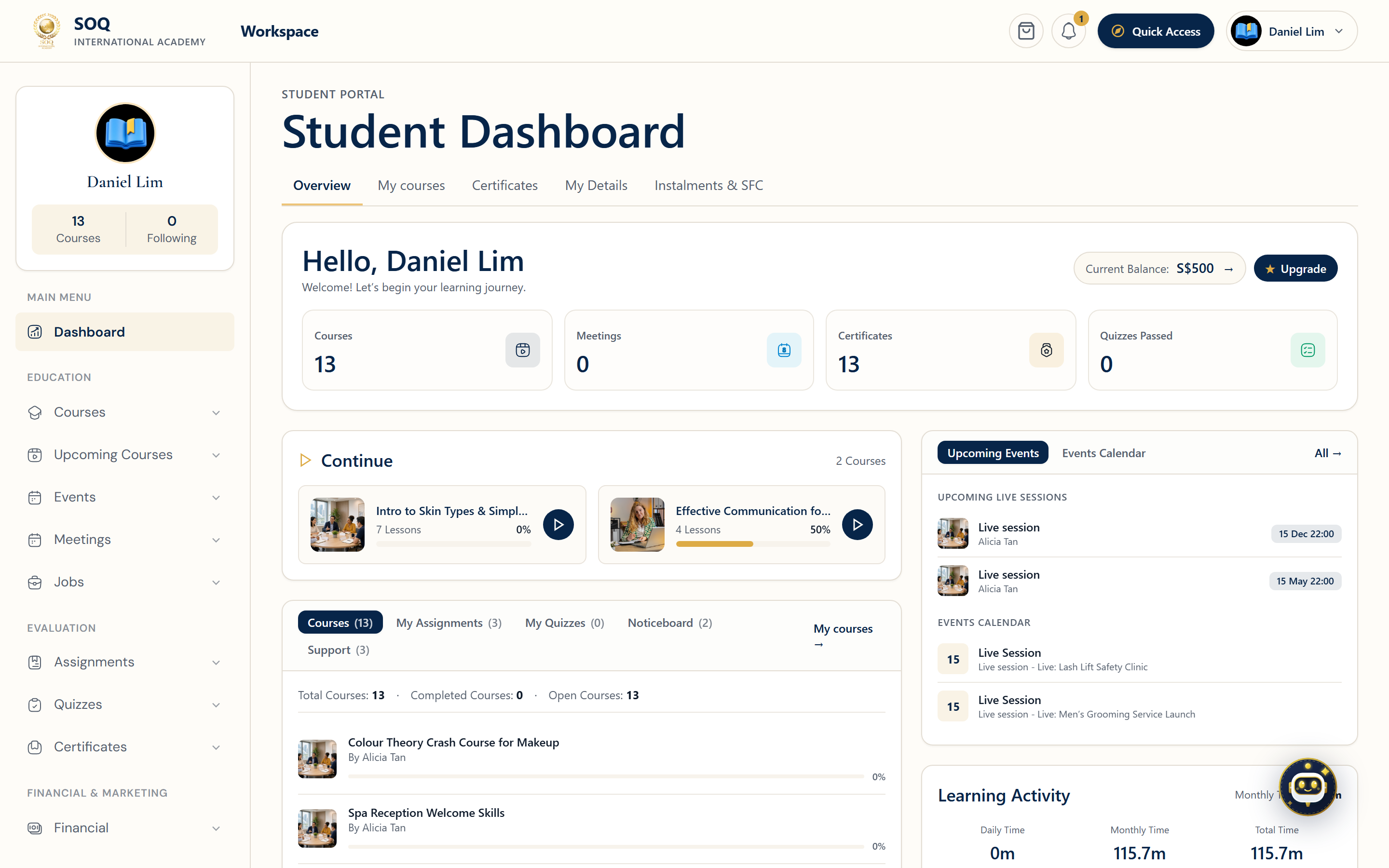
Live screenshot from the SOQ beauty demo (aiacademy.aiee.dev).
Surfaces, roles and current terminology
| Surface | Current navigation terminology | Status |
|---|---|---|
| Entitlement | Panel ? My Courses ? Continue Learning | Requires enrollment, assignment, subscription, or another valid entitlement |
| Content | Learning Page ? course sections and items | Core course delivery; item types vary |
| Progress | Learning Page ? item completion and course progress | Depends on content completion rules |
| Collaboration | Learning Page ? course chat, notes, assignments, course forum | Availability depends on course settings and feature activation |
| Live delivery | Learning Page ? live sessions/join controls | Requires scheduled session, enrollment, and provider setup |
Permissions, settings and activation
- The user must have a valid course entitlement that has not expired or been revoked.
- Content visibility can depend on publication state, prerequisites, sequence, release date, or session time.
- Assignments and course forums can be feature-gated; chat and notes must be enabled where settings expose them.
- Live-session access also depends on the configured provider and the session's availability window.
Core workflows
Learn and record progress
- Open Panel ? My Courses and select Continue Learning.
- Use the course sections to open the next available content item.
- Complete the item using its displayed action and allow progress to save before leaving.
- Return to the course overview to confirm the updated completion percentage.
Collaborate or submit work
- Use course chat for course-scoped messages and notes for personal learning notes where available.
- Open an assignment, read its requirements and due date, then submit through the assignment control.
- Use the course forum for topic-based discussion when activated and enabled.
- Return later to review replies, grades, or requested changes.
Join a live session
- Open the live-session item from the Learning Page near its scheduled time.
- Confirm the displayed timezone and session status.
- Use Join when the control becomes available.
- If no link appears, verify entitlement and session state before contacting support.
Learner Lifecycle Operations (Sprint 4)
Course Deferment & Transfer Request
When unforeseen circumstances (e.g., medical reasons, personal emergencies, scheduling conflicts) prevent continuing with the current cohort:
- Navigate to Panel → My Purchases (
/panel/webinars/purchases). - On the enrolled course card, open the action dropdown menu and select Request Deferment / Transfer.
- Choose the request Type:
deferment(postpone to a future intake),transfer(switch to another active class), orwithdrawal(formal withdrawal). - Enter the detailed Reason (minimum 5 characters).
- (Optional) Select target course or intake ID (
to_webinar_id/to_intake_id). - Upload supporting verification documents (e.g. Medical Certificate, official employer letter, max 10MB).
- Submit the request. A lifecycle record is logged in
class_transferswith statuspending_defermentfor academic operations review.
Absence Justification & Make-up Class Registration
Learners who miss a live lecture or practical session can register for an authorized make-up class to fulfill attendance criteria (e.g. 75% WSQ requirement):
- In Panel → My Purchases / Attendance, locate the missed session or select Request Make-up.
- Fill in the justification reason and attach valid proof documents (e.g. Medical Certificate - MC, excuse letter).
- Upon submission, a
MakeUpSessionrecord is created (status: pending) and an automated support ticket (Absence Justification & Make-up Request #ID) is assigned to the Academic & Attendance Support team. - Once the trainer or operations admin reviews and approves the request, the system automatically triggers
AttendanceCalculationService::calculateStudentAttendance(), updating attendance percentage and restoring assessment/certification eligibility.
Result states
- Success: Eligible content opens, completion persists, submissions are recorded, and live sessions can be joined during the allowed window.
- Pending: Content is scheduled, a submission awaits grading, a prerequisite remains incomplete, a live session has not opened, or a deferment/make-up request is pending review.
- Denied: Entitlement is missing/expired, content is locked, the attempt is closed, or the collaboration feature is unavailable.
- Error: Content playback, progress save, upload, chat, or live-provider launch fails; preserve submission evidence and report the exact item and time.