
Certificates and Become Instructor
Learners download certificates after meeting completion rules. Applicants use the public Become Instructor flow; staff approve requests from Users tools at the configured Admin URL.
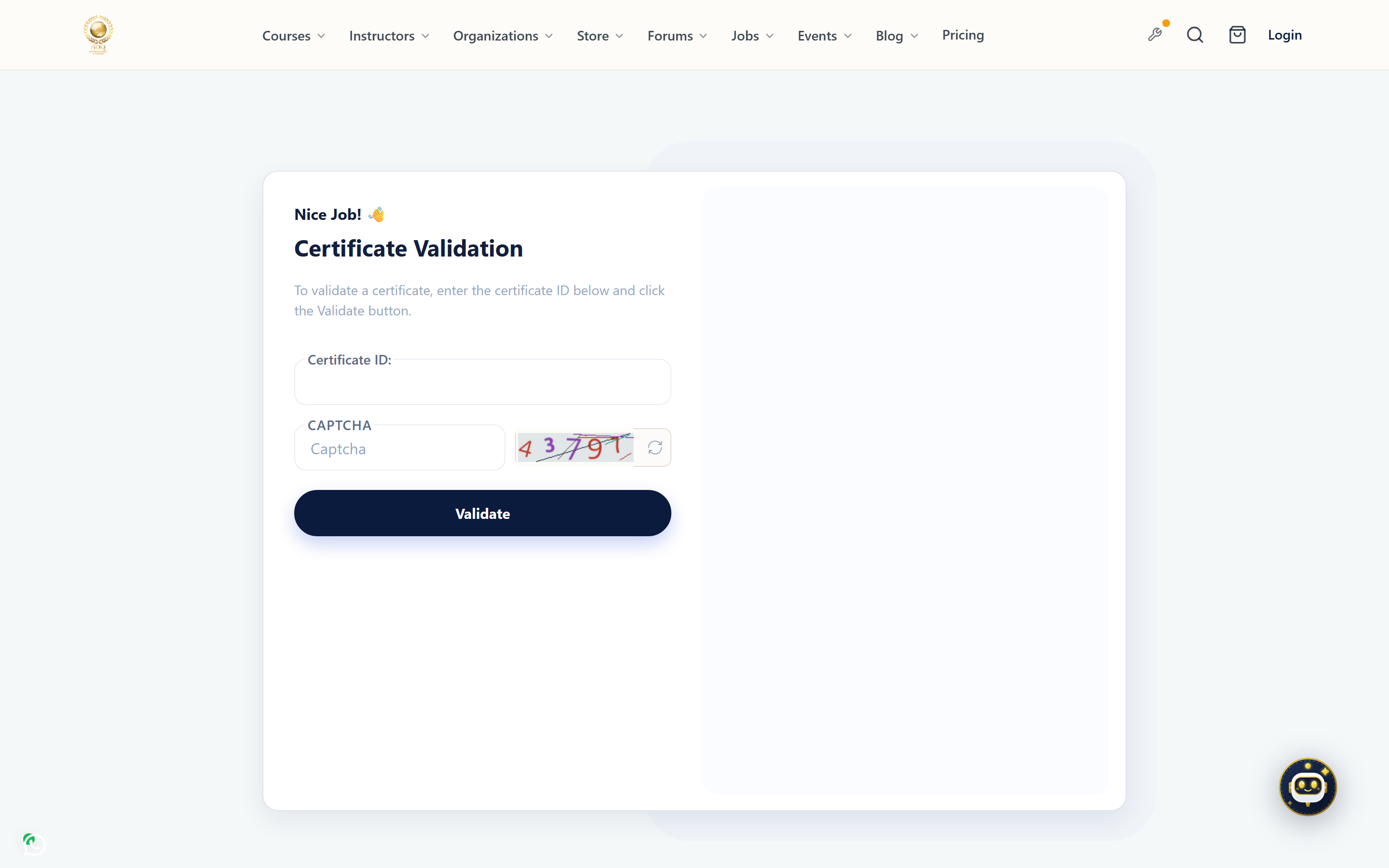
Live screenshot from the SOQ beauty demo (aiacademy.aiee.dev). Controls in the image are not clickable.
Surfaces, roles and current terminology
| Surface | Current navigation terminology | Status |
|---|---|---|
| Learner certificates | Panel ? Certificates / course completion download | Feature-gated certificates module |
| Public validation | Public certificate validation page | Depends on certificates module |
| Become instructor | Public ? Become Instructor application | Core application; manual approval |
| Admin certificates | Certificates management at the configured Admin URL | Feature not activated stub when the module is inactive |
Permissions, settings and activation
- Certificate templates and quiz/completion rules must be configured before promising downloads.
- If Admin certificate screens show Feature not activated, activate the module via Activations / https://soq.edu.sg before operations planning.
- Become Instructor approval changes role capabilities; review permissions after approval.
- Do not treat a validation page success as proof that Admin certificate tooling is enabled.
Core workflows
Issue and download a certificate
- Confirm the certificates feature is active and a template exists for the course or quiz path.
- Complete the required learning or assessment conditions on a test enrollment.
- Open Panel certificates or the course completion action and download the file.
- Optionally validate the certificate ID on the public validation page.
Process a become-instructor application
- Applicant submits the public Become Instructor form.
- Staff open Users ? Become Instructor at the configured Admin URL.
- Approve or reject with the correct target role and permissions.
- Applicant signs in and verifies instructor Panel menus and course creation access.
Result states
- Success: The certificate downloads or validates, or the applicant gains instructor access after approval.
- Pending: Learning conditions are incomplete, or the instructor request awaits staff review.
- Denied: The certificates module is inactive, conditions failed, or the application was rejected.
- Error: Missing templates, broken PDF generation, or role assignment errors block completion; fix configuration before retrying.