
Admin Marketing Operations
Administrators and marketing staff work from the configured Admin URL. Availability depends on role permissions, settings, and enabled feature activation.
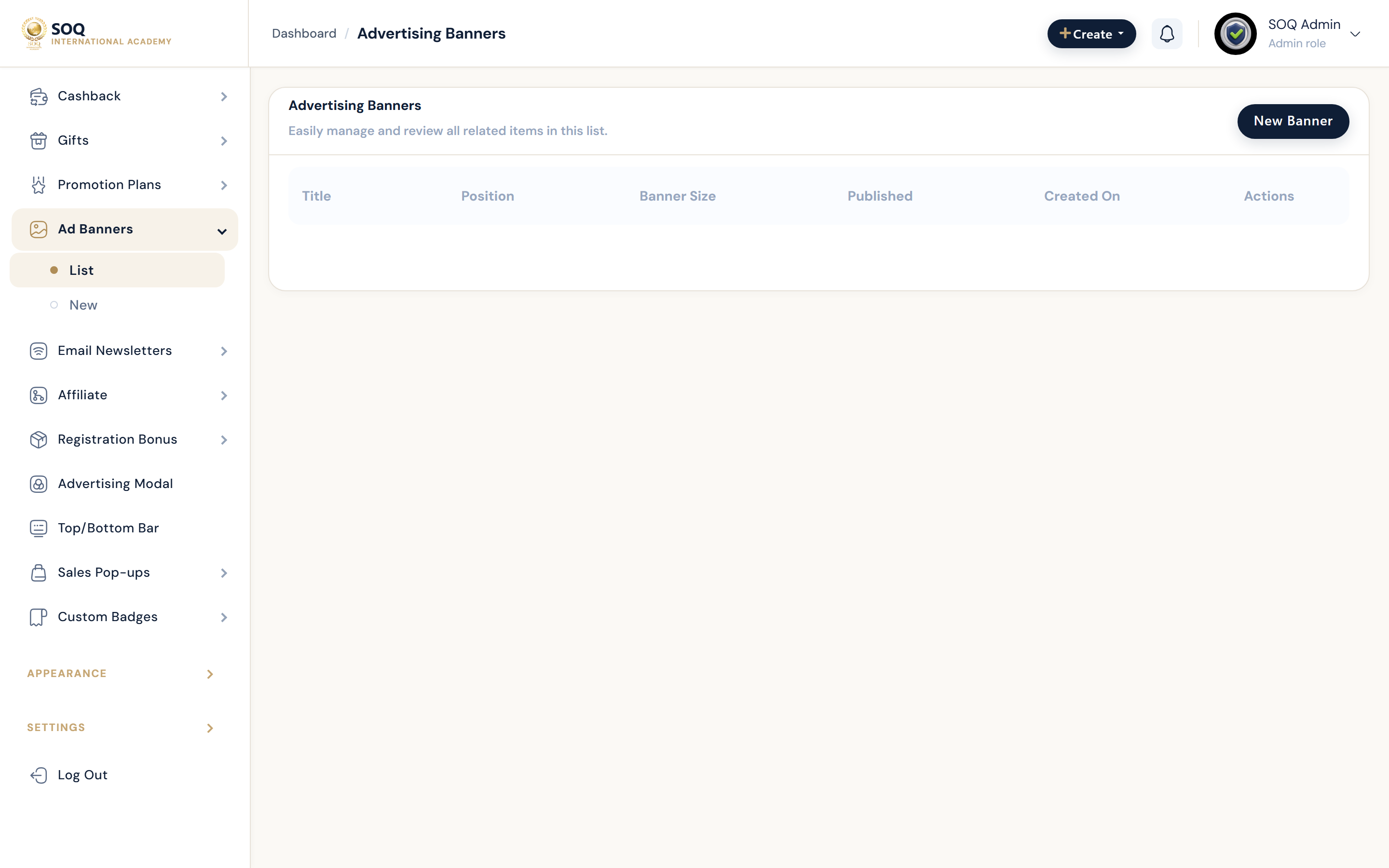
Live screenshot from the SOQ beauty demo (aiacademy.aiee.dev).
Surfaces, roles and current terminology
| Surface | Current navigation terminology | Status |
|---|---|---|
| Cart discounts | Marketing/Financial ? Discount Codes and Special Offers | Core |
| Featured classes | Marketing ? Featured Courses | Feature-gated where shown as inactive |
| Cashback, gifts, promotions | Marketing ? Cashback, Gifts, Promotions | Feature-gated |
| Campaign surfaces | Marketing ? Banners, Modal, Floating Bar | Feature-gated |
| Acquisition | Marketing ? Registration Bonus and Purchase Notifications | Feature-gated |
| Merchandising | Marketing/Store ? Product Badges | Feature-gated |
Permissions, settings and activation
- Grant marketing staff only the relevant list/create/edit/delete permissions.
- Confirm Financial settings before publishing discounts, cashback, gifts, or registration bonuses.
- Confirm each optional feature is activated in Activations and enabled in settings before planning a campaign.
- An inactive Admin module page is a status stub, not a working campaign interface.
Core workflows
Publish a price campaign
- Choose Discount Codes, Special Offers, Cashback, Gifts, or Promotions according to the campaign mechanic.
- Set eligibility, dates, value, usage limits, and applicable courses or products.
- Save as inactive or limited where the surface supports staged setup.
- Test the cart total, checkout result, and recipient benefit before promoting the campaign.
Publish a visibility campaign
- Choose Featured Courses, Banners, Modal, Floating Bar, Purchase Notifications, or Product Badges.
- Select the target item, placement, audience, schedule, and copy available on that surface.
- Publish and verify on the intended public page and viewport.
- Remove or expire the placement when the campaign ends.
Configure registration incentives
- Open Registration Bonus and confirm the feature is active.
- Set qualifying registration conditions and the awarded benefit.
- Register a test account and verify that the award is neither missing nor duplicated.
- Monitor downstream wallet or purchase behavior.
Result states
- Success: The campaign is active in its date window, appears on the intended surface, and calculates the expected benefit once.
- Pending: The campaign is scheduled, inactive, awaiting content, or awaiting feature activation.
- Denied: The staff role lacks marketing permission or the feature is not activated.
- Error: Invalid dates, limits, eligibility, or conflicting price rules prevent save or produce an unexpected total; disable the campaign until corrected.