
Panel Store, Marketing and Communications
Students, instructors, organizations, and support participants see different Panel menus. Store management, financial marketing, rewards, and publishing controls require the corresponding role and active feature.
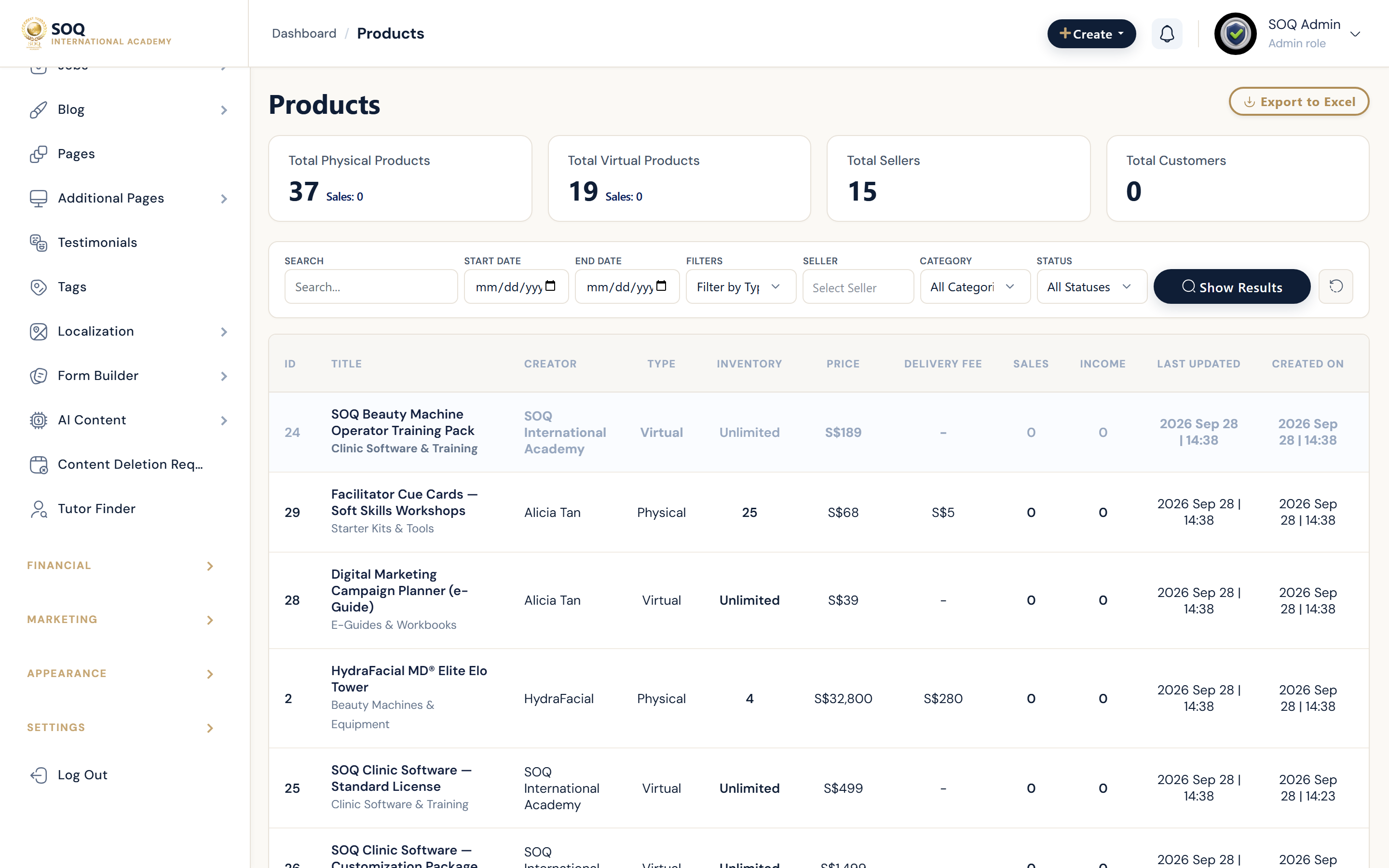
Live screenshot from the SOQ beauty demo (aiacademy.aiee.dev).
Surfaces, roles and current terminology
| Surface | Current navigation terminology | Status |
|---|---|---|
| Commerce | Panel ? Store and Financial | Store is feature-gated; financial views depend on role |
| Marketing and rewards | Panel ? Marketing, Promotions, Rewards | Feature-gated where present |
| Direct help | Panel ? Support and Public Chat | Support is core; public chat is feature-gated |
| Community and publishing | Panel ? Forums, Blog, Noticeboard | Blog is core; forums/noticeboard are feature-gated |
| Automation | Panel ? AI Content and Notifications | AI is feature-gated; notifications depend on channel settings |
Permissions, settings and activation
- Only owners or assigned staff may manage products, financial marketing, blog posts, or audience communications.
- Students may purchase, earn rewards, open support, and participate where posting permissions allow.
- Public chat, forums, noticeboard, store, rewards, promotions, and AI controls can require activation and enabling.
- Email or SMS delivery also requires correctly configured channels; an in-panel notification does not prove external delivery.
Core workflows
Manage a store or promotion
- Open Store or the available financial/marketing menu.
- Create or select the owned product or promotion and complete pricing, inventory, eligibility, and dates.
- Publish only after checking the public listing and cart behavior.
- Track orders or results from the corresponding Panel financial surface.
Handle a conversation
- Choose Support for account/course cases, Public Chat for live public conversations, or Forums for community topics.
- Open the thread in the correct user and course context.
- Reply, resolve, or moderate according to your role.
- Confirm the recipient can see the response and close the case where supported.
Publish and notify
- Create the Blog or Noticeboard content; use AI Content only when that feature is active.
- Review generated or drafted copy for accuracy and SOQ branding.
- Select audience, visibility, and schedule.
- Publish, then check in-panel and configured external notifications.
Result states
- Success: The item, message, reward, or notice reaches the intended audience and the related order/thread status is updated.
- Pending: A draft, scheduled publication, open support case, unfulfilled order, or queued notification remains outstanding.
- Denied: Ownership, role permission, posting permission, or feature activation is missing.
- Error: Validation, inventory, payment, delivery-channel, or moderation failure blocks completion; preserve the draft or thread and retry after correction.