
Panel Education and Evaluation
Students, instructors, and organizations use role-specific Panel education menus. Creation and grading controls appear only to owners or permitted teaching roles.
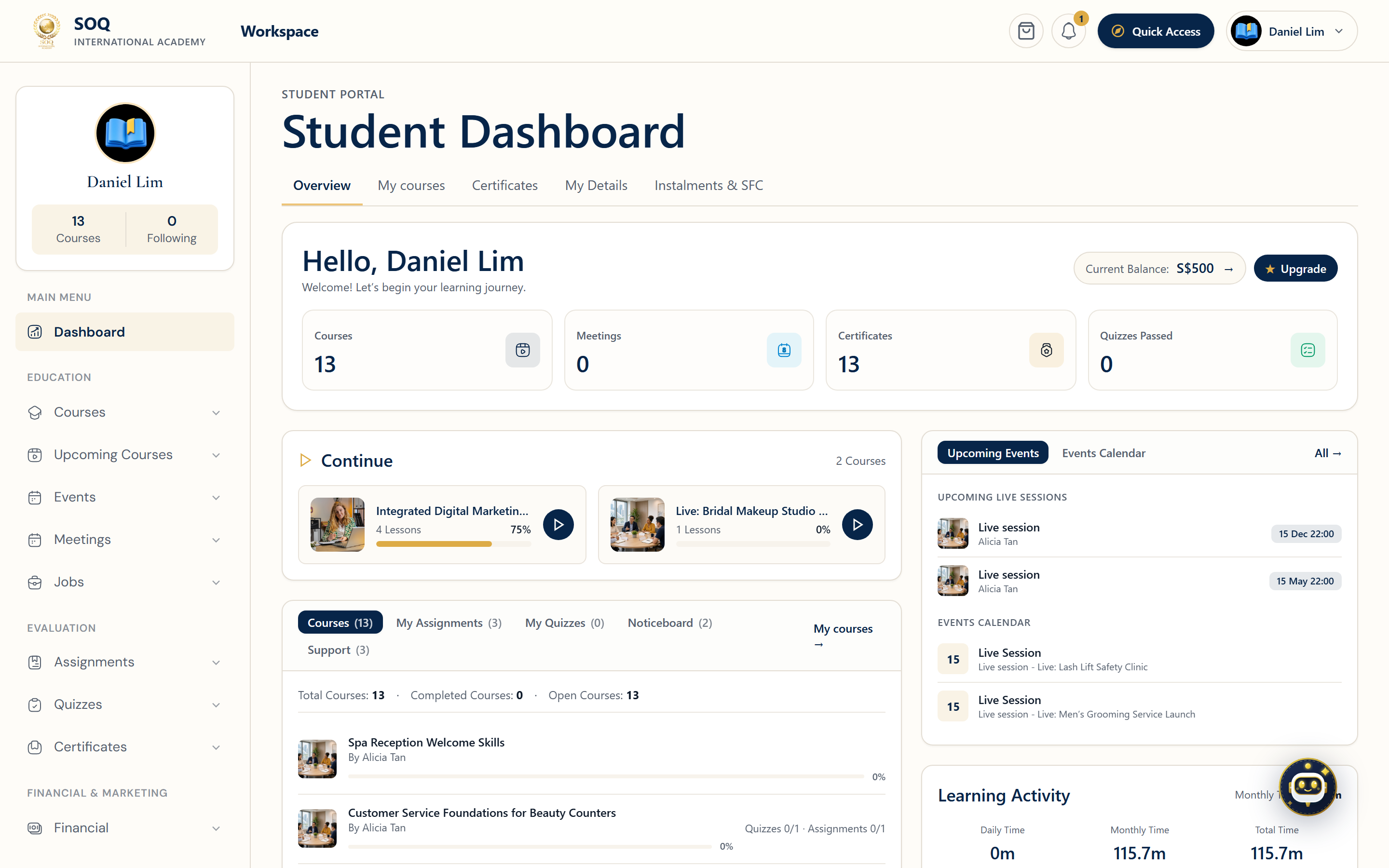
Live screenshot from the SOQ beauty demo (aiacademy.aiee.dev).
Surfaces, roles and current terminology
| Surface | Current navigation terminology | Status |
|---|---|---|
| Schedule | Panel ? Calendar, Upcoming Courses, Events, Meetings, Jobs | Calendar/course surfaces plus feature-gated modules |
| Catalog | Panel ? Courses and Bundles | Courses are core; bundles are feature-gated |
| Evaluation | Panel ? Assignments, Quizzes, Certificates | Feature-gated |
| Participation | Panel → Attendance & Make-up Sessions | Feature-gated |
| Learner view | Panel ? My Courses and course Learning Page | Requires enrollment or other entitlement |
Permissions, settings and activation
- Instructors and organizations need ownership or teaching assignment to edit course-linked activities.
- Students need enrollment or another valid entitlement before participating.
- Meetings, bundles, upcoming courses, events, jobs, assignments, quizzes, certificates, and attendance can be unavailable until activated and enabled.
- Certificate issuance depends on its configured completion or assessment conditions.
Core workflows
Plan learning activity
- Review Panel ? Calendar and the course schedule.
- Create or update the course, upcoming course, bundle, event, meeting, or job item available to your role.
- Set ownership, dates, capacity, and visibility.
- Publish or submit for review, then confirm it appears for the intended audience.
Run evaluation
- Open the owned course and add an assignment or quiz.
- Set instructions, due dates, grading rules, attempts, and certificate conditions where available.
- Students submit or attempt from their learning surface.
- Grade pending work and confirm results, completion, and certificate status.
Record attendance & approve make-up sessions (Sprint 4)
- Open Attendance for the applicable course or session.
- Select the correct session and mark student check-in status (present, absent, late).
- Make-up Session Review: When learners submit absence justifications with medical certificates (MC) or valid proof, instructors can review and approve make-up classes.
- Automated Attendance Recalculation: Approving a make-up request triggers
AttendanceCalculationService::calculateStudentAttendance(), updating the student's cumulative attendance percentage and immediately unlocking exam/certification eligibility.
Result states
- Success: Published items are visible to eligible learners; grades, attendance, progress, and certificates update according to configured rules.
- Pending: A draft, review, scheduled session, ungraded submission, meeting request, or certificate condition remains incomplete.
- Denied: The user lacks ownership, teaching permission, enrollment, package capacity, or feature activation.
- Error: Invalid scheduling, missing content, closed attempts, or configuration failure blocks the action; retain submissions and correct the underlying setup.